

Where workspaces live
Open Manage Workspace › General from the left sidebar to see and edit the active workspace.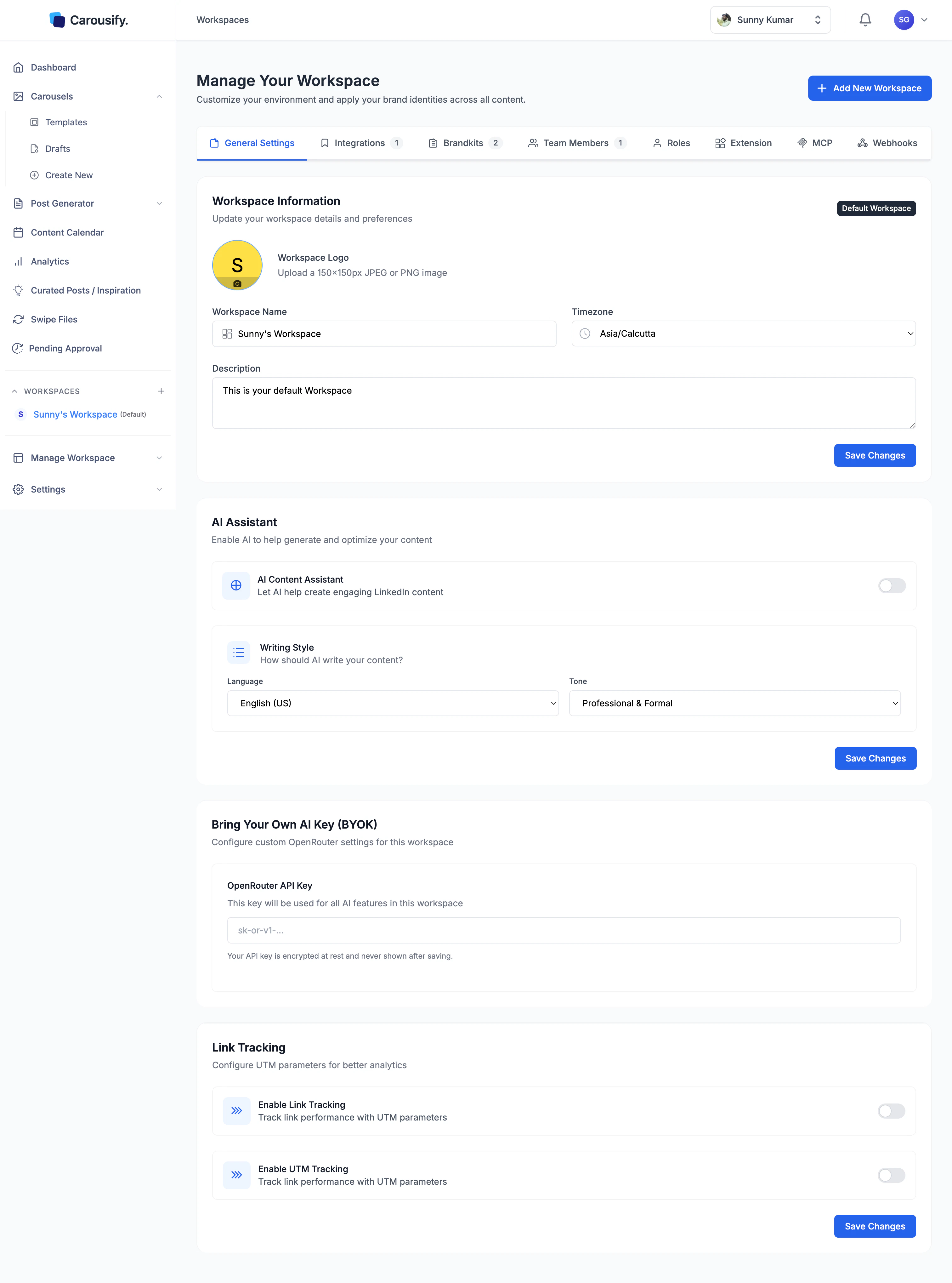
What’s stored per workspace
Each workspace owns:- Workspace info — name, logo, timezone (used for scheduling), description
- Brand kits — fonts, colors, logo, and author identity for carousels. Logos are stored in the workspace’s own uploads
- Social accounts — LinkedIn profiles, LinkedIn pages, and Instagram accounts connected for this workspace only (see Connect your LinkedIn account)
- Integrations, webhooks, and AI assistant connections — Notion, Slack, Zapier, webhooks, MCP, and browser extension keys
- Team members and roles — who can do what inside the workspace
- AI defaults — language, tone, optional Bring-Your-Own-Key (OpenRouter)
- Link tracking & UTM — toggle on per workspace if you want shortened, attributable links
- Drafts, scheduled posts, published posts, analytics — fully scoped to the workspace
Switching workspace is a hard context switch. A draft you start in one workspace stays there — it doesn’t follow you into another workspace.
Add a new workspace
Click Add New Workspace at the top of the Manage Your Workspace page (or the + in the sidebar workspace list).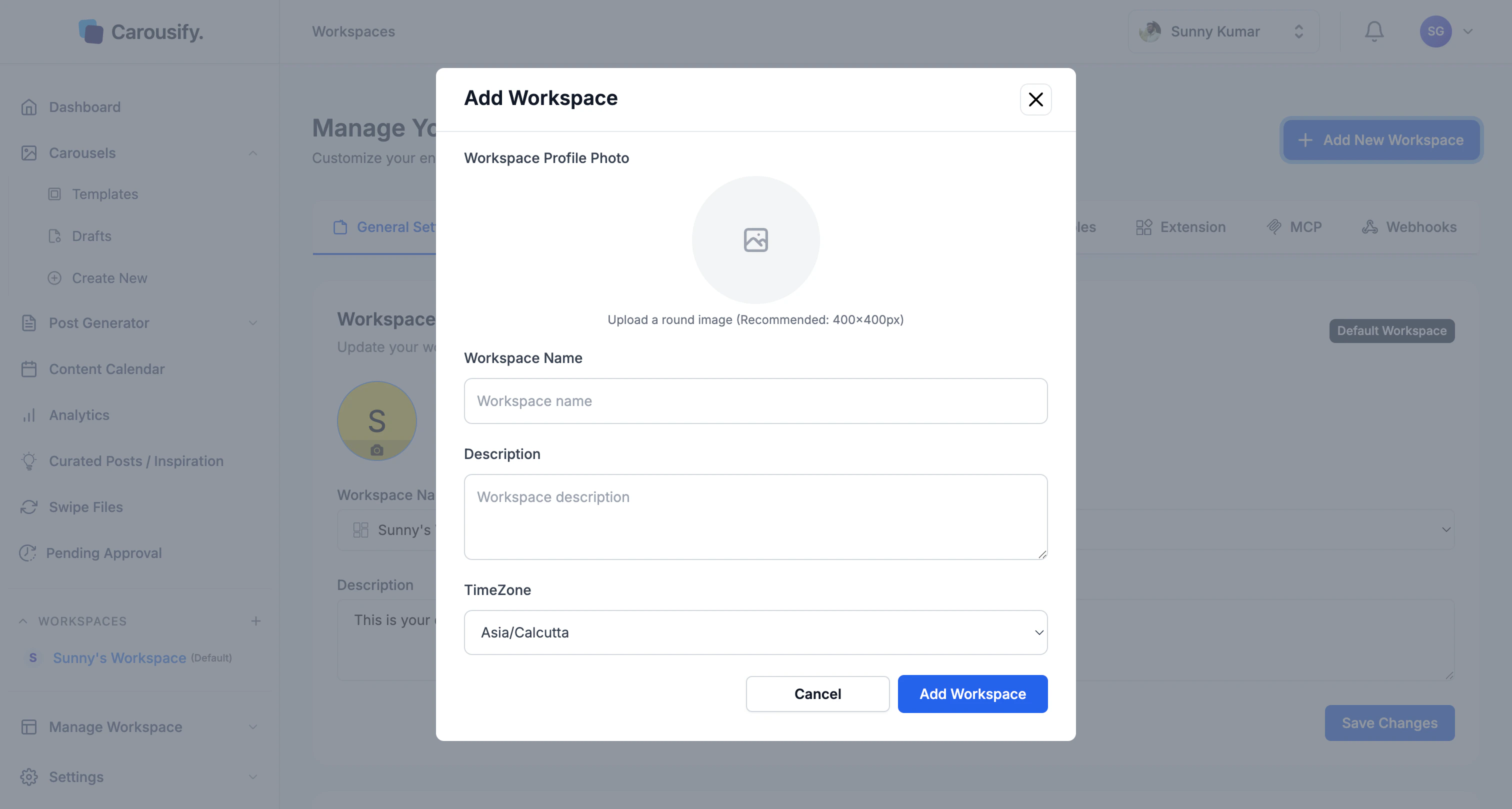
Delete a workspace
At the bottom of Manage Workspace › General, the Danger Zone has Delete this workspace. TypeDELETE to confirm. You need the Delete Workspace permission, and you can’t delete your default workspace.
Deleting is immediate for everyone: team members lose access, scheduled posts are cancelled, and connected accounts are disconnected. The workspace’s data — posts, brand kits, templates, analytics — is permanently removed about 7 days later.
What’s next
Invite your team
Add members to a workspace and assign them roles.
Roles and permissions
Control what each member can see and do.
Connect client LinkedIn accounts
Manage multiple clients without holding their credentials.
Approval workflow
Require manager review before posts go live.