

Slack’s official Incoming Webhooks app is what we use for this. It’s a one-way pipe from Carousify into your Slack channel — Carousify can post messages, but it can’t read anything from your workspace.
What gets sent
Carousify will post a Slack message for whichever of these three events you tick:
Notifications cover LinkedIn and Instagram posts. Each message includes:
- The event, e.g. Post Published
- A preview of the post — the first 200 characters, or the number of attached media files if the post has no text
- The account it was posted to (or attempted on), marked Profile or Page
- For Post Scheduled, the date and time it’s scheduled for
- For Post Published on LinkedIn, a View on LinkedIn link to the live post
A workspace can have one Slack connection, posting to one channel. Slack is part of Carousify’s integrations — if your plan doesn’t include them, Connect opens an upgrade prompt.
Before you start
You’ll need:- A Slack workspace where you can install apps (or admin who can do it for you)
- Carousify open in another tab — you’ll be moving between the two
Step 1 — Open the Connect Slack modal in Carousify
In Carousify, go to Manage Workspace › Integrations and click Connect on the Slack card.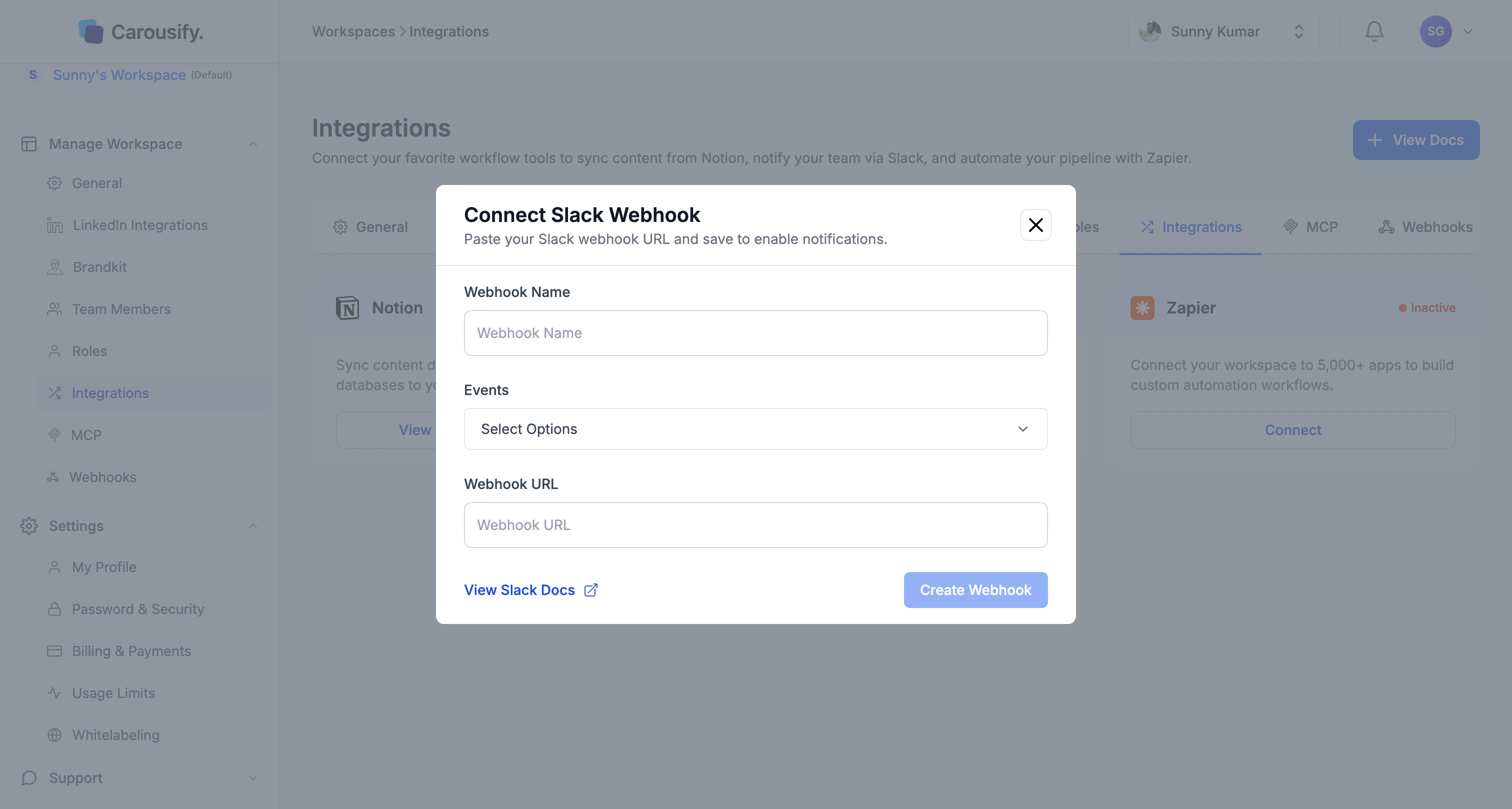
The View Slack Docs link opens this page.
Leave the modal open — you’ll come back to it after generating the webhook URL inside Slack.
Step 2 — Open Slack’s Incoming Webhooks app
Slack’s official Incoming Webhooks app is what gives you the URL to paste back. Open it directly: slack.com/apps/A0F7XDUAZ-incoming-webhooks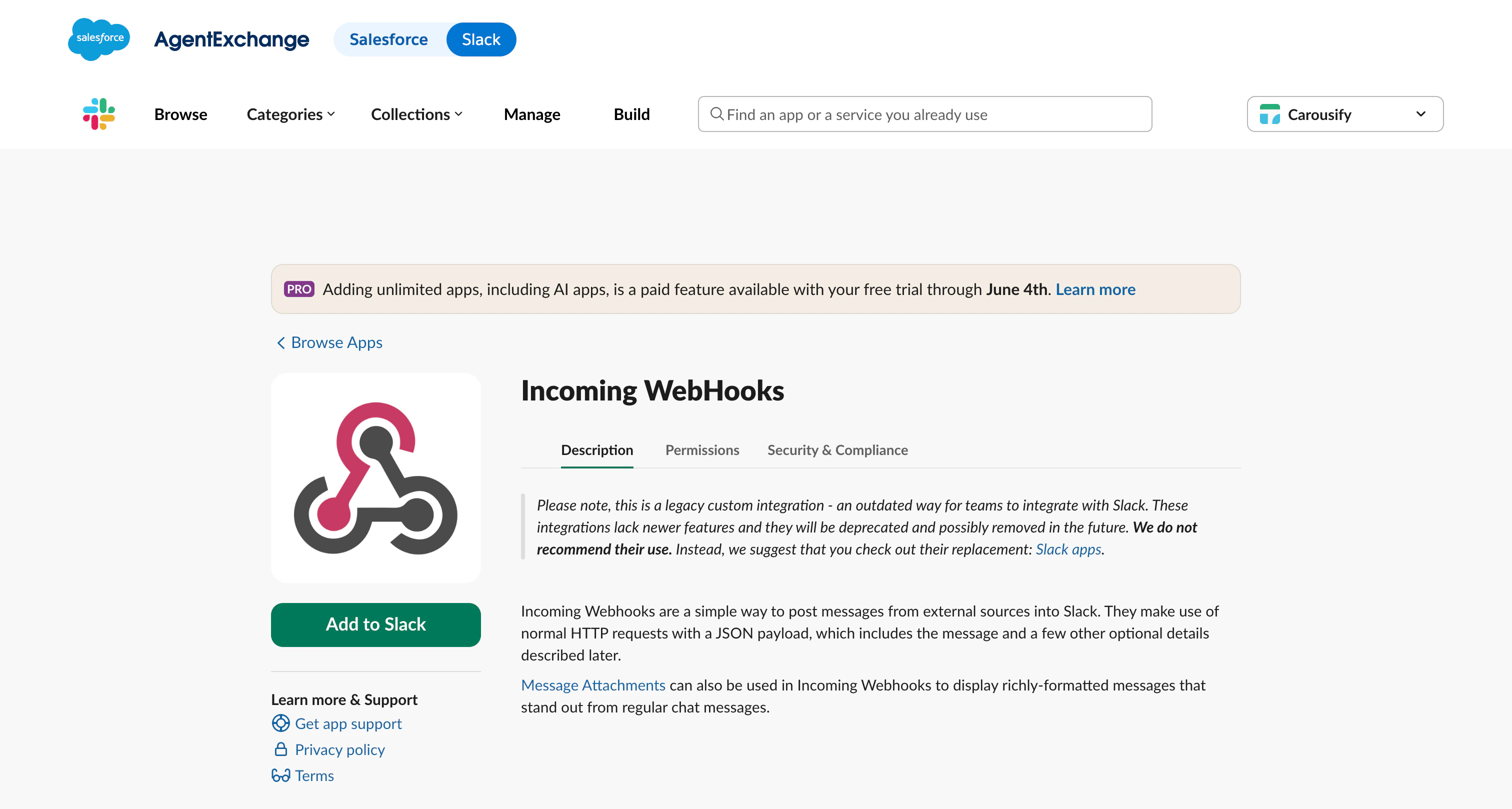
Slack labels Incoming Webhooks as a “legacy custom integration” with a deprecation notice on the page. It’s still fully supported and is the right tool for one-way notifications like ours — but yes, the warning is there.
Step 3 — Pick a channel
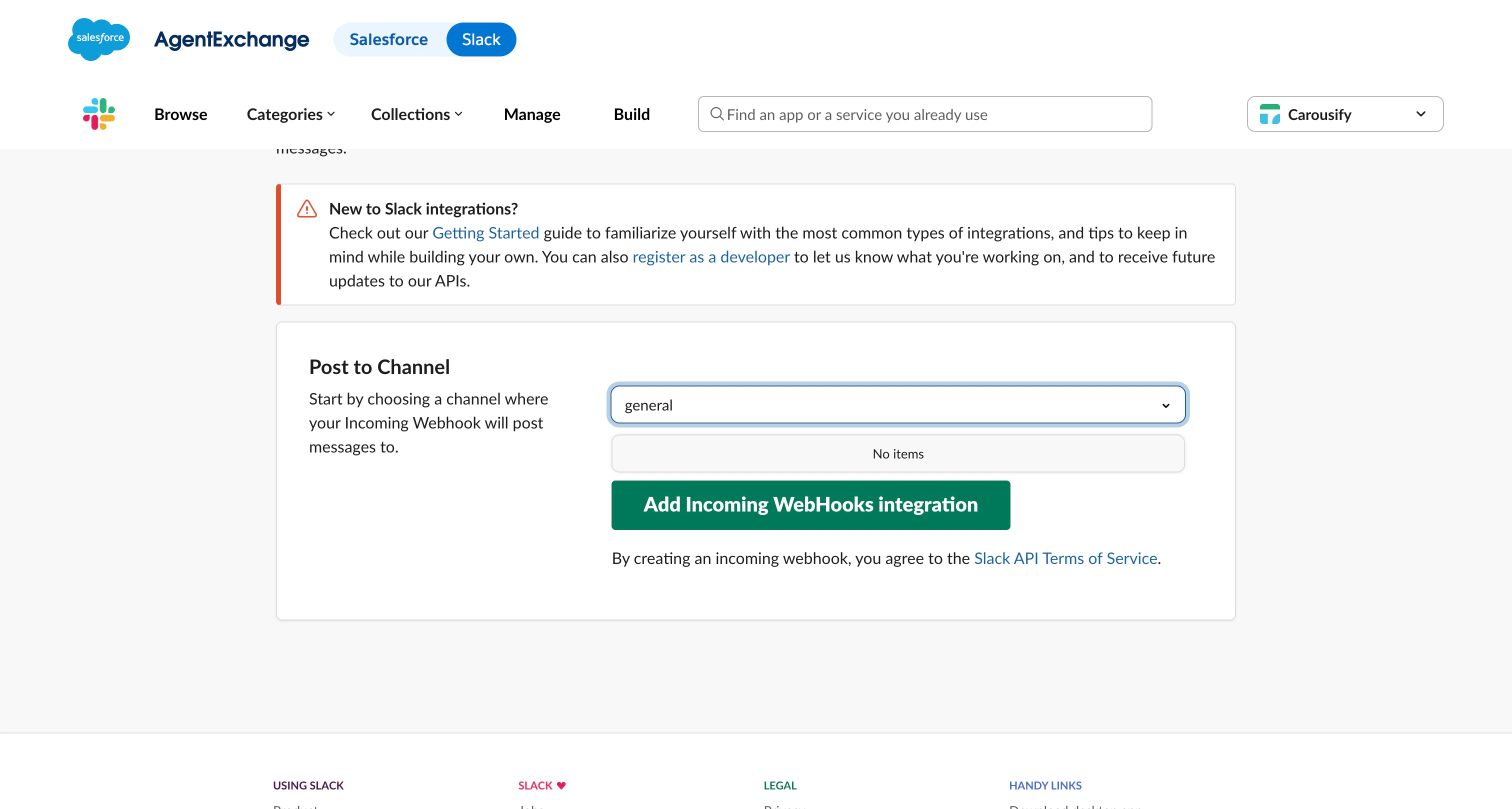
Slack opens a New configuration page. Under Post to Channel, type or pick the channel you want Carousify alerts to land in (a#social channel works well, or a private dedicated one).
Step 4 — Copy the webhook URL
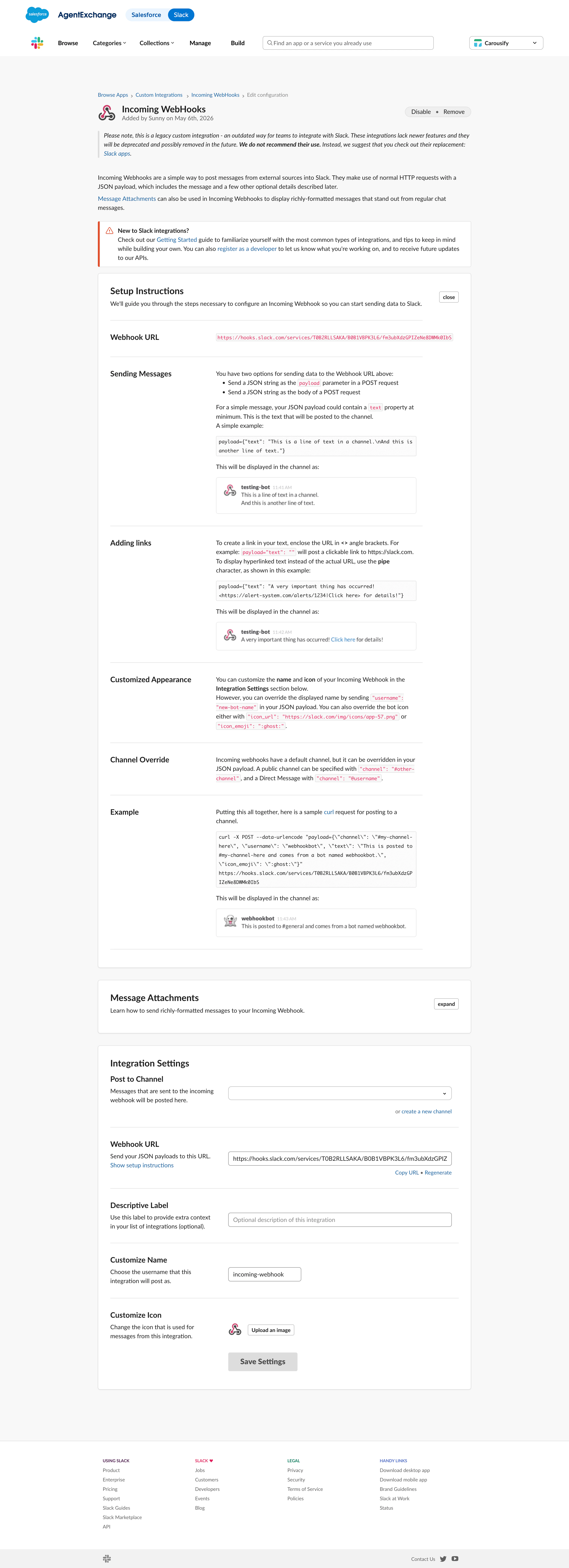
Slack lands you on the configuration page with the Webhook URL at the top. It looks likehttps://hooks.slack.com/services/... followed by a long token unique to your workspace.
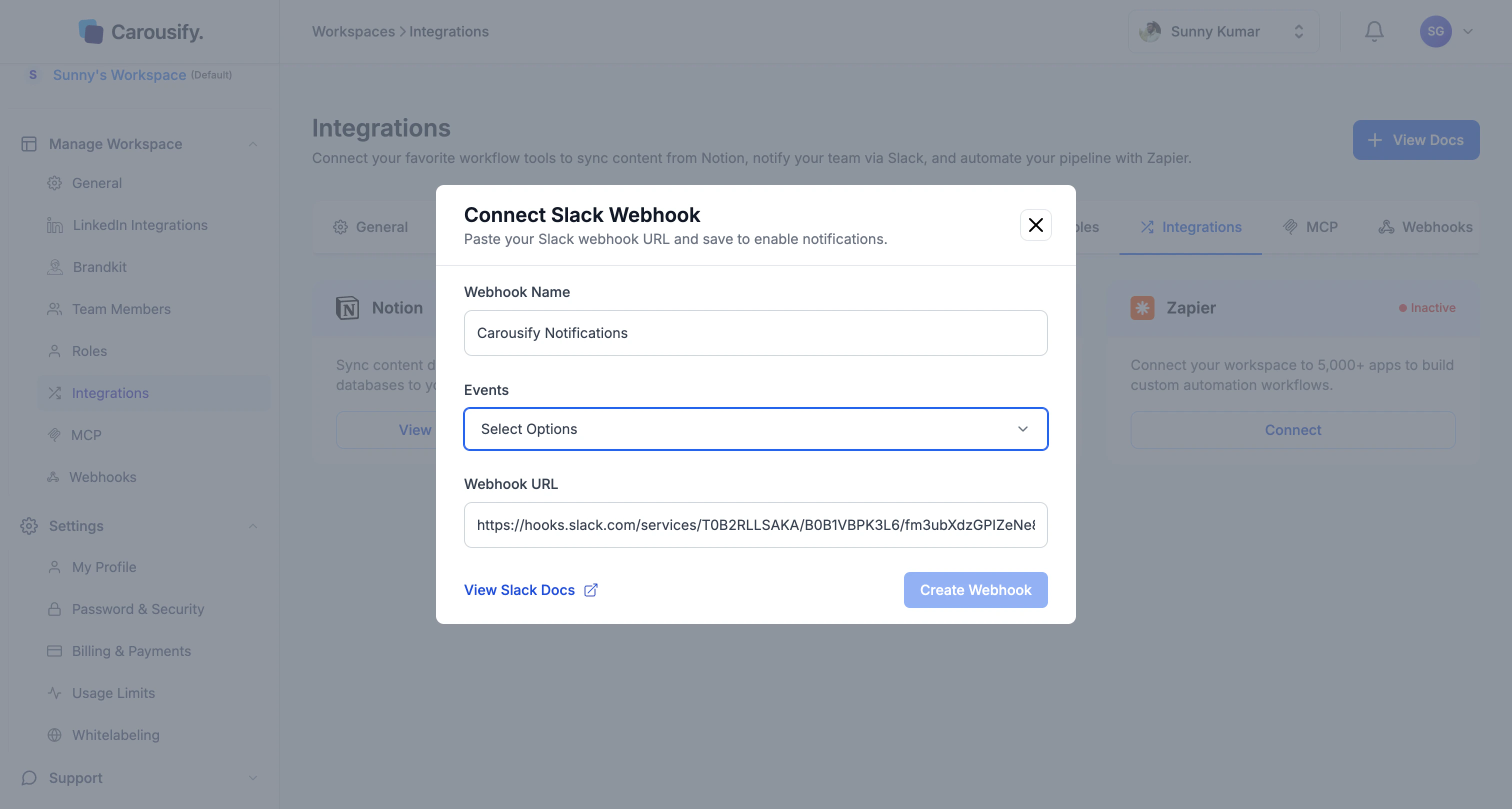
Step 5 — Paste it back into Carousify and pick events
Switch back to the Carousify Connect Slack Webhook modal:- Give it a Webhook Name — something you’ll recognize later, like
Carousify Notificationsor#social channel. - Click Events and tick the events you want sent — Post Scheduled, Post Published, Post Publish Failed, or any combination.
- Paste the Slack URL into the Webhook URL field.
View, change, or disconnect
On the Slack card in Manage Workspace › Integrations:- View shows the connected webhook — its name, URL, events, status, and created date.
- Disconnect removes it after you confirm. Notifications stop immediately.
Troubleshooting
- Nothing shows up in Slack. Double-check the webhook URL was pasted in full (it ends with a long token), the Slack channel still exists, and you ticked at least one event. Send a test from Slack itself by running
curl -X POST -H 'Content-type: application/json' --data '{"text":"test"}' YOUR_WEBHOOK_URL— if that lands, check the events listed under View on the Slack card, or disconnect and reconnect the integration. - Messages stopped suddenly. Most likely the webhook was revoked in Slack (someone removed the Incoming WebHooks custom integration, or regenerated the URL). Generate a new URL in Slack, then Disconnect the Slack card in Carousify and connect it again with the new URL.
- Notifications going to the wrong channel. Each Slack webhook URL is locked to one channel. Generate a new webhook in Slack for the new channel, then disconnect and reconnect Slack in Carousify with that URL.
- “A slack webhook already exists”. A workspace can only have one Slack connection. Disconnect the existing one first.
What’s next
Set up Zapier
Same three events, but routed through Zapier into anything else.
Schedule a post
Trigger your first Post Scheduled message and confirm Slack is wired up.
Approval workflow
Layer manager review on top of scheduled posts.
MCP server
Drive Carousify from Claude or VS Code when notifications aren’t enough.