

Branding is part of whitelabel, an Enterprise feature, and applies once whitelabel is switched Active (see Whitelabel overview). On other plans, contact Support to enable it at an additional charge.
Where to find it
In the left sidebar, open Settings › Whitelabeling and find the Brand identity section.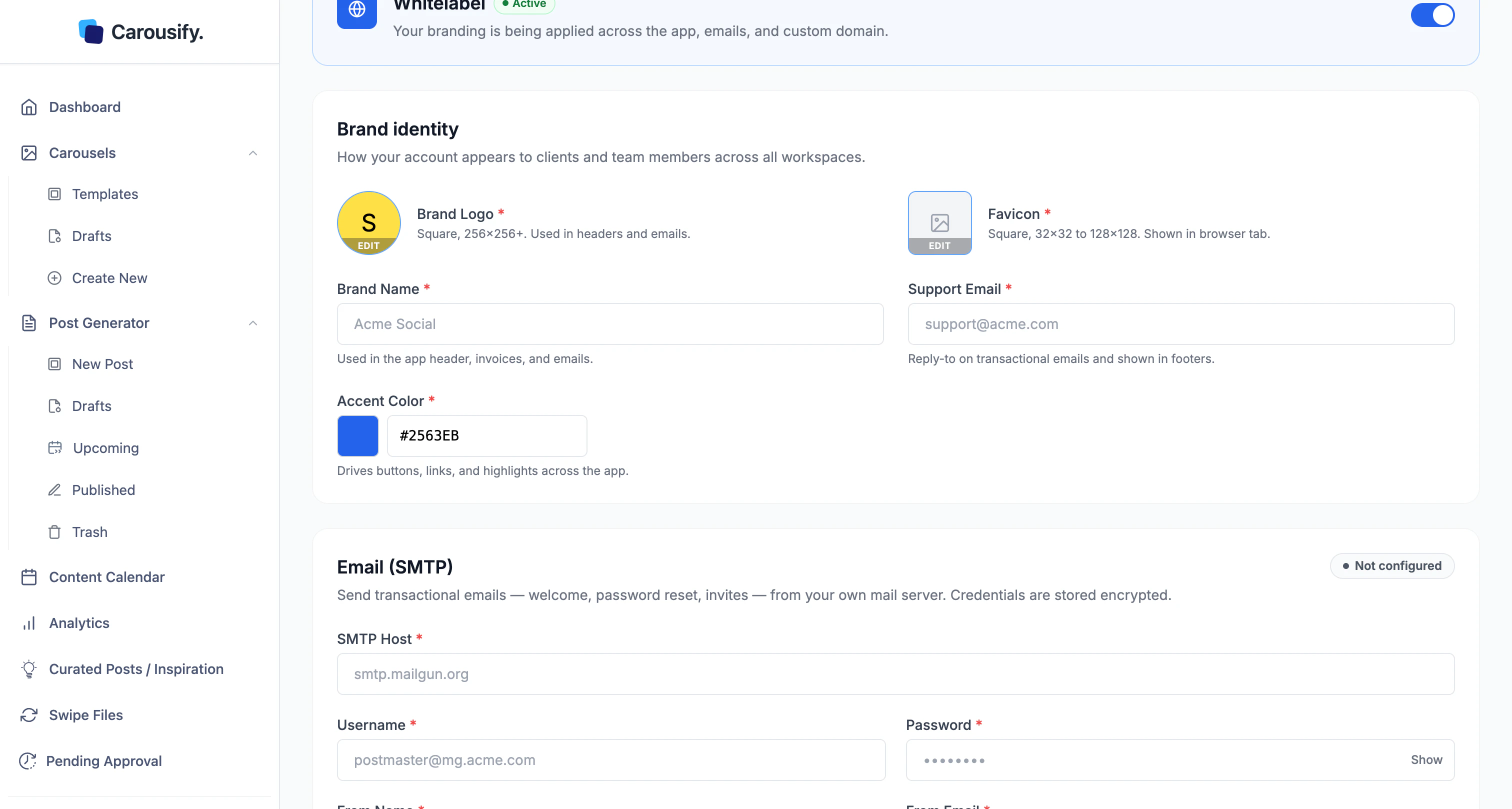
The fields
Every field is required for branding to render cleanly.Set it up
1
Upload your logo and favicon
Click EDIT on Brand Logo and pick a square image. Do the same for Favicon — a simplified mark reads better at tab size than a full logo with text.
2
Enter your brand name and support email
The name shows in the header and emails. Set the support email to your own inbox — it’s where clients and team members reach you for help.
3
Set your accent color
Click the color picker or type your brand’s hex code (e.g.
#2563EB).4
Click Save Changes
Save Changes is at the top and bottom of the page. Branding applies right after you save — there’s nothing to wait on.
What your clients see
On the whitelabeled domain, the sign-in screen, app header, and emails all carry your identity. Here’s the sign-in screen with a brand logo, name, and accent color applied: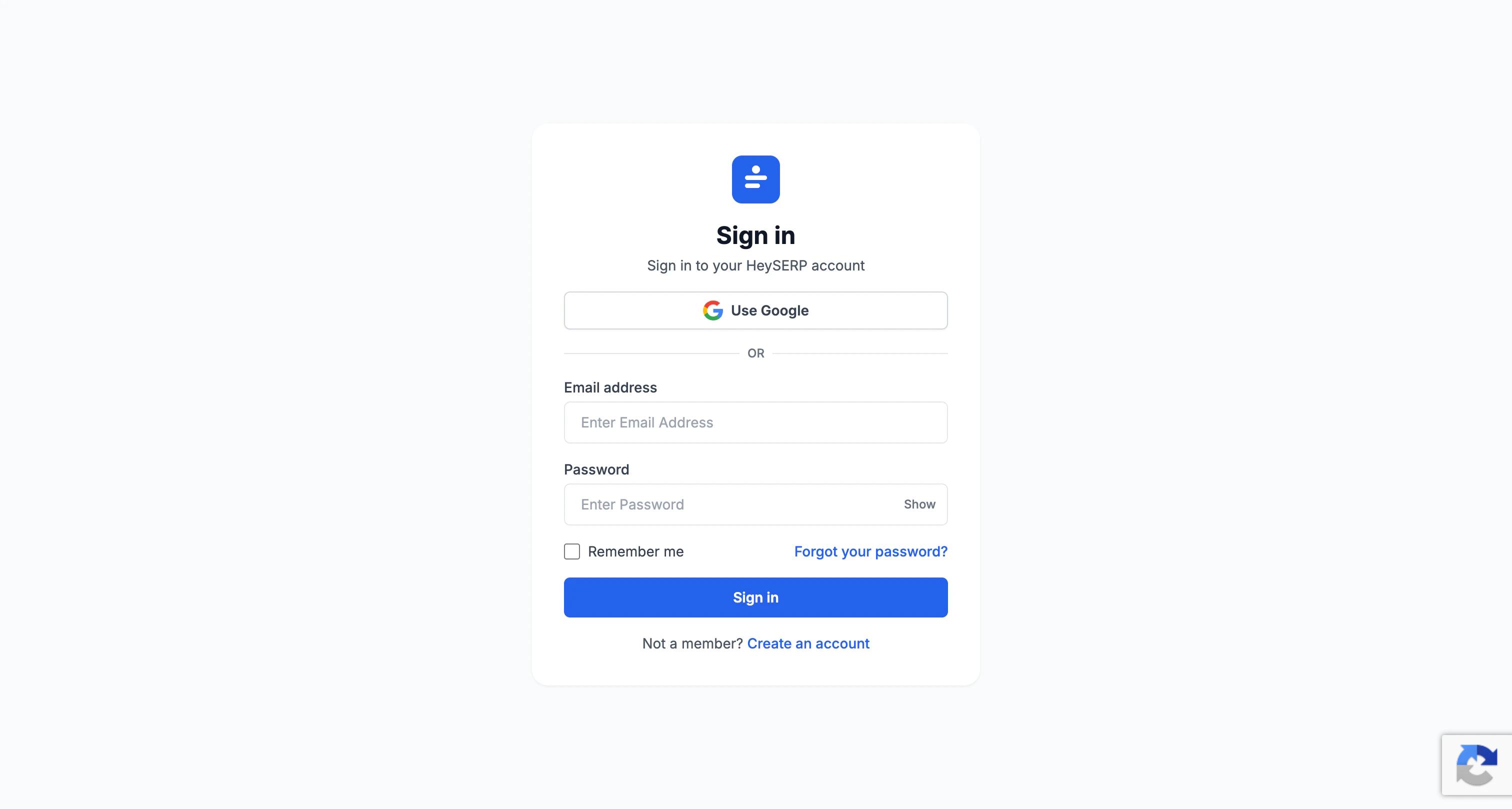
What’s next
Custom domain
Serve the branded app from a domain you own.
SMTP
Send transactional emails from your own mail server.
Whitelabel overview
How branding fits with the rest of the whitelabel setup.
Manage clients
Run client workspaces inside your branded setup.