

Where to find it
In the left sidebar, open Carousels › Create New to start fresh, Carousels › AI Generator to generate a design from a prompt, or Carousels › Templates to browse the gallery first. Existing work-in-progress lives under Carousels › Drafts.Four ways to start
From scratch
Open a blank deck and add headings, text, images, and shapes slide by slide.
From a template
Pick a pre-designed deck and swap in your own copy and colors.
With Smart Carousel
Rewrite the copy on an existing design from a topic, link, YouTube video, or PDF.
With the AI Generator
Describe the carousel in a prompt and get a complete design, then refine it by chat.
What the editor gives you
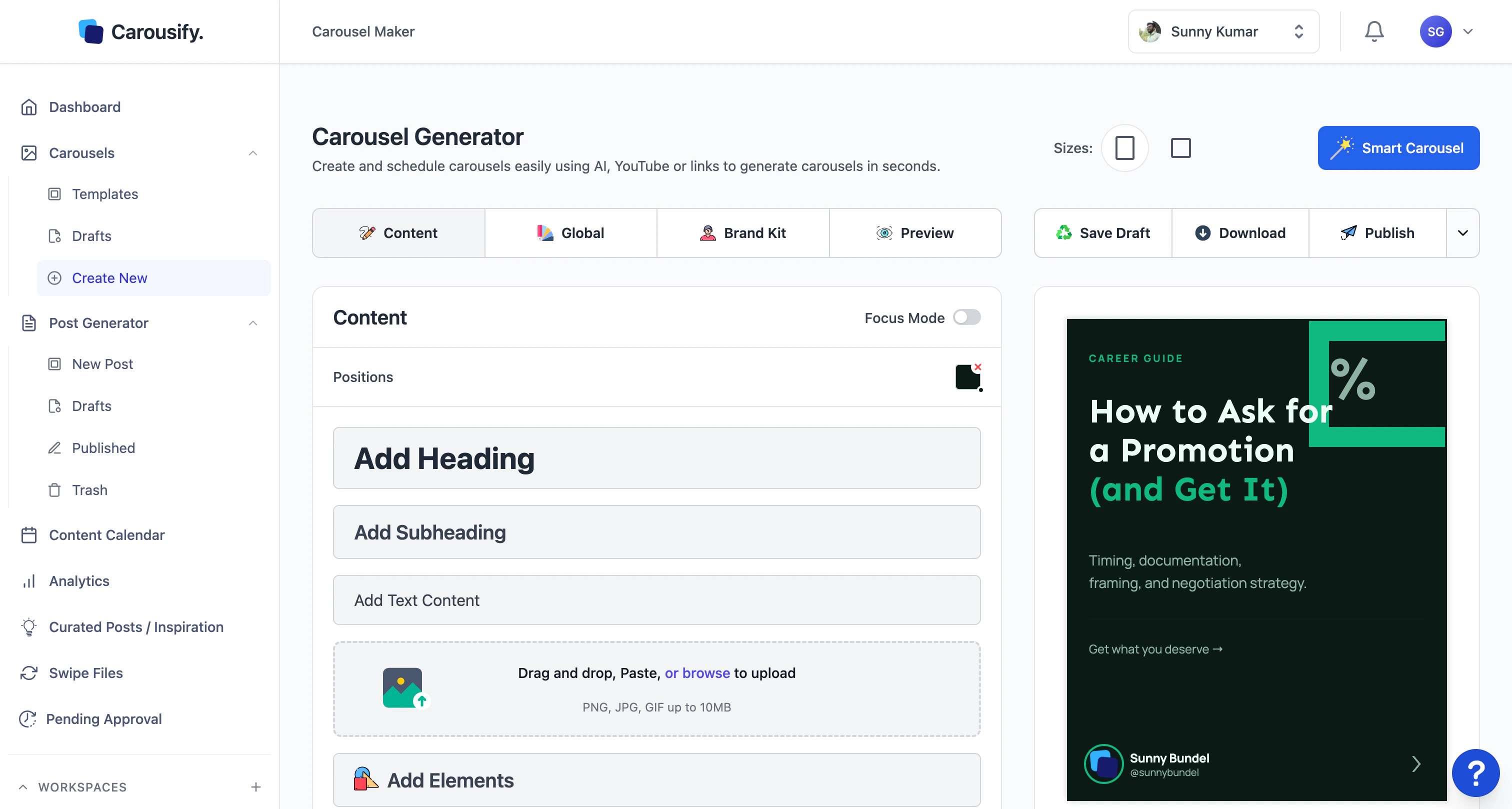
- Sizes — four canvas presets: Standard (56:71), Portrait (4:5), Feed (3:4), and Square (1:1). Switch at any time and the whole deck reflows. See the full size table.
- Slide tools — drag-and-drop to reorder, Reset Slide to revert one back to its starting state, and slide-by-slide navigation at the bottom.
- Elements — headings, subheadings, body text, images (PNG/JPG/GIF up to 10MB), plus shapes, icons, and decorative elements via Add Elements.
- Tabs — the editor groups its panels into:
- Content — type and design the current slide.
- Global — settings that apply across every slide (background, default fonts, footer).
- Brand Kit — colors, fonts, and logos saved at the workspace level.
- Preview — see every slide in order before exporting or posting.
- Focus Mode — strips the chrome away when you want to design without distractions.
- Save Draft / Download / Publish — top-right at all times. Save Draft keeps your work, Download exports a PDF or a zip of images, and Publish turns the deck into a LinkedIn PDF and Instagram images and opens the post composer.
Brand Kit
Every workspace has a Brand Kit — saved colors, fonts, and logos that apply across every carousel you build. Pick the Brand Kit tab in the editor to switch between kits or pull the current one’s palette into the slide you’re working on.Configure your Brand Kit
Save the colors, fonts, and logos that should match every deck you build.
Keyboard shortcuts
The editor is built around shortcuts — press ? anywhere in the canvas to open the cheat sheet. The ones you’ll use most:What’s next
Create a carousel
Walk through a full build — blank canvas, Smart Carousel, and editing each slide.
Templates
Browse the gallery and customize a template in minutes.
Brand Kit
Save reusable colors, fonts, and logos.
Export and download
Get PDFs, image sets, and LinkedIn or Instagram posts out of the editor.