

Carousify on Zapier is currently invite-only — you’ll use a public invite link to install the integration on your Zapier account. Once you’ve accepted, every Zap you build with Carousify behaves exactly like a publicly-listed app.
What you can build
A few of the most common Zaps teams set up on day one:
This page walks through the Google Sheets example end-to-end. The same pattern works for any other action Zapier supports.
Triggers
Carousify exposes three instant triggers:
All three are “Instant” triggers — Carousify pushes the event to Zapier in real time, so Zaps run within seconds of the event firing in your Carousify workspace.
Trigger payload
Every event sends the same shape so you can map fields consistently across Zaps. Here’s the reference:Step 1 — Generate a Carousify API key
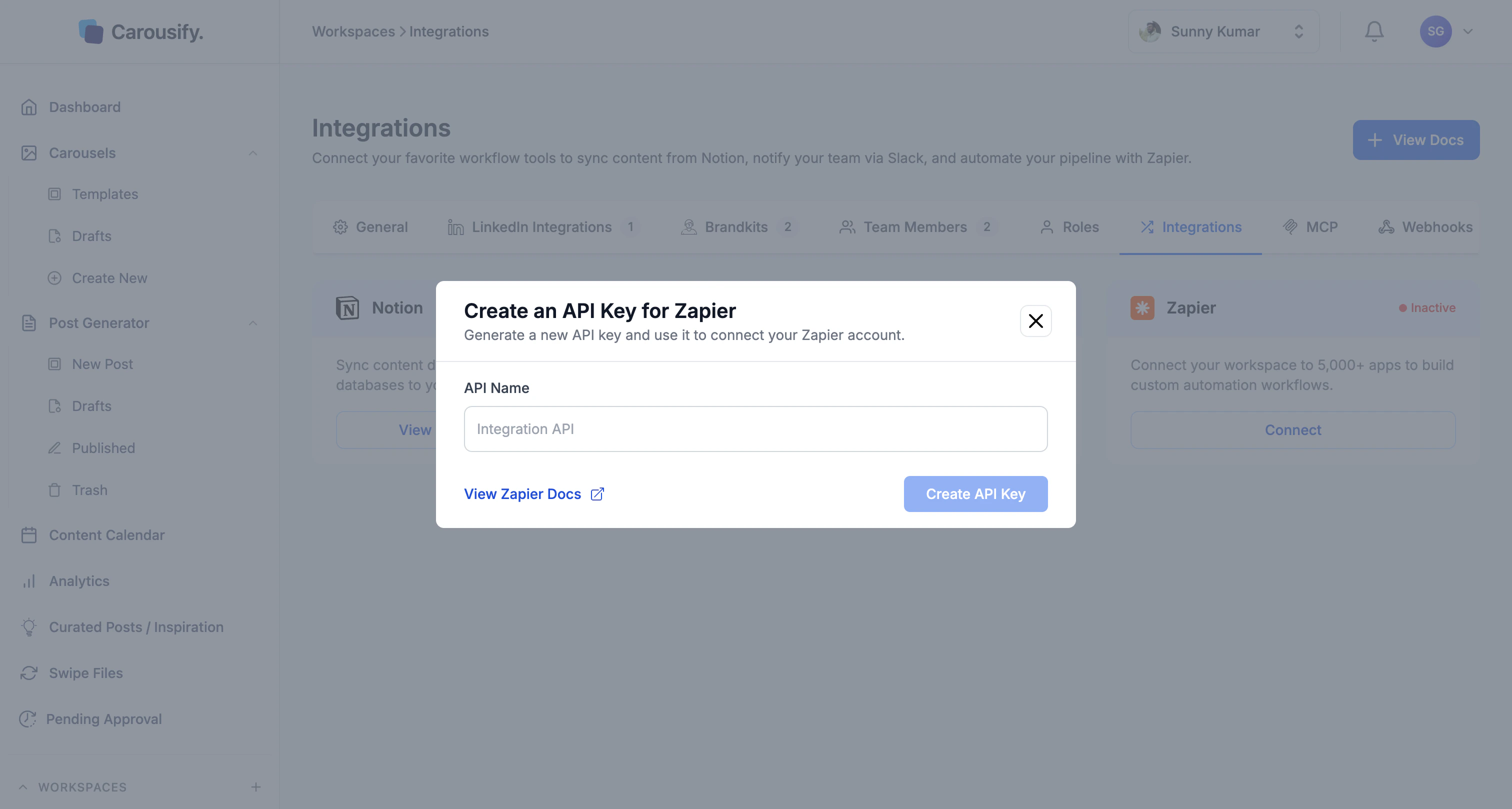
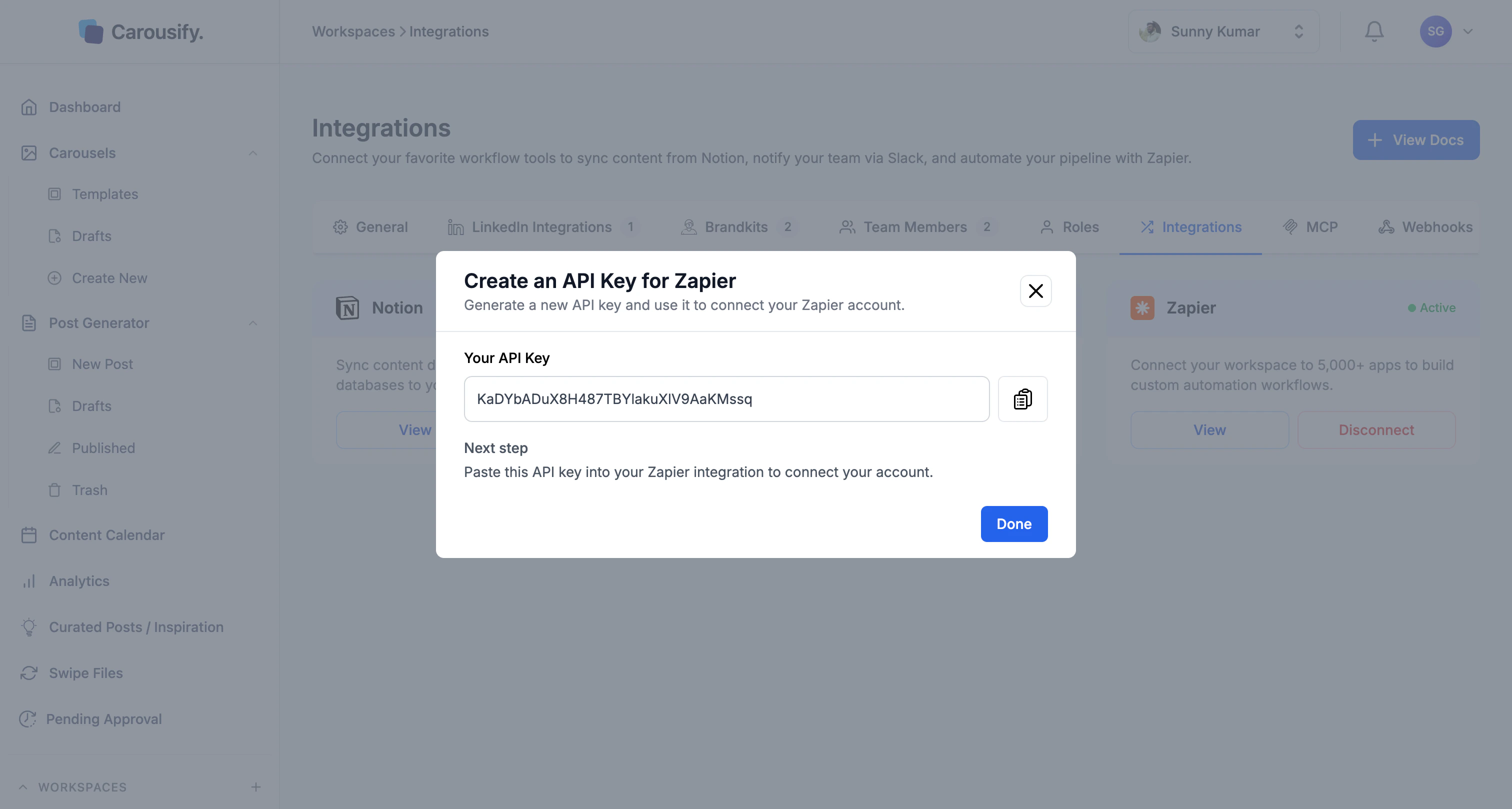
In Carousify, go to Manage Workspace › Integrations and click Connect on the Zapier card. Give the key a name you’ll recognise later (e.g.Carousify Zapier) and click Create API Key.
Step 2 — Accept the public invite
Open the Carousify-on-Zapier invite in a new tab: zapier.com/developer/public-invite/240907/e0a7c942dc2c8d7f5c376a77233141a0/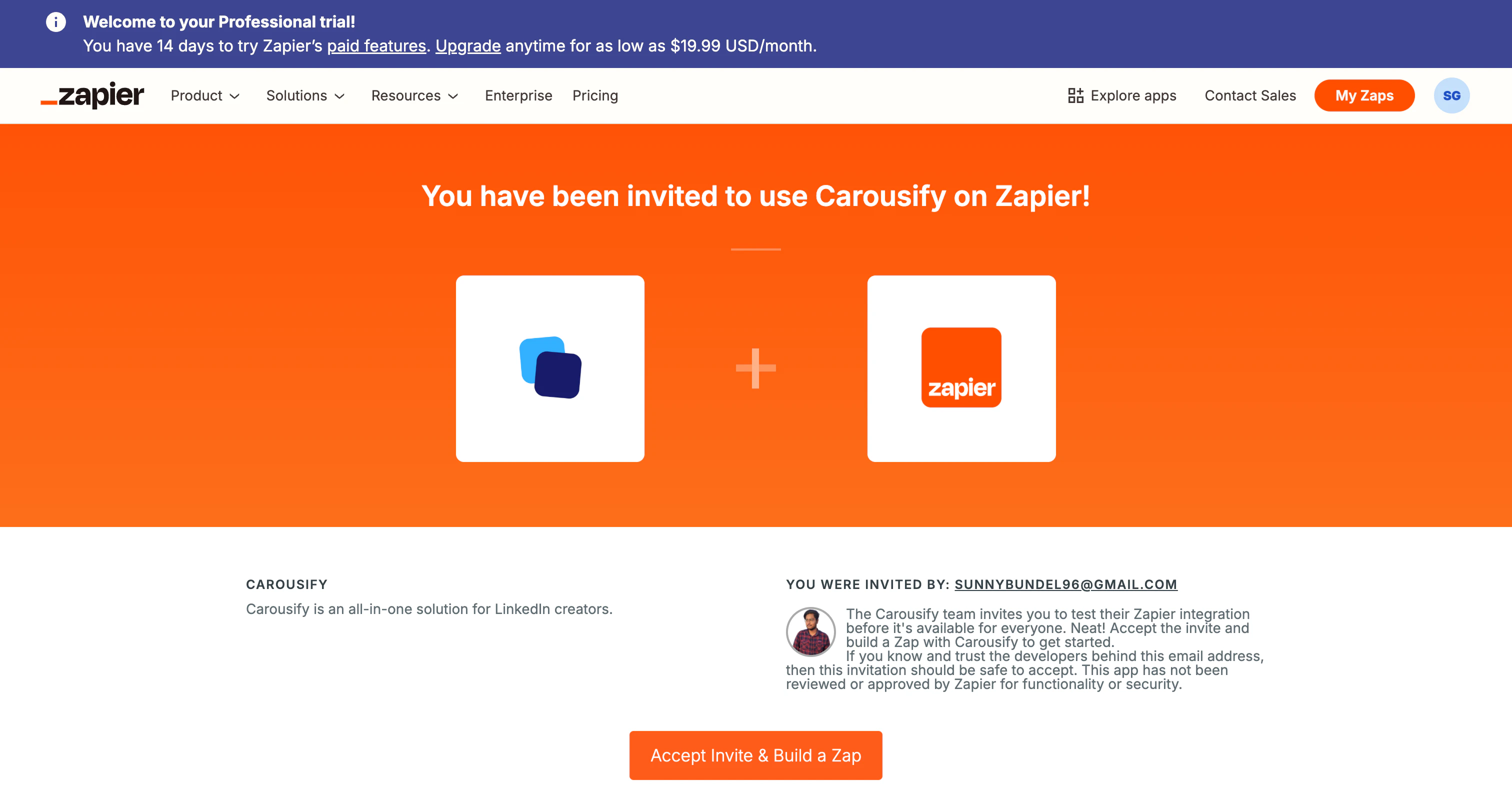
Step 3 — Start a new Zap
Click Create Zap (or + Create in the sidebar). Zapier opens an empty editor with a placeholder trigger and action.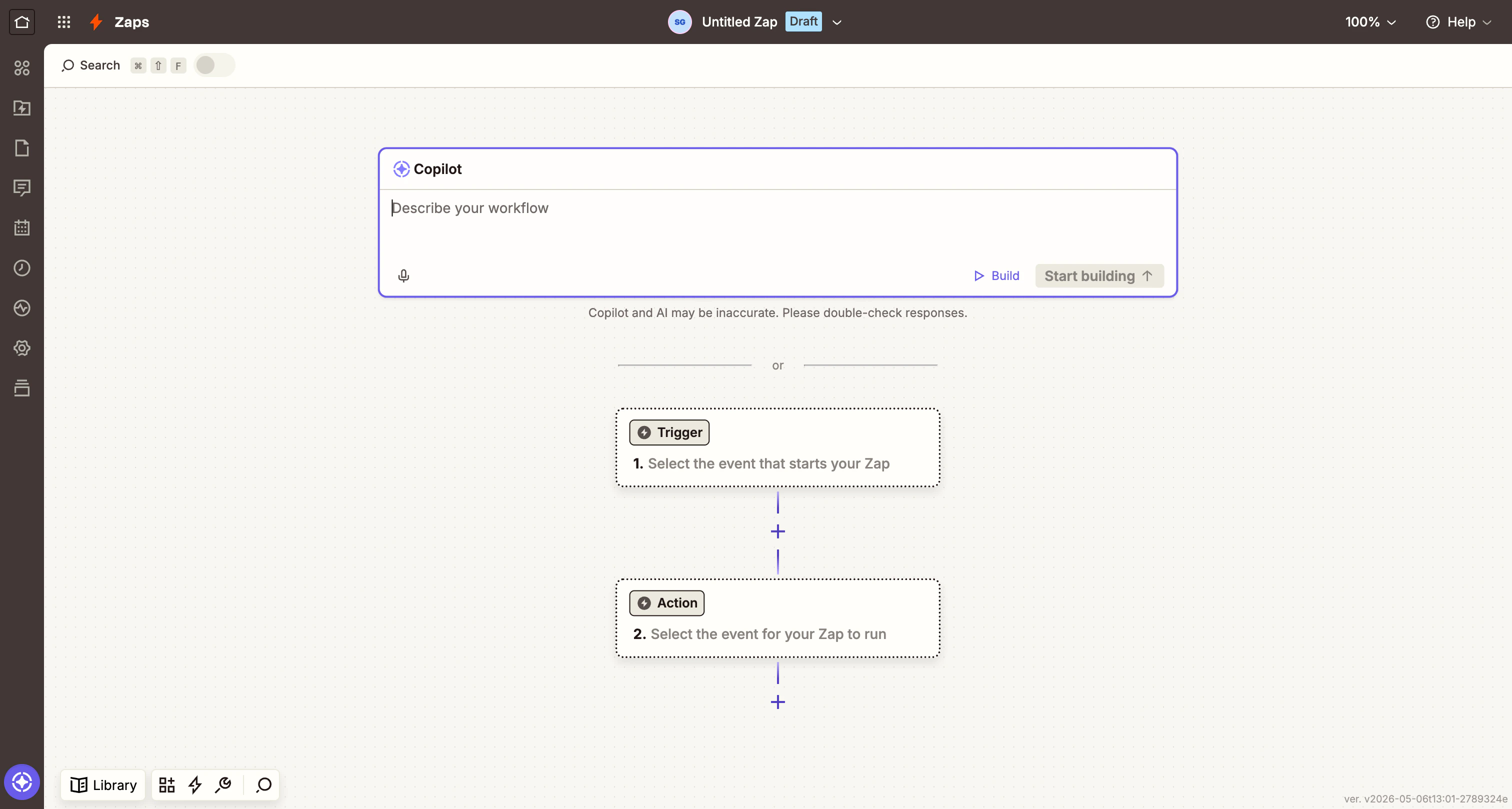
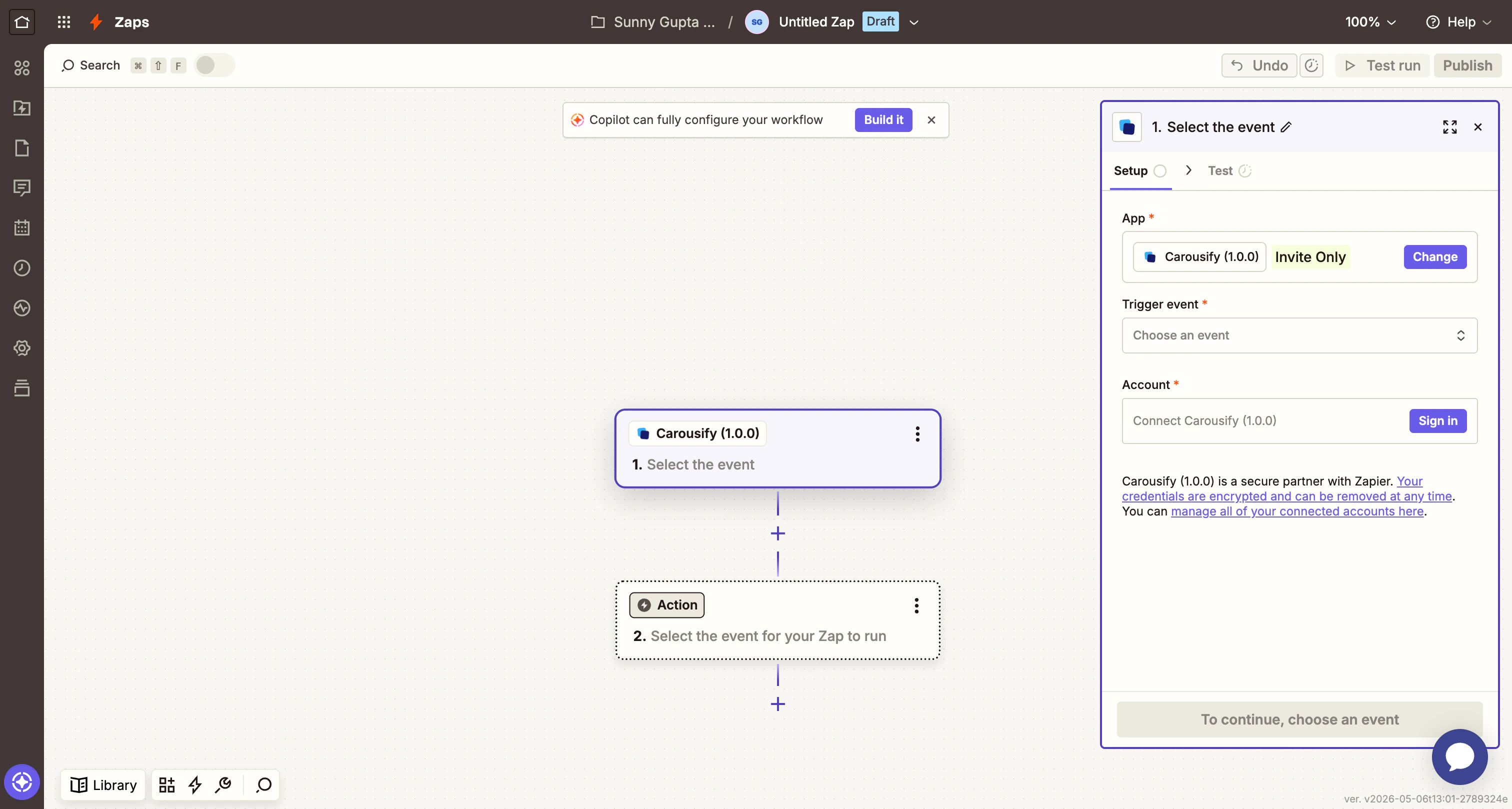
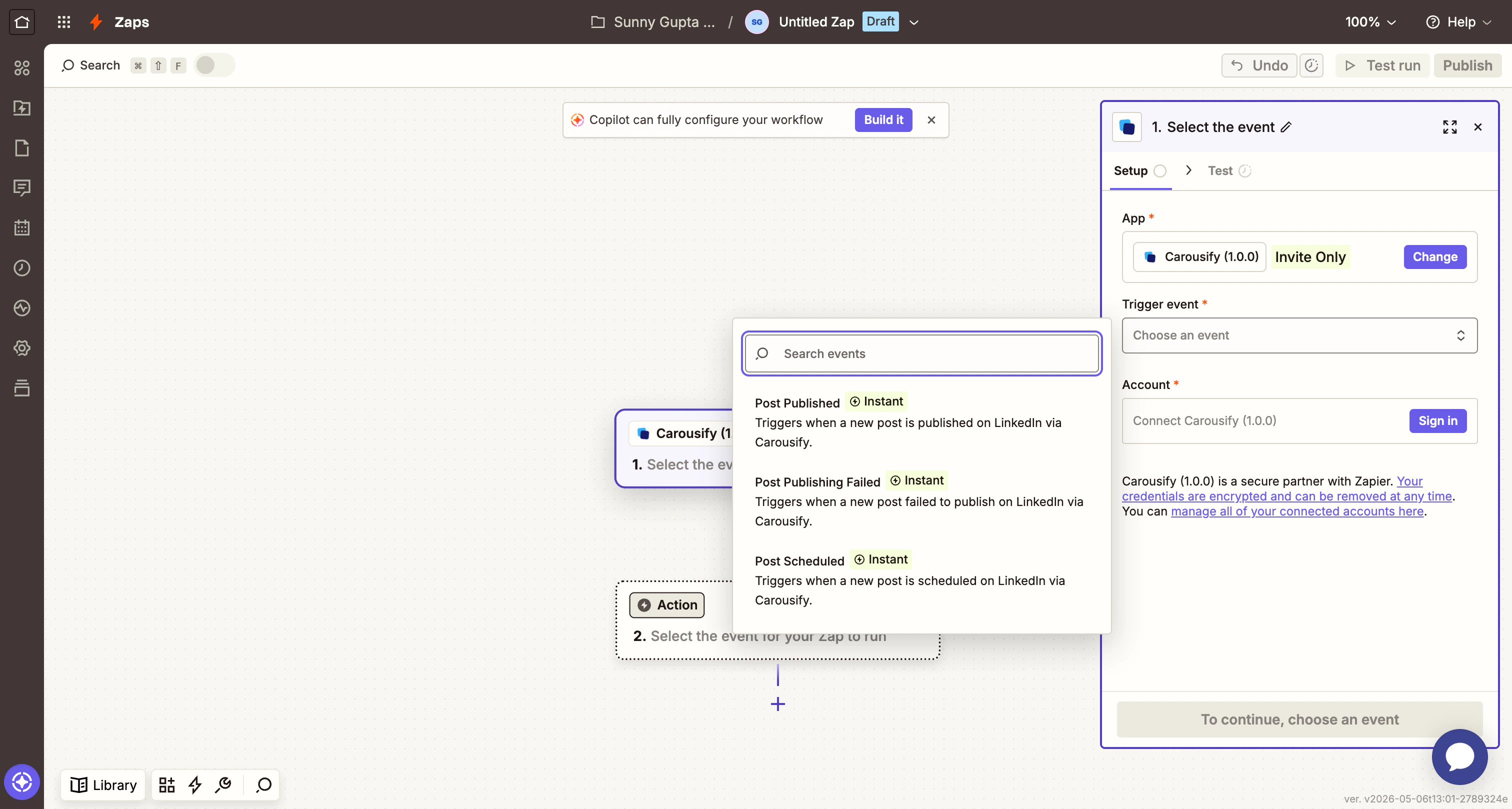
Step 4 — Sign in with your Carousify API key
Click Sign in to Carousify (or Connect Carousify). A popup appears asking for your API Key.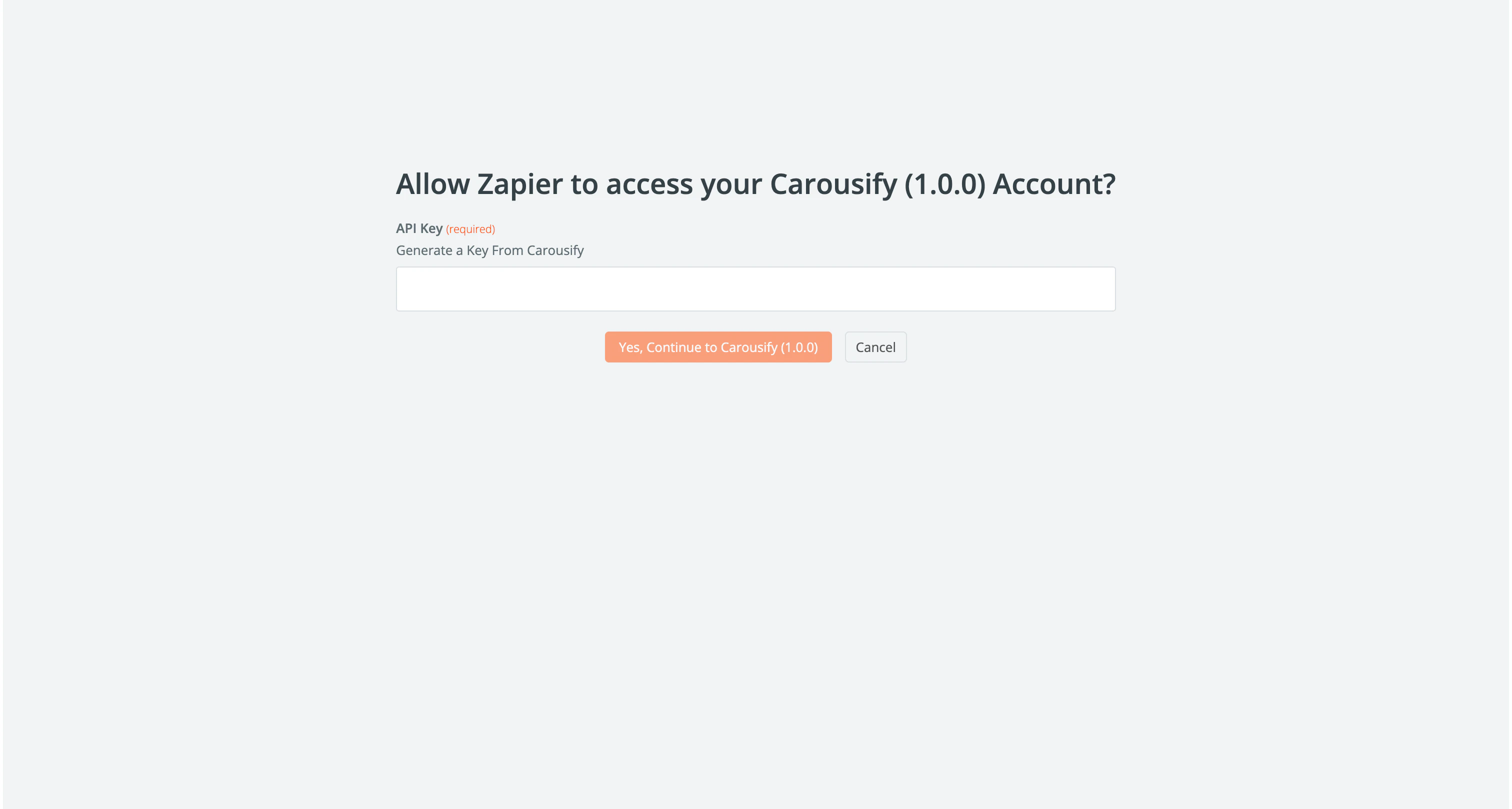
Step 5 — Pull a sample event
Click Test trigger. Zapier asks Carousify for a recent event so you can see exactly what data the trigger emits.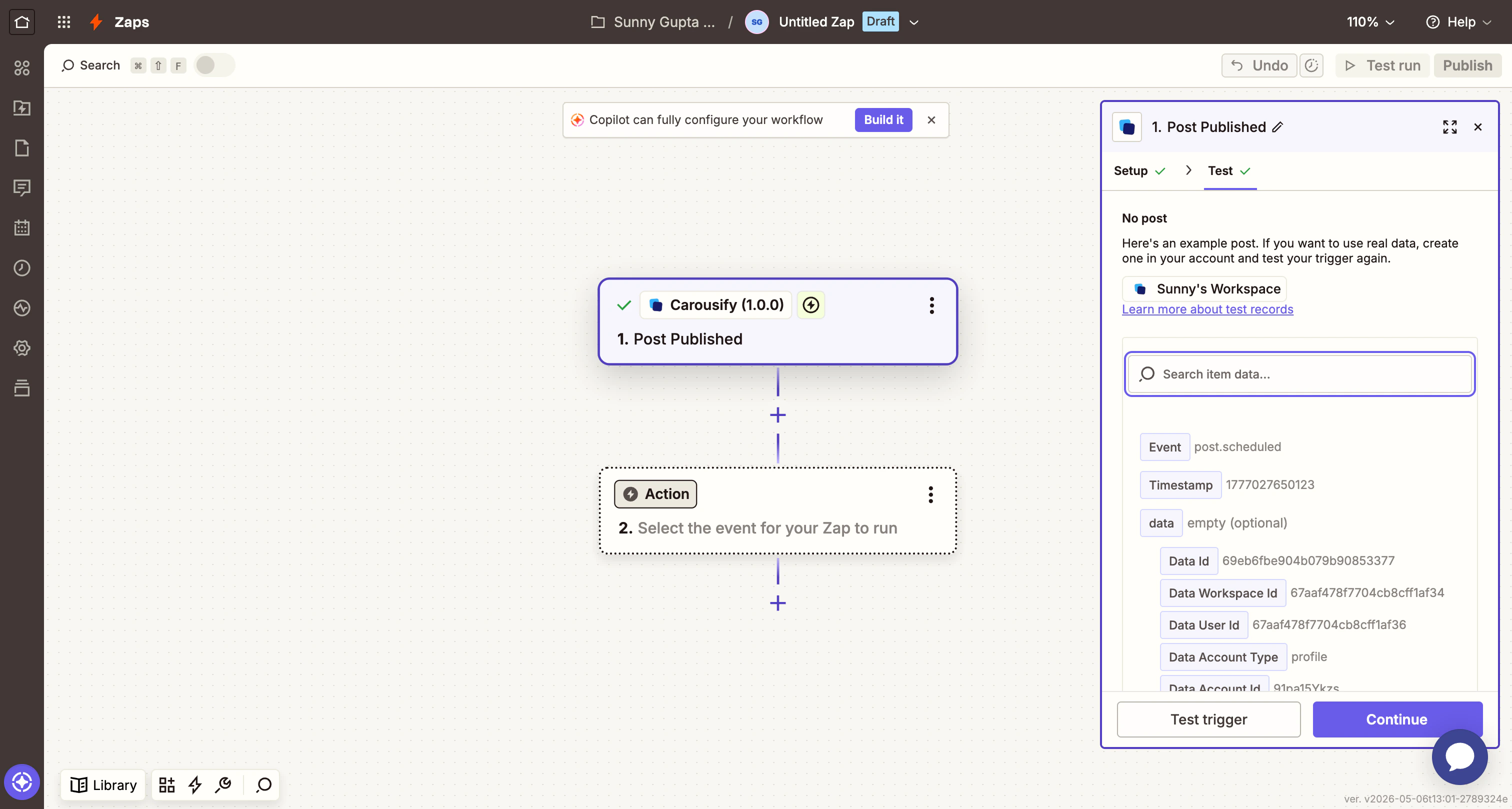
Step 6 — Add a Google Sheets action
Click the Action card. Search Google Sheets and pick it. For Action event, choose Create Spreadsheet Row and click Continue.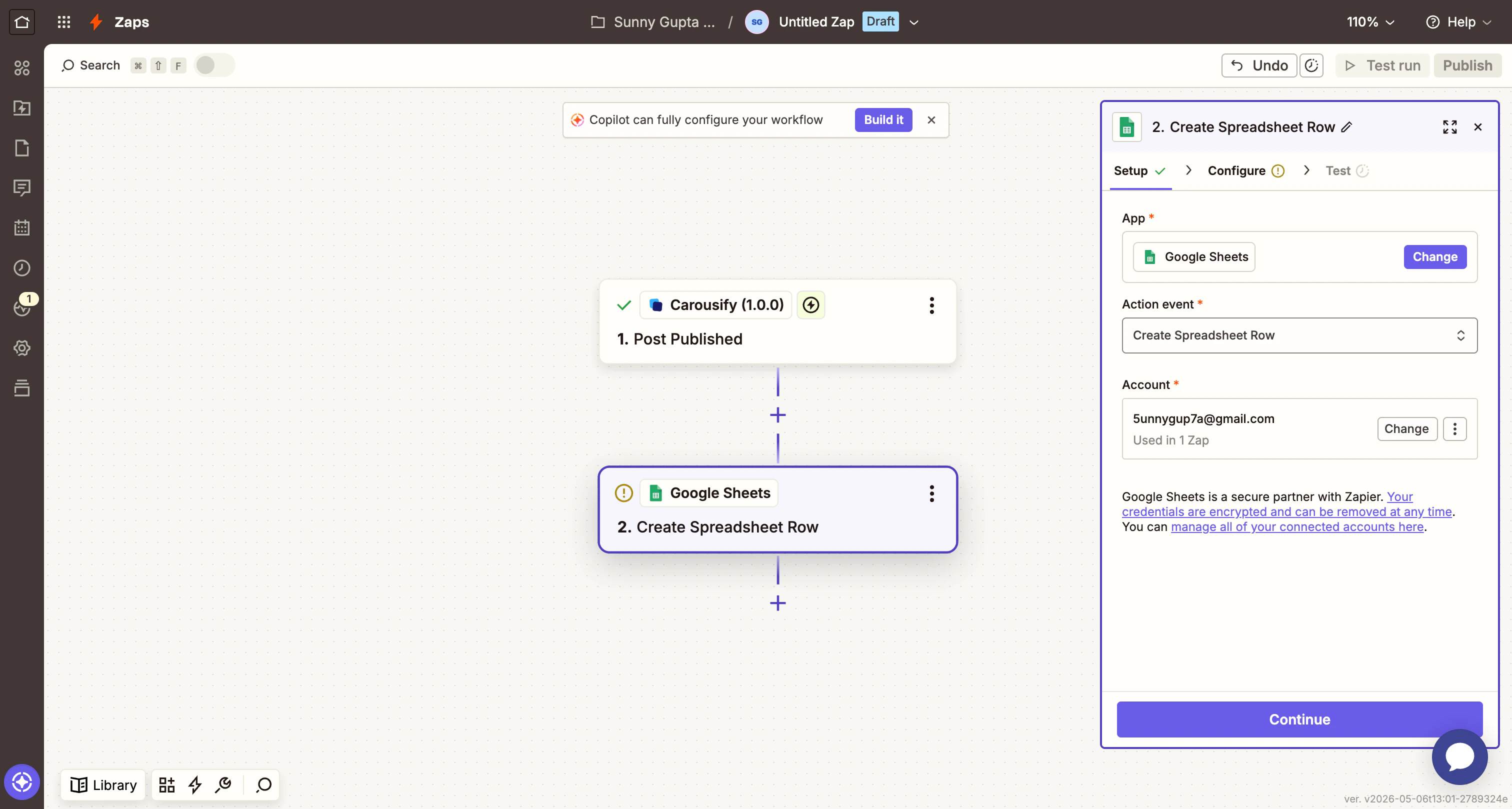
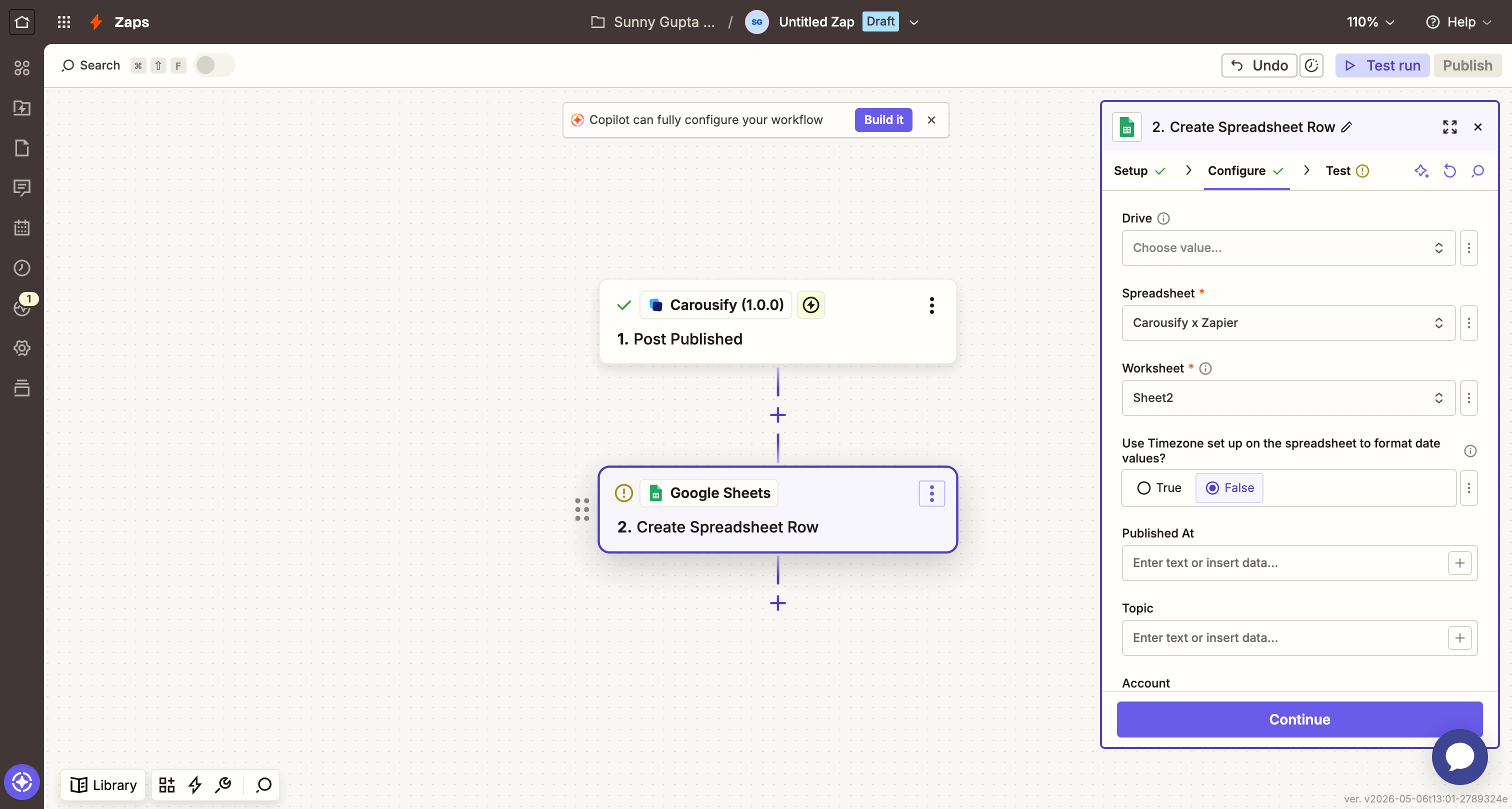
- Spreadsheet — pick the sheet you want to log into (e.g. Carousify x Zapier).
- Worksheet — pick the tab. Zapier reads the header row to populate the column inputs below.
Step 7 — Map Carousify fields to your sheet columns
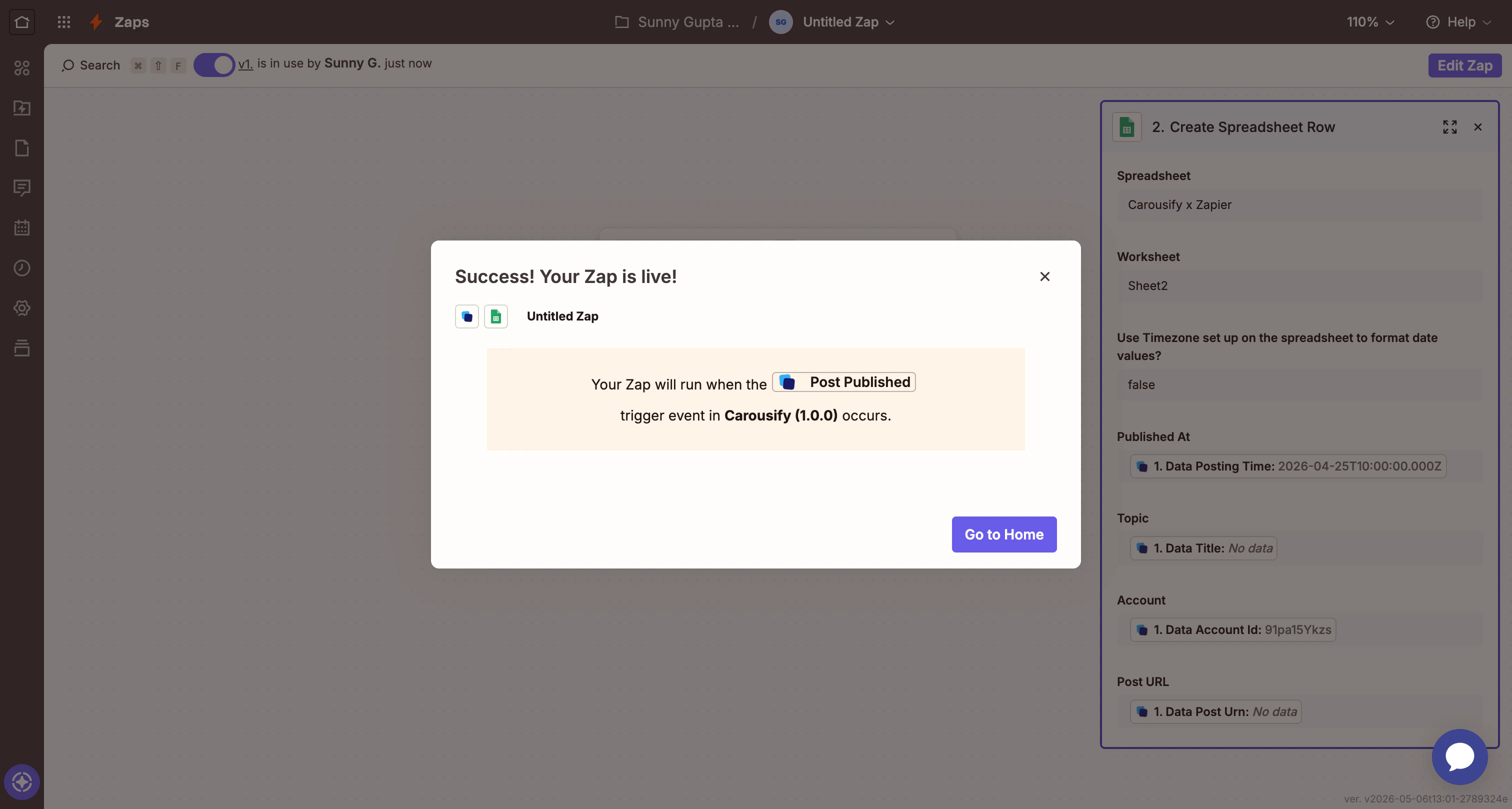
Each column in your sheet appears as an input. Click Add a field mapping next to each and pick the matching Carousify field from the previous step. For a sheet with columns Published At / Topic / Account / Post URL, the natural mapping is: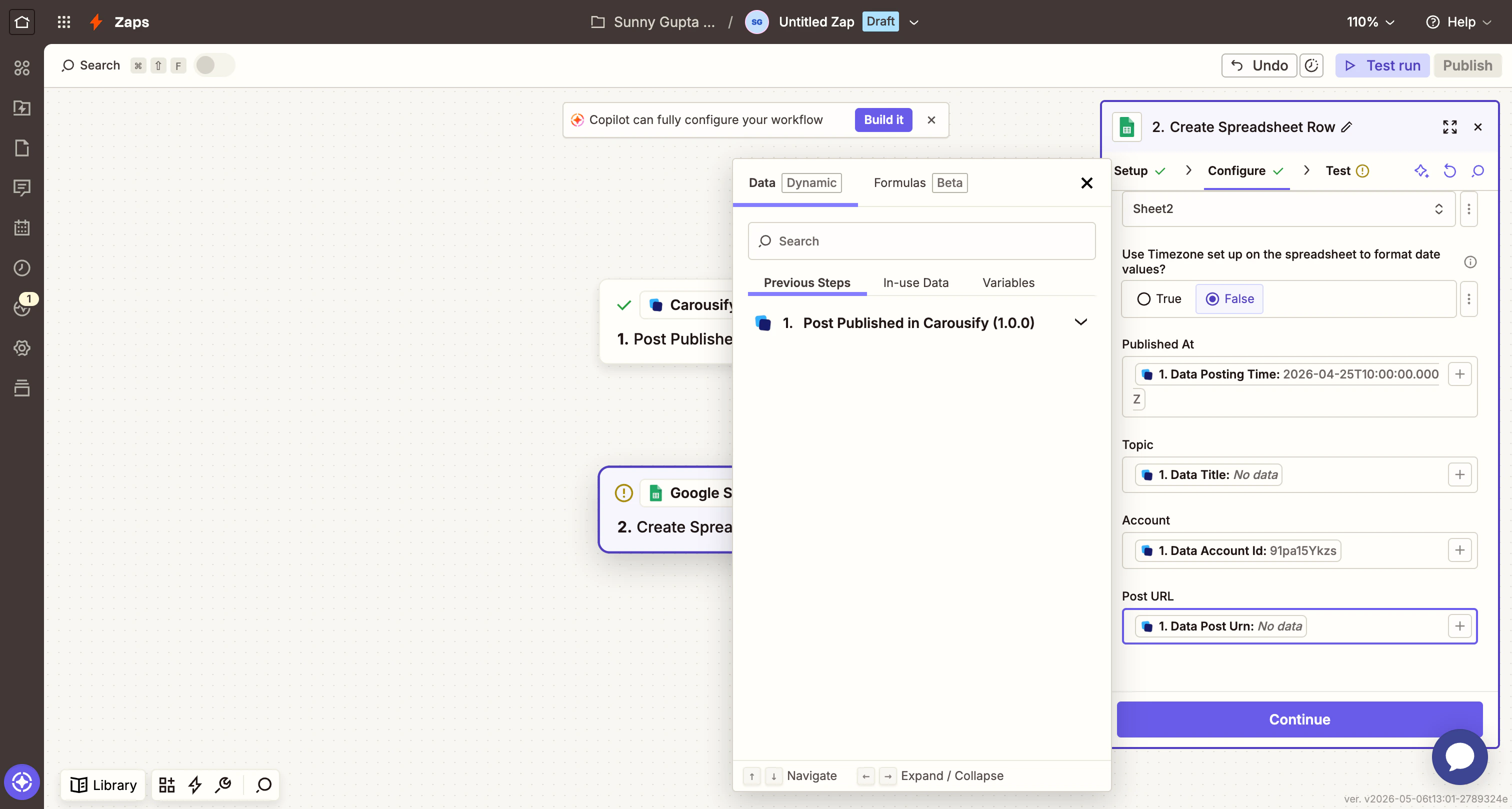
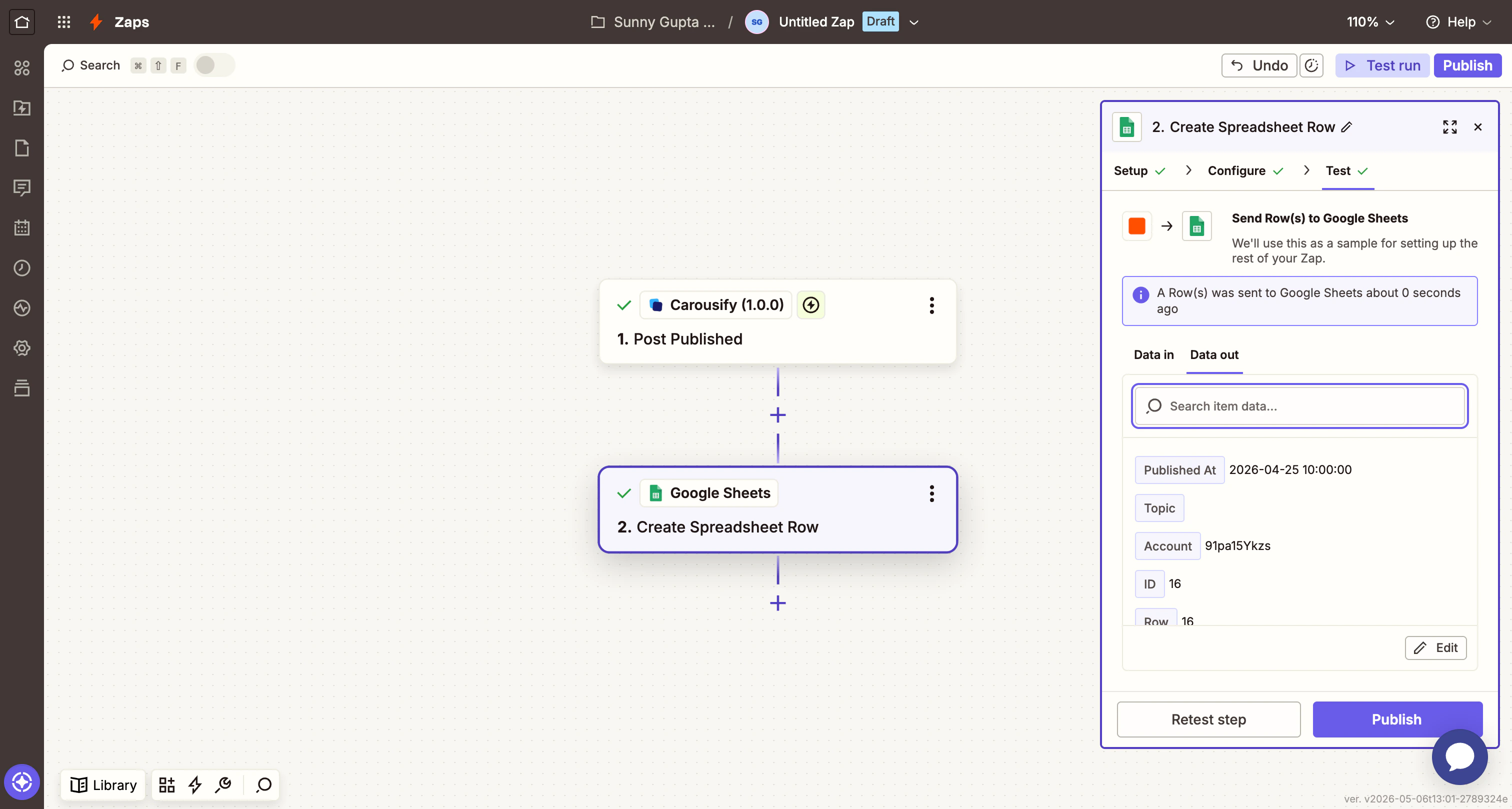
Step 8 — Test and publish
Zapier shows a preview of the exact payload it’ll send to Google Sheets.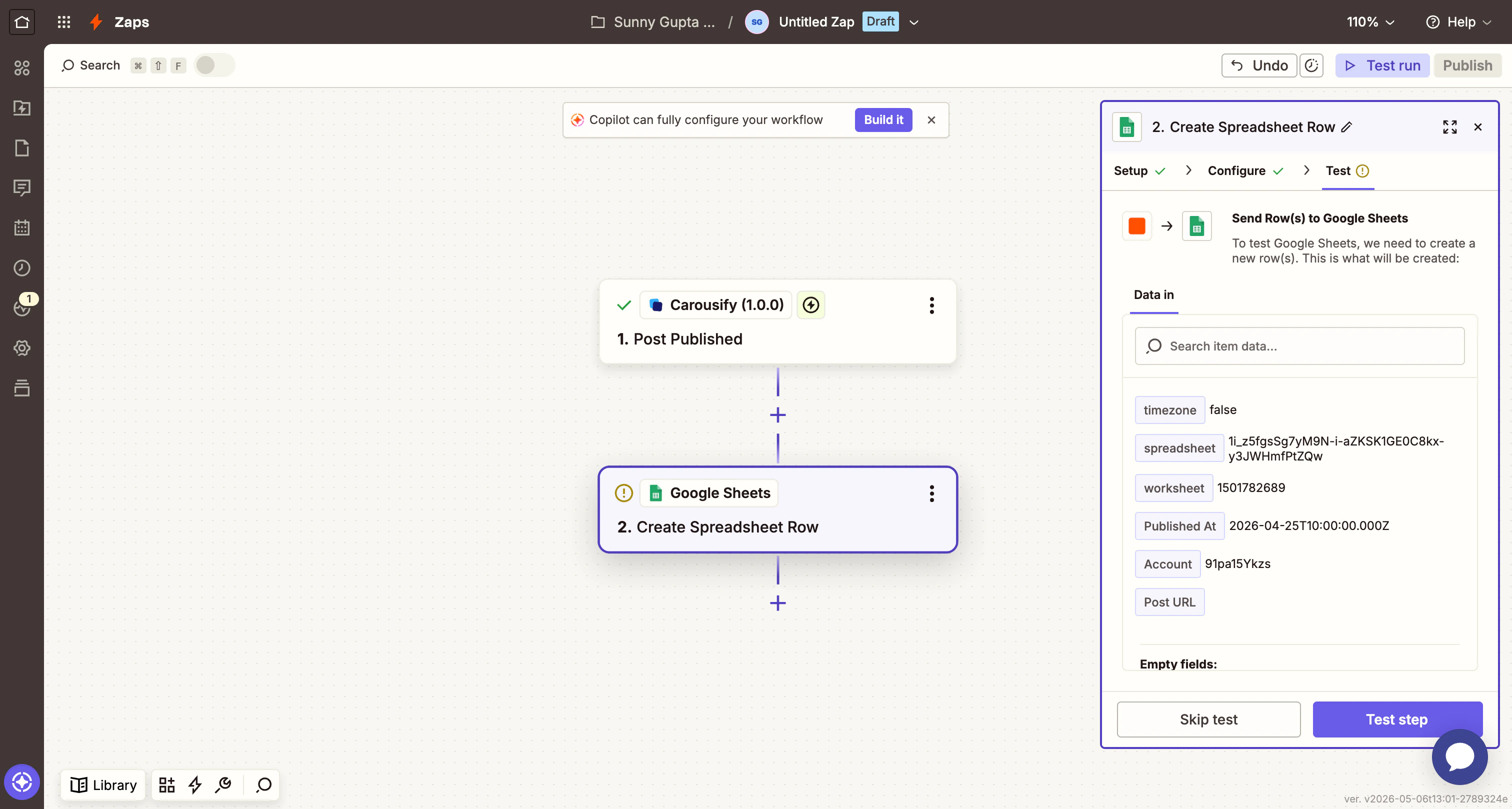
Filtering by account or status
A common follow-up is restricting a Zap to a specific LinkedIn account or only failed posts. Add a Filter by Zapier step between the trigger and the action:- Field:
Data Account IdCondition:(Text) Exactly matchesValue: your vanity, e.g.carousify - Field:
Data StatusCondition:(Text) Exactly matchesValue:failed
Disconnect or rotate the key
To rotate the API key (recommended every 90 days, or whenever someone leaves the team):- In Carousify, open Manage Workspace › Integrations and click Disconnect on the Zapier card. The current key stops working immediately.
- Click Connect again, generate a new key.
- In Zapier, open App connections and click Reconnect on the Carousify entry. Paste the new key.
Troubleshooting
- “API Key Unrecognized” during sign-in. The key was disconnected on the Carousify side, or you copied it with extra whitespace. Generate a fresh key and try again.
- No sample data when testing the trigger. You don’t have any matching events in your account yet — schedule or publish a real post in Carousify and click Test trigger again.
- Published At lands as a number in Sheets. Toggle Use Timezone set up on the spreadsheet to format date values? to True in the Google Sheets action — Zapier will then format
Data Posting Timeas a readable timestamp. - Zap stops firing. Check Zap history in Zapier for the failure reason. Most common causes: the Carousify API key was rotated without updating Zapier, or the underlying LinkedIn account got disconnected.
What’s next
Slack notifications
Same three events delivered straight into a Slack channel without going through Zapier.
Notion scheduling
Schedule posts from a Notion database — no Zapier needed.
Schedule a post
Trigger your first Post Scheduled event and watch the Zap run.
MCP server
For developers who’d rather drive Carousify from Claude or VS Code.