

Upgrade your plan
1
Open Billing & Subscription
Go to Settings › Billing & Payments in the left sidebar.
2
Click Change Plan
The Choose Your Plan dialog opens. If you’re on the Free plan, the plans are shown directly on the page.
3
Pick a billing cycle
Toggle Monthly or Yearly at the top. (Lifetime only appears if you bought a lifetime plan.)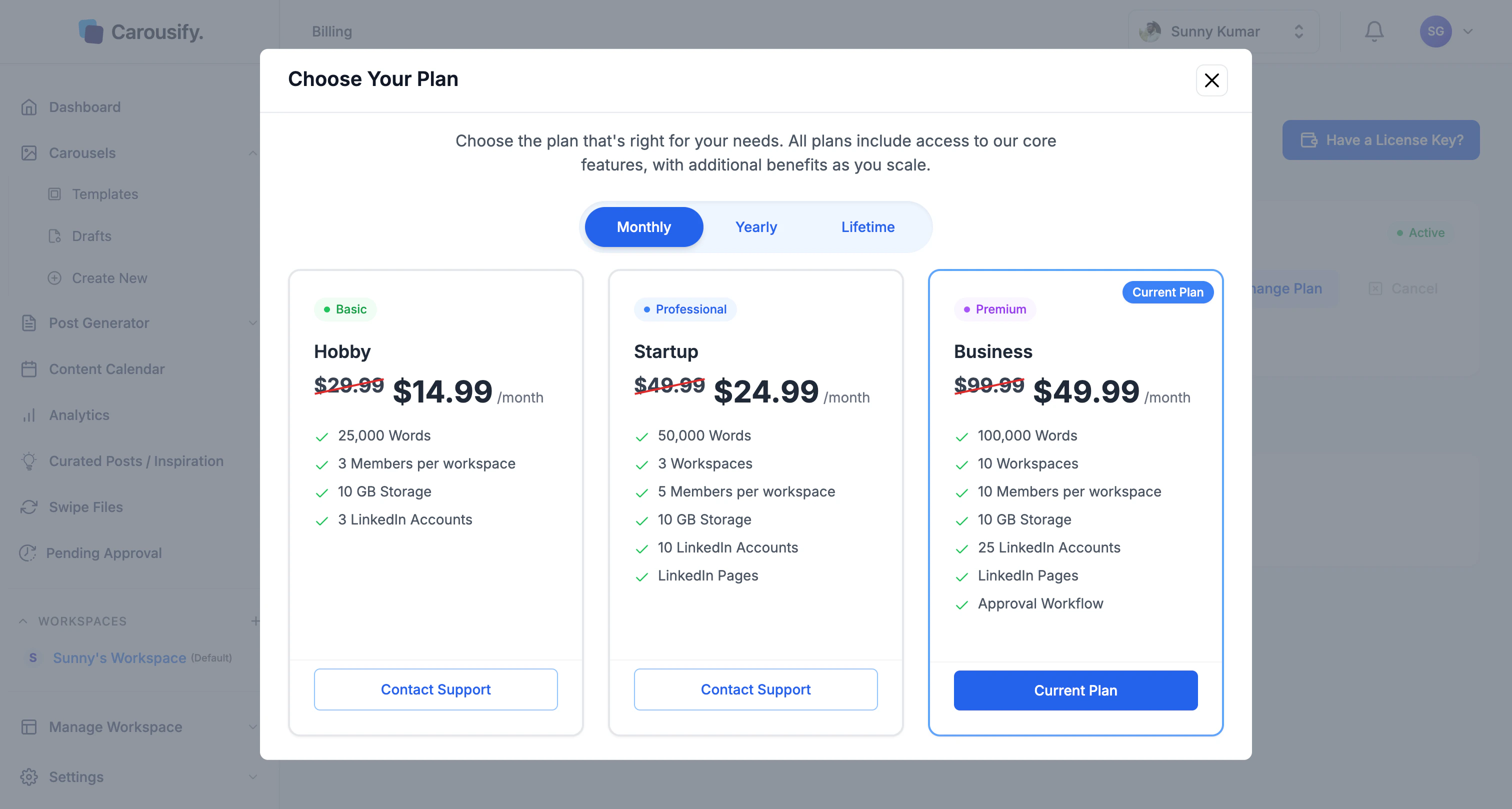
4
Select the new tier
Click Select Plan on the tier you want. Your current plan is marked Current Plan. Lower tiers show Contact Support instead. For Enterprise, click Contact Sales.
5
Pay at checkout
Carousify opens a Dodo Payments checkout in a new tab. Once the payment goes through, you’re returned to Billing & Subscription and the new plan and its limits apply right away.
If you have a coupon code, you can enter it on the Dodo Payments checkout page.
Switch billing cycle
To move from monthly to yearly, follow the same steps and pick Yearly before you select your tier. Moving from yearly to monthly counts as a downgrade — contact support.Downgrade your plan
To move to a lower tier, click Contact Support on that tier or contact support directly and tell us which plan you want. We’ll handle the switch.What happens to your data
When you upgrade, everything stays — your new limits just kick in. Downgrades are where you need to be careful, since the lower tier has lower limits and fewer features:- Workspaces, accounts, and members above the new plan’s limits — agree with support what to keep before the switch.
- Business-only features such as custom roles, approval, and link tracking stop being available.
- Whitelabel (Enterprise) stops as soon as your plan no longer includes it: your branded site goes back to Carousify’s branding right away, and your custom domain is released 7 days later. Your brand settings are kept. See Whitelabel overview.
- AI word allowance follows the new plan from your next reset.
What’s next
Plans and pricing
Compare what each plan includes.
Cancel your subscription
Stop auto-renewal and what happens next.