

Whitelabel is an Enterprise feature. On other plans, the Whitelabeling page opens an upgrade prompt — contact Support to enable it at an additional charge. Whitelabel is branding only: it controls how the platform looks and doesn’t change billing or invoicing.
Account-wide, not per workspace
Most Carousify settings — brand kits, integrations, members — are scoped to a single workspace. Whitelabel is the exception. It applies at the account level, across every workspace you own.Where to find it
In the left sidebar, open Settings › Whitelabeling. (People who joined through your whitelabeled domain don’t see this page.)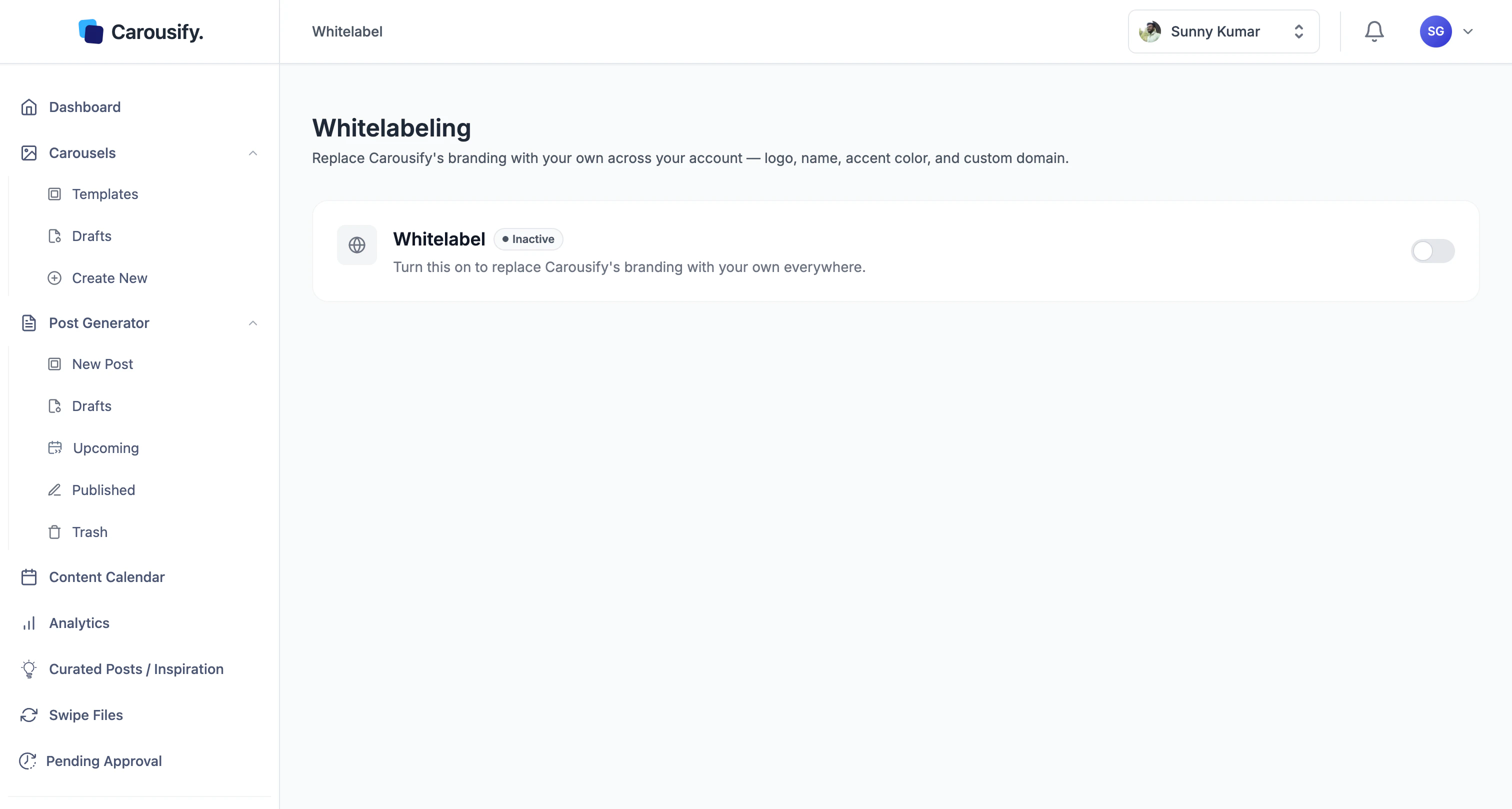
Turn whitelabeling on
1
Flip the Whitelabel switch to Active
The status pill changes from Inactive to Active and the configuration sections appear below.
2
Fill in Brand identity
Brand Logo, Favicon, Brand Name, Support Email, and Accent Color are all required. See Branding.
3
Set up and test SMTP
Whitelabel can’t be turned on without your own mail server. Fill in every Email (SMTP) field and send a successful test email. See SMTP.
4
Click Save Changes
Save Changes sits at both the top and bottom of the page. Nothing applies until you save — toggling the switch alone doesn’t persist anything. If a required field is missing, Carousify tells you which one.
5
Add your custom domain
Add the domain and its DNS records so the branded app loads at your own address. See Custom domain.
What you can configure
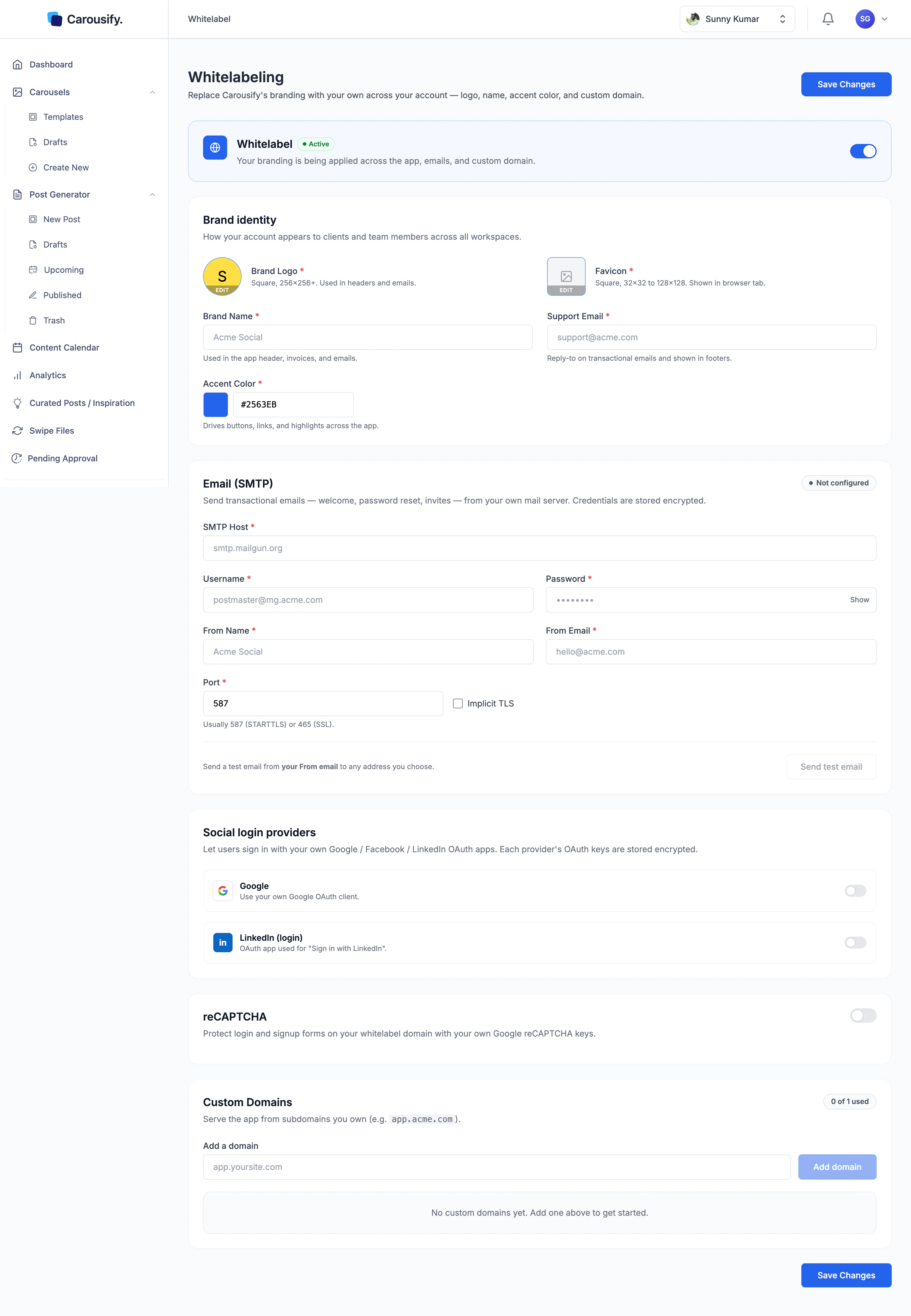
Whitelabel is grouped into five sections on this one page.Brand identity
Logo, favicon, brand name, support email, and accent color — what shows in headers, the browser tab, and emails.
Email (SMTP)
Send account emails from your own mail server instead of Carousify’s.
Custom domains
Serve the whole app from a domain you own, like
app.yourbrand.com.Sign-in and security
Your own Google and LinkedIn OAuth apps for sign-in, plus your own reCAPTCHA keys.
Brand identity
The Brand identity section sets how your account looks to anyone who opens it:
Full walkthrough on Branding.
Email and domain
Two sections turn Carousify into something that is your product rather than something that emails and links back to ours:- Email (SMTP) — point Carousify at your own mail server so transactional emails come from your domain, not Carousify’s. Credentials are stored encrypted. Required to turn whitelabel on. See SMTP.
- Custom Domains — add a domain you own (e.g.
app.acme.com) and the entire app loads from it. See Custom domain for the DNS steps.
Social sign-in and reCAPTCHA
Two more sections live on the same page and don’t have separate guides — configure them here:- Social login providers — on your whitelabeled domain, the Google and LinkedIn sign-in buttons appear only when you add your own OAuth app for that provider, so the consent screen shows your brand. Turn a provider on, enter its Client ID and Client Secret, and follow the Setup guide inside the section — it lists the exact origin and redirect URLs to register in Google Cloud Console or the LinkedIn Developer Portal. Those URLs use your custom domain, so add and verify the domain first. Keys are stored encrypted.
- reCAPTCHA — protect the login and signup forms on your whitelabel domain with your own Google reCAPTCHA Site Key and Secret Key.
Saving and applying changes
Save Changes persists everything on the page in one go. Branding, colors, and email take effect immediately after saving. A custom domain only goes live once its DNS records resolve and the certificate is issued — that part is covered in Custom domain.Turn whitelabeling off
Flip the master switch back to Inactive. Carousify asks you to confirm in a Disable Whitelabeling? dialog — click Disable & Delete to go ahead.If your plan changes
Whitelabel follows your plan and account status:- Your branded site stops at once if your plan no longer includes whitelabeling, or if your account is deactivated, suspended, or deleted. Your custom domain no longer shows your branding.
- Your custom domain is released — removed from Carousify’s hosting, so it stops pointing at the app — as soon as your plan ends and your account moves to the Free plan. For other plan changes that drop whitelabeling, Carousify waits 7 days first, so a short lapse doesn’t cost you your setup. Upgrading again within those 7 days keeps the domain.
- Your brand settings are kept — logo, name, colors, SMTP, and sign-in providers stay saved. When you upgrade again, turn whitelabel back on and add your domain again (with its DNS records).
- Deleting your account releases all of your custom domains.
What’s next
Custom domain
Point a domain you own at Carousify and serve the app from it.
Branding
Logo, favicon, name, support email, and accent color, step by step.
SMTP
Send transactional emails from your own mail server.
Manage clients
Combine whitelabel with client workspaces for a fully branded agency setup.