

Before you start
You’ll need:- MCP enabled on the workspace — see MCP overview for the one-click flow
- An MCP key from Manage Workspace › MCP (only shown once, right after creating it)
- Antigravity installed and signed in
Step 1 — Copy your Carousify MCP URL
In Carousify, open Manage Workspace › MCP. Use the auto-provisioned MCP System Key or click Create API Key to mint a fresh one (e.g.antigravity).
Your MCP URL has this shape:
Step 2 — Add Carousify in Antigravity
1
Open the Agent Manager
In the top-right of Antigravity, click Open Agent Manager. The right-hand panel switches to the MCP Store.
2
Click Manage MCP Servers
At the top-right of the MCP Store panel, click Manage MCP Servers. Antigravity opens the Manage MCPs tab in the editor.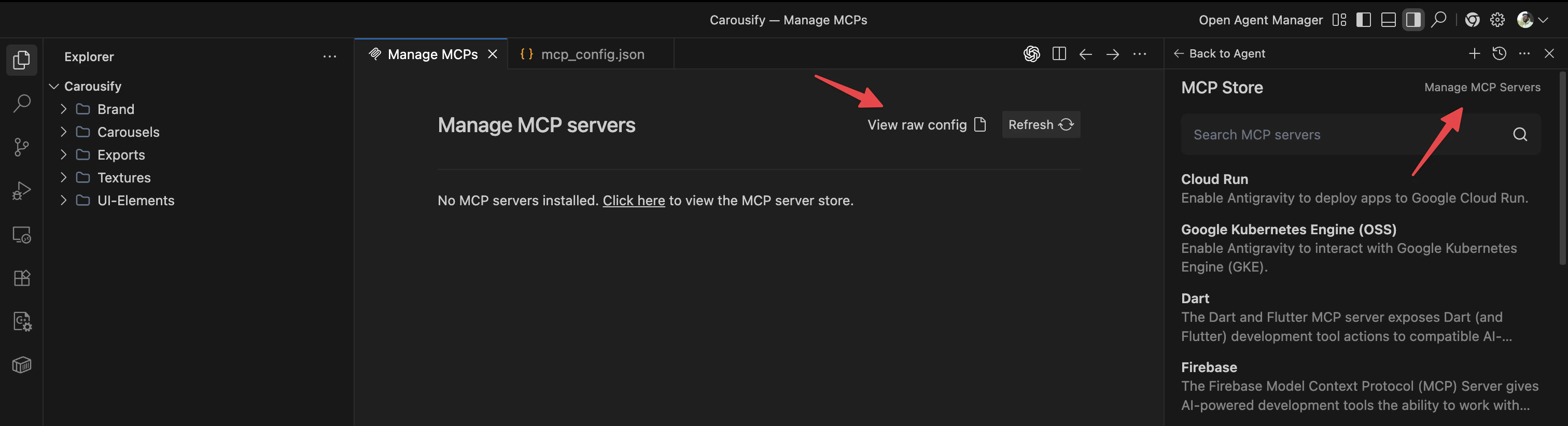
3
Open the raw config
Click View raw config on the Manage MCPs tab.
4
Add Carousify and save
Add a 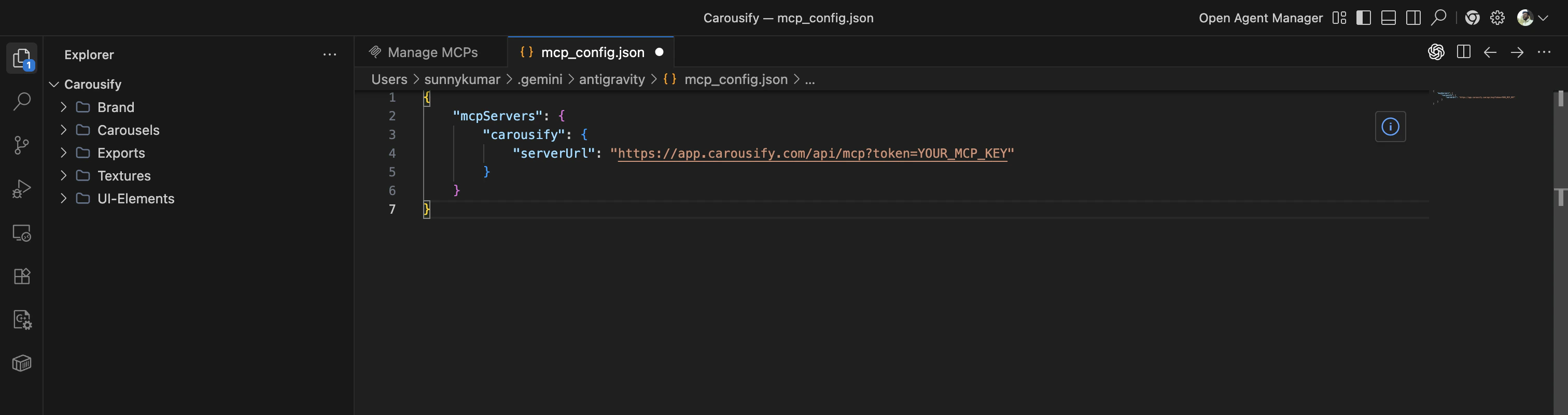
carousify entry under mcpServers with the Setup Link from Step 1 as serverUrl:⌘ S / Ctrl S). Antigravity reloads servers, opens the connection, and makes Carousify’s tools available to the agent — click Refresh on the Manage MCPs tab to confirm the server shows up.Step 3 — Use it from the agent
Start an agent task and try:- “Using Carousify, draft a LinkedIn post about [topic] and schedule it for tomorrow 9 AM IST.”
- “List the posts I have scheduled this week.”
- “Pull analytics for my last published post.”
Disconnect or rotate
- Disconnect — open
~/.gemini/antigravity/mcp_config.json(via Manage MCPs › View raw config) and remove thecarousifyentry, then save. - Rotate the key — in Carousify, delete the row in MCP Keys, click Create API Key to mint a new one, and paste the new URL into Antigravity.
Troubleshooting
- Connection fails — the token is wrong or revoked. Confirm the key shows Active in Manage Workspace › MCP and the URL ends with the full token, not the masked
XXXX...version. - Agent can’t find Carousify tools — open the Manage MCPs tab and click Refresh. Antigravity rescans
mcp_config.jsonand reconnects the server. - Wrong workspace — MCP keys are workspace-scoped. If you swapped Carousify workspaces, generate a key inside the new one and update Antigravity.
What’s next
MCP overview
How MCP keys, tools, and workspace scoping fit together.
Use it from Claude
Custom connector setup for Claude web, desktop, and Claude Code.
Use it from Codex
Add Carousify to the Codex CLI’s
config.toml.Schedule a post
Quick refresher on how scheduling works inside Carousify.