

Write your post and pick the accounts
Open Post Generator › New Post › Write New Post (or any other starting point in the Post Generator) and write your content in the editor. The right side shows a live LinkedIn or Instagram preview as you type. Under Publish to at the top of the page, select every account the post should go to — LinkedIn profiles, LinkedIn pages, and Instagram accounts. If the post breaks a platform’s rules (for example, an Instagram post without an image or video, or text over the limit), that platform is flagged and Carousify won’t publish until it’s fixed. See platform limits. Once you’re happy with the copy, click Publish in the bottom-right.Customize per account (two or more accounts)
If you picked two or more accounts, Carousify first opens Review & Customize, listing each account’s version of the post. Each one starts as Original — the text and media from the editor. Click an account to change its text or media without affecting the others — for example, a shorter caption and square images for Instagram, and a PDF carousel for LinkedIn. Edited accounts are marked Customized; click Reset to original to undo. Click Continue when every account looks right.Toggle Schedule on
Next comes the Publish Post dialog. Nothing publishes until you confirm — by default the dialog is set to publish immediately.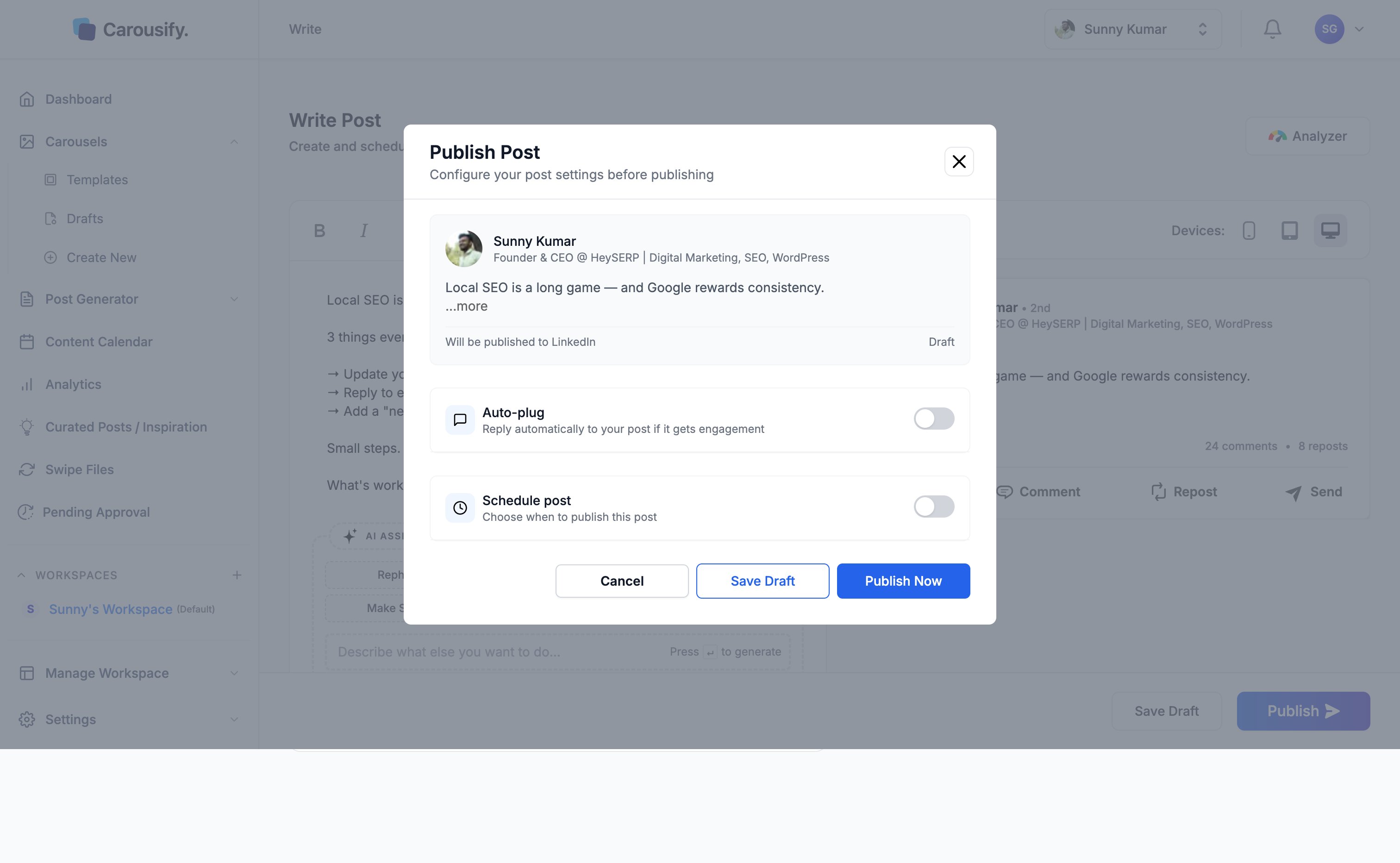
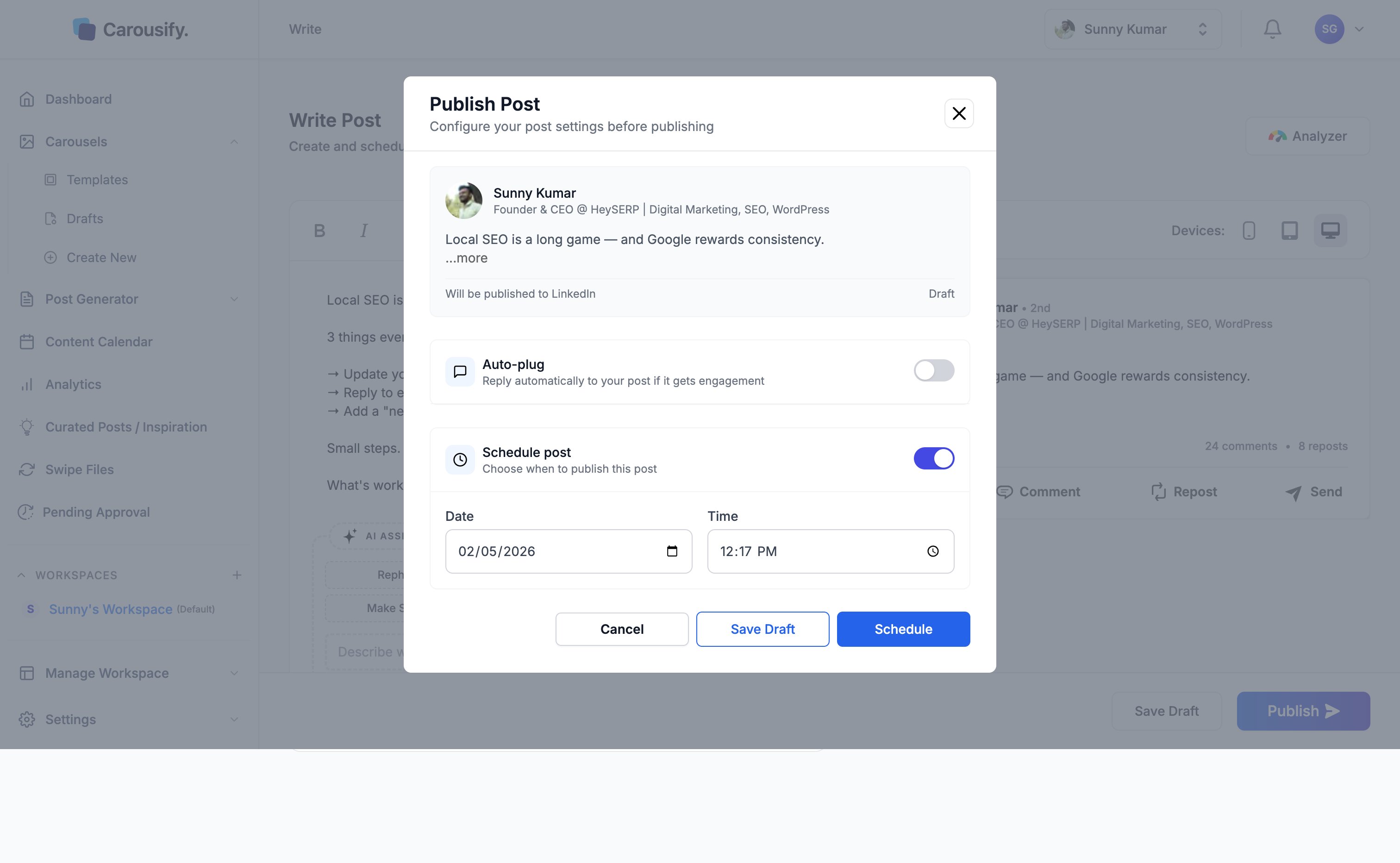
- The time must be at least 5 minutes ahead and no more than 8 days ahead.
- If the account already has several posts scheduled that day, Carousify warns you that posting too often can put the account at risk. Click Post Anyway to schedule it regardless.
Other options in the dialog
- Auto-plug — add up to three follow-up comments that Carousify posts under your post after a delay. LinkedIn only. See Auto-plug.
- Advanced Options › UTM Campaign — shown when UTM tracking is on for the workspace. Sets the campaign name added to tracked links. See Link tracking.
- Save Draft — close the dialog and keep the post as a draft instead.
If your posts need approval
If your role requires approval, Publish Now and Schedule don’t post anything yet. The post goes to Pending Approval instead, with the time you picked. A teammate who can approve posts opens it, clicks Continue, and then Approve (or Schedule) in the dialog. See Approval workflow.After the post goes live
- Carousify sends you a notification when a scheduled post is published, and the post moves to Post Generator › Published.
- Any auto-plug comments are posted after their delay.
- If a post can’t be published — for example, because the account needs reconnecting — you get a Failed to Publish Post notification and the post appears under Failed To Publish in Post Generator › Published. Open it to fix the problem and publish or schedule it again.
What’s next
Reschedule a post
Move a queued post to a different date or time without rewriting it.
Content Calendar
See every published and scheduled post in one weekly or monthly view.
Auto-plug a follow-up comment
Drop a comment on your own LinkedIn post automatically after a delay.
Approval workflow
Require manager review before scheduled posts go live.