> ## Documentation Index
> Fetch the complete documentation index at: https://docs.carousify.com/llms.txt
> Use this file to discover all available pages before exploring further.
# Workspaces overview
> Keep each brand, client, or team in its own self-contained environment.
A **workspace** is a self-contained environment for one brand, client, or team. Each workspace has its own LinkedIn accounts, brand kit, members, drafts, scheduled posts, and analytics — nothing leaks between workspaces.
If you only manage your own LinkedIn, the default workspace Carousify creates at signup is all you need. Agencies, ghostwriters, and in-house teams running multiple brands use multiple workspaces — one per client or brand.
## Where workspaces live
Open **Manage Workspace › General** from the left sidebar to see and edit the active workspace.
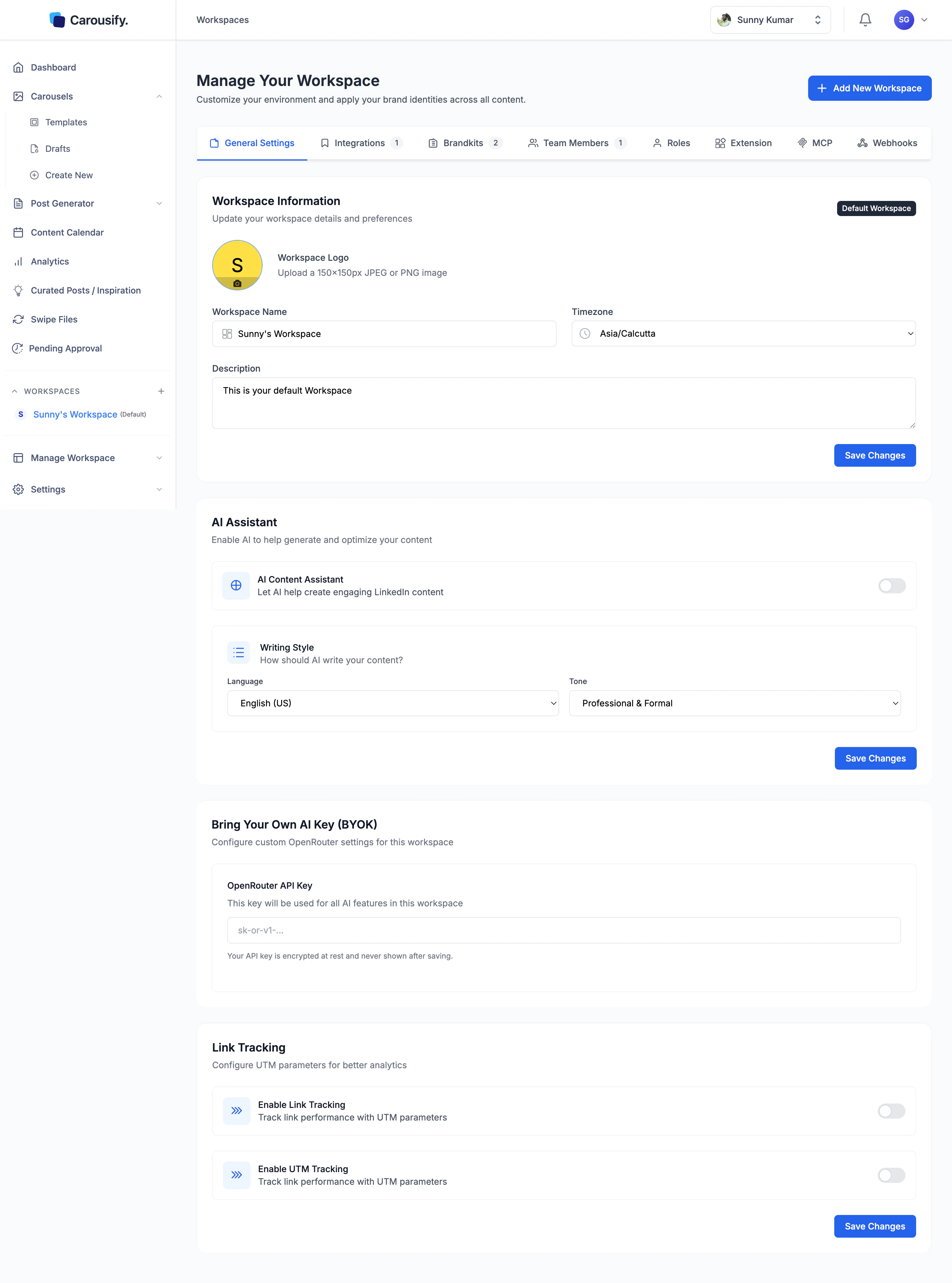 The **WORKSPACES** list in the sidebar shows every workspace you have access to. Click any workspace name to switch — the whole app (drafts, calendar, analytics, integrations) reloads against that workspace.
## What's stored per workspace
Each workspace owns:
* **Workspace info** — name, logo, timezone (used for scheduling), description
* **Brand kits** — fonts, colors, and author identity for carousels
* **LinkedIn integrations** — personal accounts and pages connected for this workspace only
* **Team members and roles** — who can do what inside the workspace
* **AI defaults** — language, tone, optional Bring-Your-Own-Key (OpenRouter)
* **Link tracking & UTM** — toggle on per workspace if you want shortened, attributable links
* **Drafts, scheduled posts, published posts, analytics** — fully scoped to the workspace
Switching workspace is a hard context switch. A draft you start in one workspace stays there — it doesn't follow you into another workspace.
## Add a new workspace
Click **Add New Workspace** at the top of the **Manage Your Workspace** page (or the **+** in the sidebar workspace list).
The **WORKSPACES** list in the sidebar shows every workspace you have access to. Click any workspace name to switch — the whole app (drafts, calendar, analytics, integrations) reloads against that workspace.
## What's stored per workspace
Each workspace owns:
* **Workspace info** — name, logo, timezone (used for scheduling), description
* **Brand kits** — fonts, colors, and author identity for carousels
* **LinkedIn integrations** — personal accounts and pages connected for this workspace only
* **Team members and roles** — who can do what inside the workspace
* **AI defaults** — language, tone, optional Bring-Your-Own-Key (OpenRouter)
* **Link tracking & UTM** — toggle on per workspace if you want shortened, attributable links
* **Drafts, scheduled posts, published posts, analytics** — fully scoped to the workspace
Switching workspace is a hard context switch. A draft you start in one workspace stays there — it doesn't follow you into another workspace.
## Add a new workspace
Click **Add New Workspace** at the top of the **Manage Your Workspace** page (or the **+** in the sidebar workspace list).
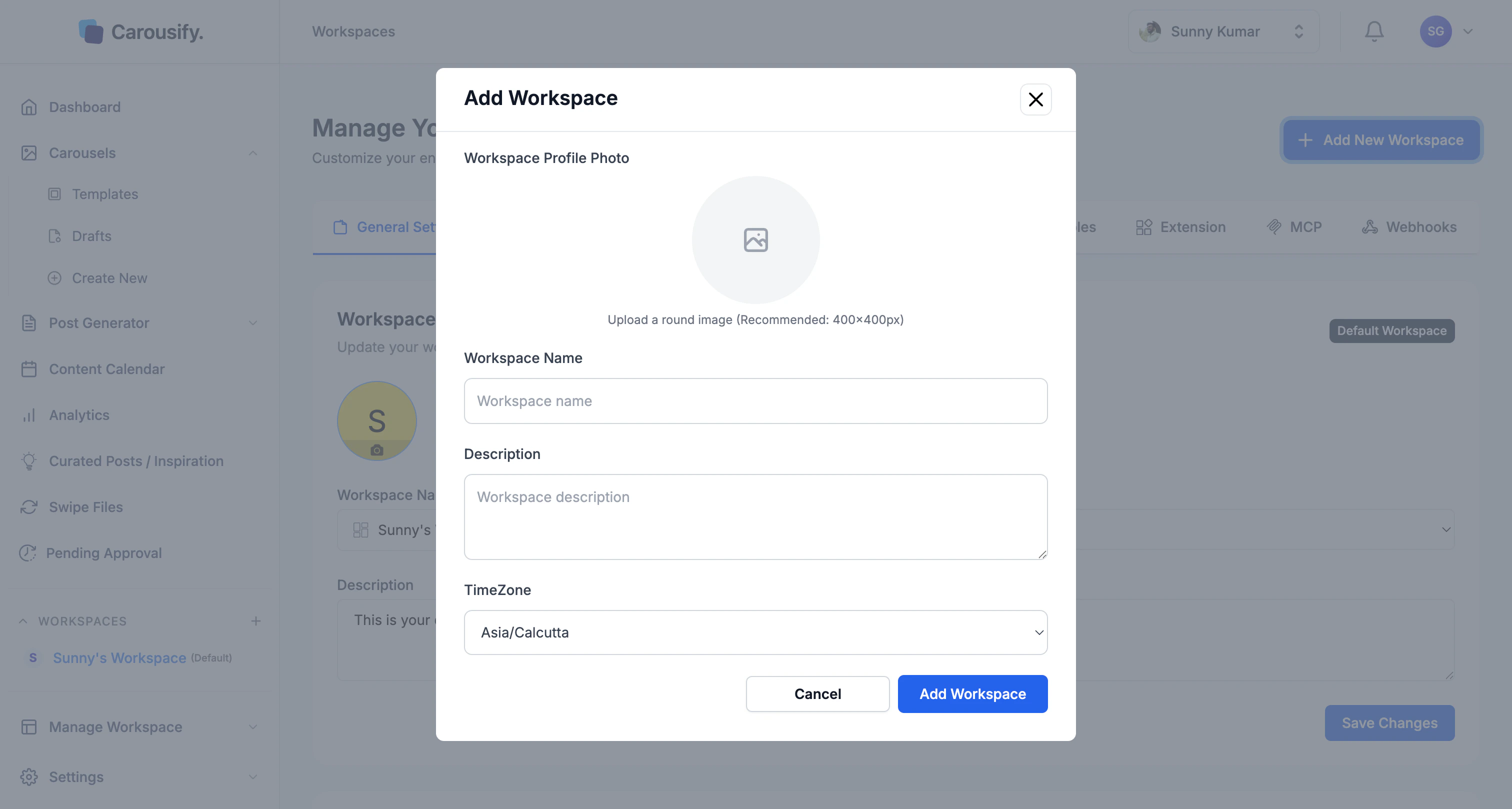 Fill in the name, timezone, and an optional logo and description, then save — the new workspace appears in the sidebar immediately.
Workspace count is plan-dependent. Hobby includes 1, Startup 3, Business 10, Enterprise up to 500 — see [Plans and pricing](/billing/plans).
## What's next
Add members to a workspace and assign them roles.
Control what each member can see and do.
Manage multiple clients without holding their credentials.
Require manager review before posts go live.
Fill in the name, timezone, and an optional logo and description, then save — the new workspace appears in the sidebar immediately.
Workspace count is plan-dependent. Hobby includes 1, Startup 3, Business 10, Enterprise up to 500 — see [Plans and pricing](/billing/plans).
## What's next
Add members to a workspace and assign them roles.
Control what each member can see and do.
Manage multiple clients without holding their credentials.
Require manager review before posts go live.