> ## Documentation Index
> Fetch the complete documentation index at: https://docs.carousify.com/llms.txt
> Use this file to discover all available pages before exploring further.
# Invite team members
> Add collaborators to a workspace, assign their role, and manage who has access.
Workspaces are designed to be shared. Invite teammates, freelancers, or clients into a workspace and they can co-author posts, design carousels, and run the calendar with you — under the role you choose.
The number of members you can invite per workspace is plan-dependent. Hobby includes 3 members per workspace, Startup 5, Business 10, and Enterprise up to 500. See [Plans and pricing](/billing/plans).
## Open Team Members
In the left sidebar, click **Manage Workspace › Team Members**.
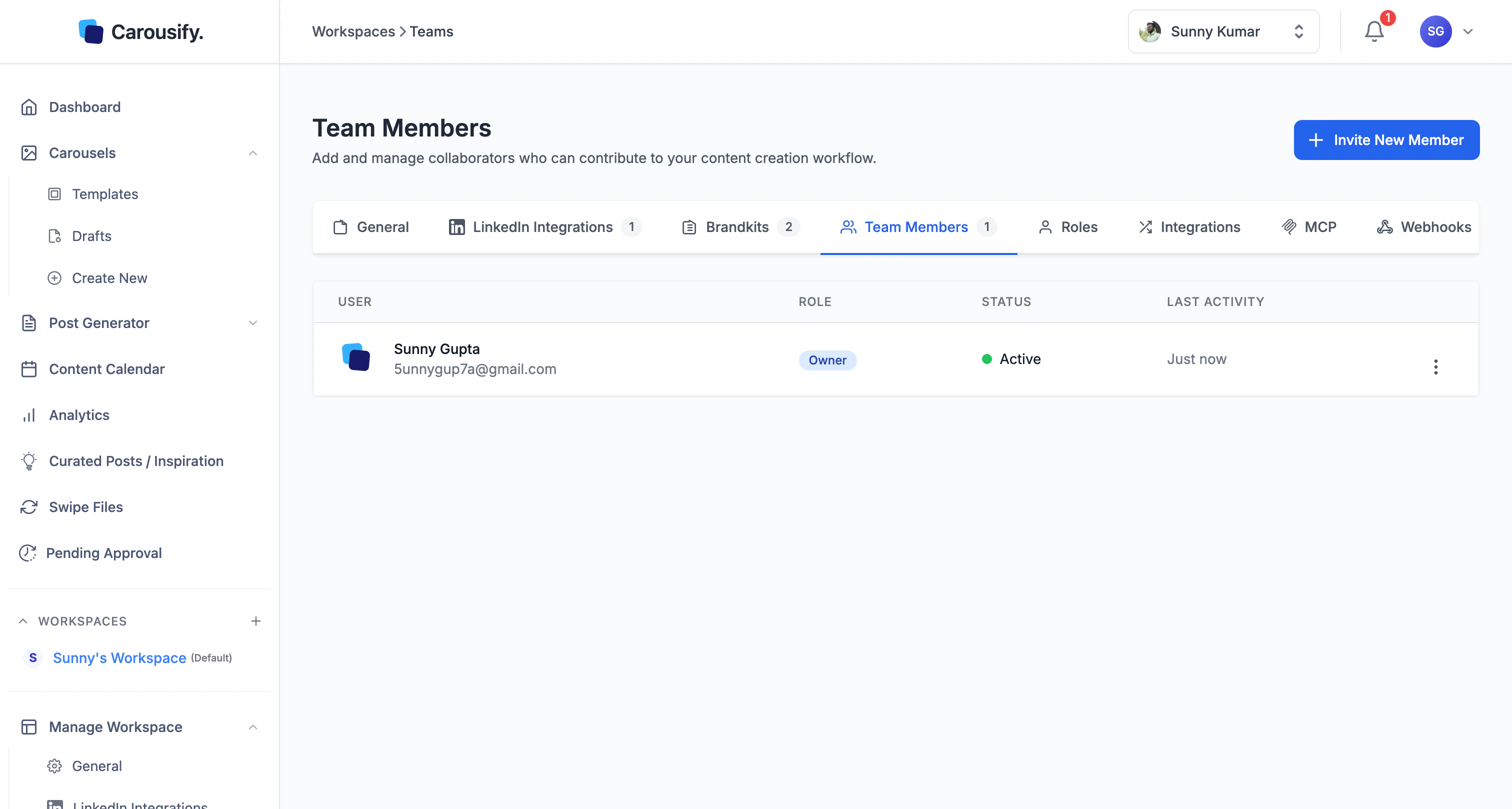 The page lists every member in this workspace with their role, status, and last activity. The workspace creator always shows up as **Owner** and can't be removed.
Members are scoped to a single workspace. If you run several workspaces — say, one per client — you'll invite people into each workspace separately, even if it's the same email address.
## Send an invite
Click **Invite New Member** in the top right. The **Invite Members** dialog opens.
The page lists every member in this workspace with their role, status, and last activity. The workspace creator always shows up as **Owner** and can't be removed.
Members are scoped to a single workspace. If you run several workspaces — say, one per client — you'll invite people into each workspace separately, even if it's the same email address.
## Send an invite
Click **Invite New Member** in the top right. The **Invite Members** dialog opens.
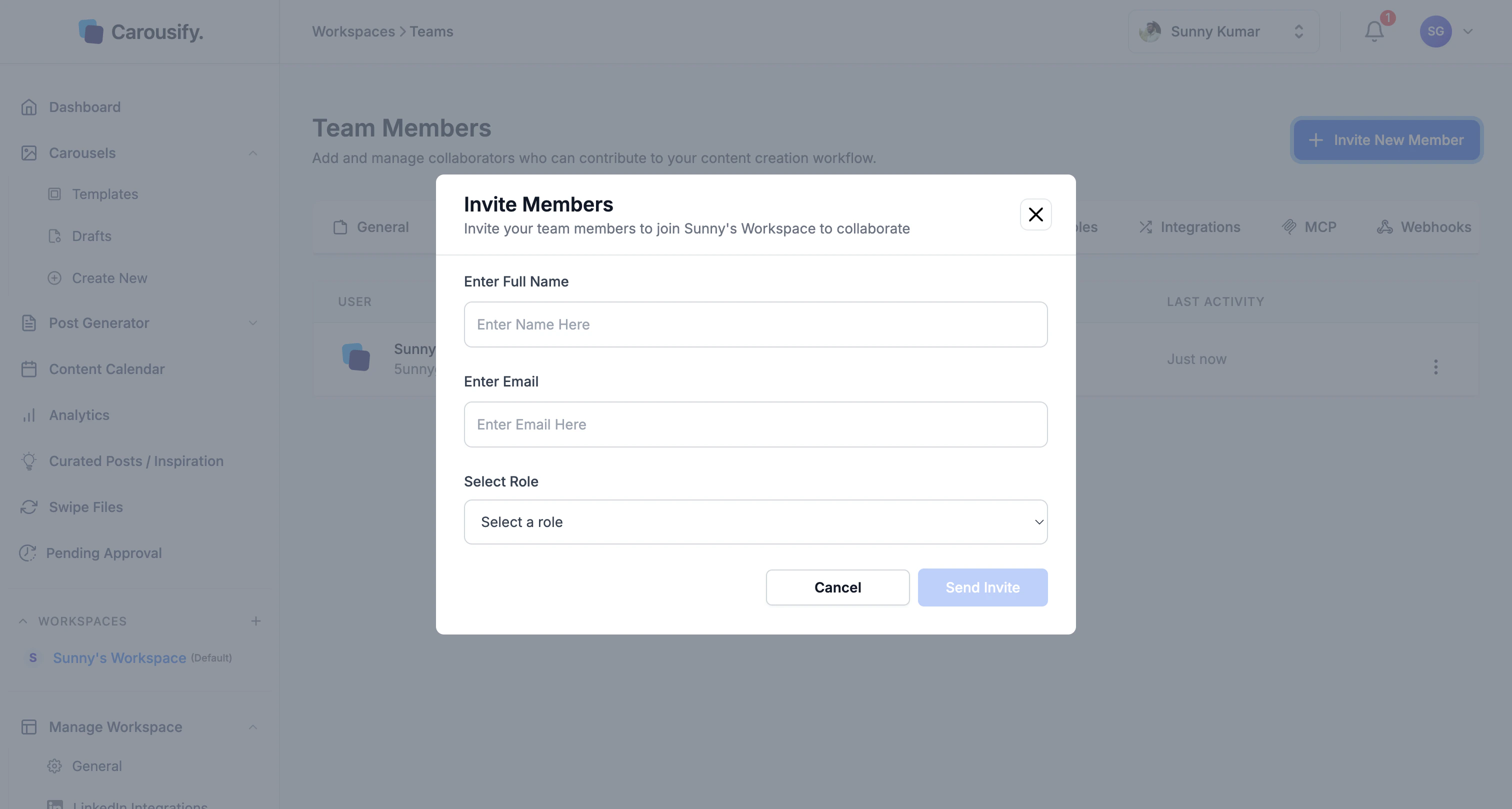 Fill in three fields:
| Field | What to enter |
| ----------- | ----------------------------------------------------------------------------------------------------------- |
| Full Name | The teammate's name as you want it shown across the workspace. |
| Email | The address Carousify sends the invite to. They'll sign up (or sign in) with this email. |
| Select Role | **Admin**, **Client**, or **Member** — see [Roles and permissions](/workspaces/roles) for what each can do. |
Fill in three fields:
| Field | What to enter |
| ----------- | ----------------------------------------------------------------------------------------------------------- |
| Full Name | The teammate's name as you want it shown across the workspace. |
| Email | The address Carousify sends the invite to. They'll sign up (or sign in) with this email. |
| Select Role | **Admin**, **Client**, or **Member** — see [Roles and permissions](/workspaces/roles) for what each can do. |
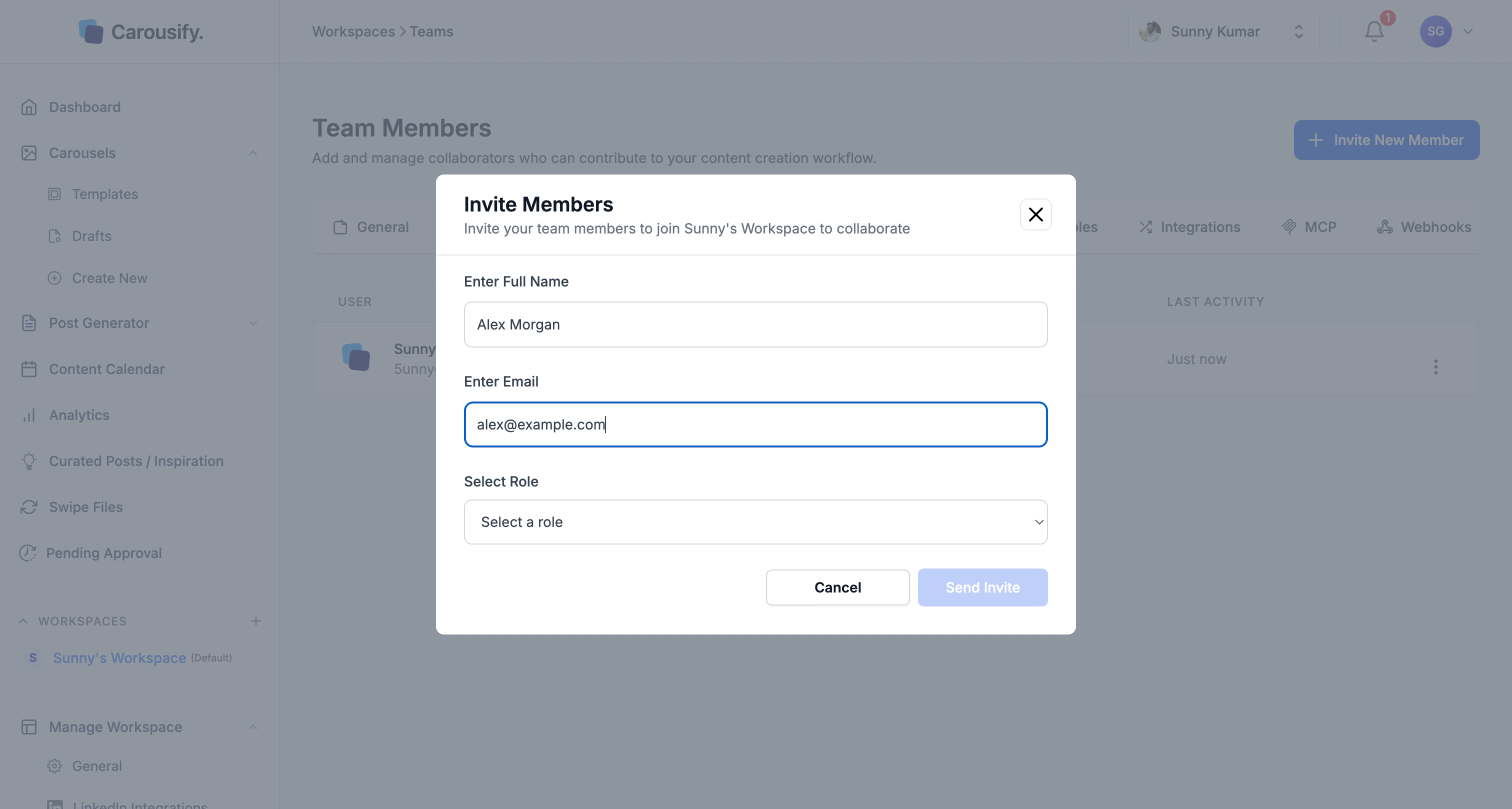 Click **Send Invite**. Carousify emails the invitee a link to join — they'll create an account (or sign in) with the same email and land directly inside this workspace.
## What happens after you send
* The invitee gets an email with a join link
* The member appears in the table immediately with a **Pending** status
* Once they accept and sign in, status flips to **Active**
* They land inside *this* workspace by default — they can switch to others they've been invited to from the sidebar's **WORKSPACES** list
If the invite expires or gets lost, open the row's actions menu and re-send it.
## Manage existing members
From the actions button on each row you can:
* **Change role** — promote a Member to Admin, or move someone to Client without re-inviting
* **Resend invite** — re-trigger the email if a Pending member never joined
* **Remove** — revoke access to this workspace. Their drafts and scheduled posts stay; they just can't open them anymore
Removing a member is workspace-scoped, not account-wide. If the same person is in another workspace you own, they keep access there.
## What's next
The full matrix of what Owner, Admin, Member, and Client can each do.
Run a workspace for a client without sharing logins or LinkedIn credentials.
Require an Admin or Owner to sign off before scheduled posts go live.
How workspaces, brand kits, and integrations fit together.
Click **Send Invite**. Carousify emails the invitee a link to join — they'll create an account (or sign in) with the same email and land directly inside this workspace.
## What happens after you send
* The invitee gets an email with a join link
* The member appears in the table immediately with a **Pending** status
* Once they accept and sign in, status flips to **Active**
* They land inside *this* workspace by default — they can switch to others they've been invited to from the sidebar's **WORKSPACES** list
If the invite expires or gets lost, open the row's actions menu and re-send it.
## Manage existing members
From the actions button on each row you can:
* **Change role** — promote a Member to Admin, or move someone to Client without re-inviting
* **Resend invite** — re-trigger the email if a Pending member never joined
* **Remove** — revoke access to this workspace. Their drafts and scheduled posts stay; they just can't open them anymore
Removing a member is workspace-scoped, not account-wide. If the same person is in another workspace you own, they keep access there.
## What's next
The full matrix of what Owner, Admin, Member, and Client can each do.
Run a workspace for a client without sharing logins or LinkedIn credentials.
Require an Admin or Owner to sign off before scheduled posts go live.
How workspaces, brand kits, and integrations fit together.