> ## Documentation Index
> Fetch the complete documentation index at: https://docs.carousify.com/llms.txt
> Use this file to discover all available pages before exploring further.
# Approval workflow
> Route posts through a manager review before they publish.
Approval routes posts through a review step before they publish. You decide which roles need it — turn **Requires Approval** on for a role and posts from anyone on that role land in **Pending Approval** for someone with the **Approve Posts** permission to sign off on. It works on any role, including Admin if the Owner wants final say.
Approval is available on **Business** and **Enterprise** plans. See [Plans and pricing](/billing/plans).
## How it's wired
There's no separate "approval" setting — it's a per-role toggle on **Manage Workspace › Roles**. Flip **Requires Approval** on for any role and every post someone on that role tries to schedule or publish gets routed to Pending Approval first.
By default the toggle is **off** for every role. Turn it on for whichever roles you want gated — common setups are **Member** (writers ship to a queue, Admin signs off) or **Admin** when an Owner wants final say on everything that goes out. You can mix freely.
See [Roles and permissions](/workspaces/roles#the-approval-gate) for the full toggle behavior.
## What writers see
When a member with Requires Approval clicks **Publish** or **Schedule**, the post doesn't go to LinkedIn — it goes to Pending Approval and shows up there waiting for sign-off. The post keeps its original scheduled time; if it's not approved by then it doesn't publish, and Carousify asks the writer to reschedule it.
## Reviewing pending posts
Open **Pending Approval** in the left sidebar. Every post awaiting review is listed with a LinkedIn-style preview — author, headline, body, and the time it's scheduled for.
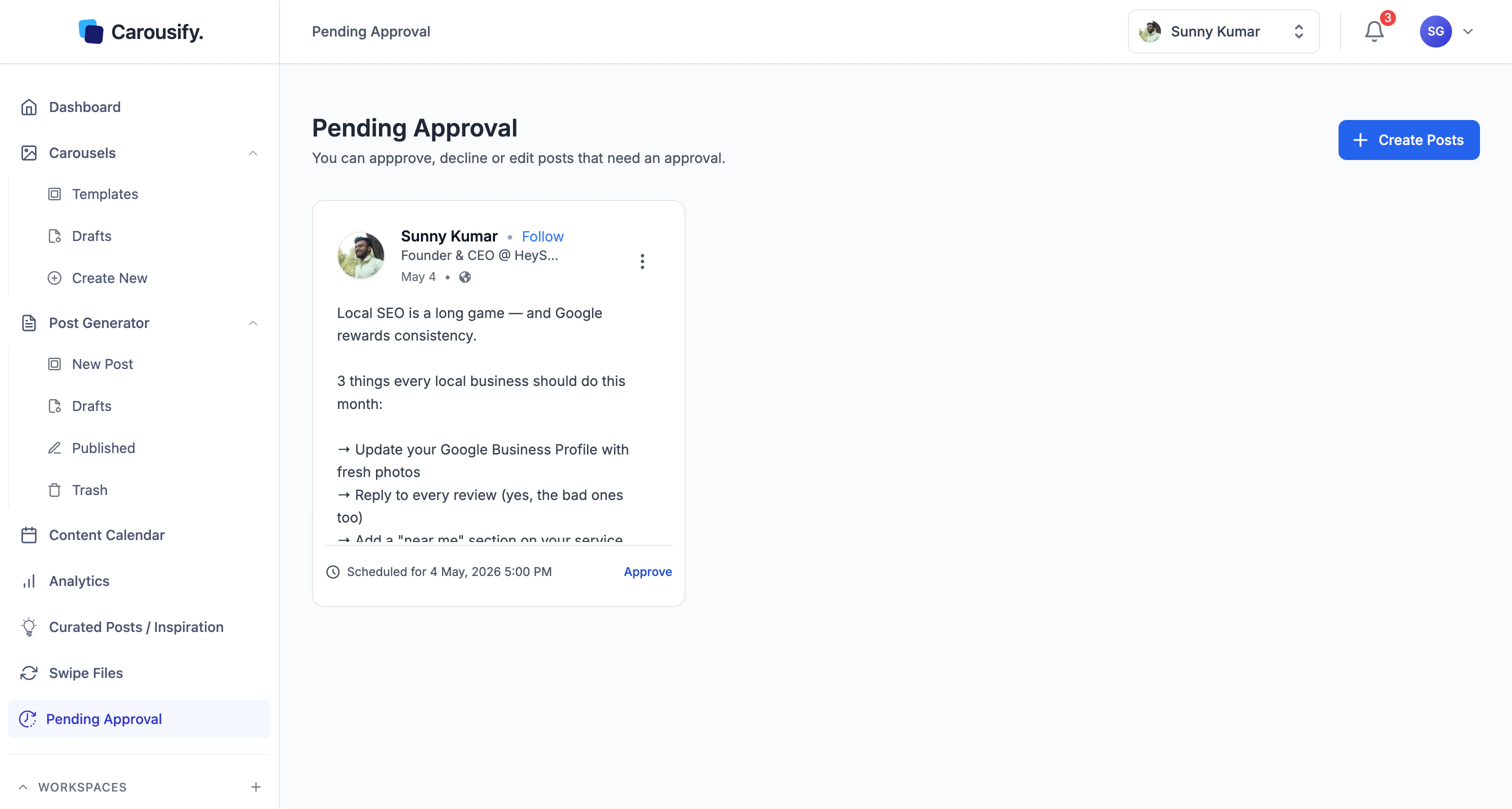 The number badge next to the **Pending Approval** sidebar item is the live count, so reviewers see at a glance how much is queued up.
## Approve, edit, or decline
Each pending post has three actions. The primary **Approve** button sits on the card; **Edit** and **Decline** are tucked under the kebab menu in the top-right corner of the card.
The number badge next to the **Pending Approval** sidebar item is the live count, so reviewers see at a glance how much is queued up.
## Approve, edit, or decline
Each pending post has three actions. The primary **Approve** button sits on the card; **Edit** and **Decline** are tucked under the kebab menu in the top-right corner of the card.
 | Action | What happens |
| ----------- | ---------------------------------------------------------------------------------------------------------------------------------------------- |
| **Approve** | Post is released. If it was scheduled, it publishes at its scheduled time. If the writer hit Publish (not Schedule), it goes live immediately. |
| **Edit** | Opens the post in the editor. Make changes, save, and the post stays in Pending until you approve it. |
| **Decline** | Sends the post back to the writer as a draft. Nothing publishes. |
Use **Edit** for small copy fixes you'd otherwise nag the writer about — typos, hashtag swaps, link cleanups. Use **Decline** when the angle or content needs a real rewrite.
## What's next
Toggle Requires Approval on the roles you want gated, or build a custom approver tier.
Add writers under a role with Requires Approval on so their work routes through review.
Spot-check the queue after approving.
Combine approval with client workspaces for ghostwriter / agency setups.
| Action | What happens |
| ----------- | ---------------------------------------------------------------------------------------------------------------------------------------------- |
| **Approve** | Post is released. If it was scheduled, it publishes at its scheduled time. If the writer hit Publish (not Schedule), it goes live immediately. |
| **Edit** | Opens the post in the editor. Make changes, save, and the post stays in Pending until you approve it. |
| **Decline** | Sends the post back to the writer as a draft. Nothing publishes. |
Use **Edit** for small copy fixes you'd otherwise nag the writer about — typos, hashtag swaps, link cleanups. Use **Decline** when the angle or content needs a real rewrite.
## What's next
Toggle Requires Approval on the roles you want gated, or build a custom approver tier.
Add writers under a role with Requires Approval on so their work routes through review.
Spot-check the queue after approving.
Combine approval with client workspaces for ghostwriter / agency setups.