> ## Documentation Index
> Fetch the complete documentation index at: https://docs.carousify.com/llms.txt
> Use this file to discover all available pages before exploring further.
# SMTP
> Send invite and password-reset emails from your own mail server instead of Carousify's.
SMTP sends the essential account emails — team invites and password resets — from your own mail server, so they reach clients and members from your domain, not Carousify's. Only these few meaningful emails route through it. Credentials are stored encrypted.
SMTP is part of whitelabel, an **Enterprise** feature, and applies once whitelabel is **Active** (see [Whitelabel overview](/whitelabel/overview)). On other plans, contact [Support](https://carousify.com/contact-us/) to enable it at an additional charge.
## Set it up
Open **Settings › Whitelabeling** and find the **Email (SMTP)** section.
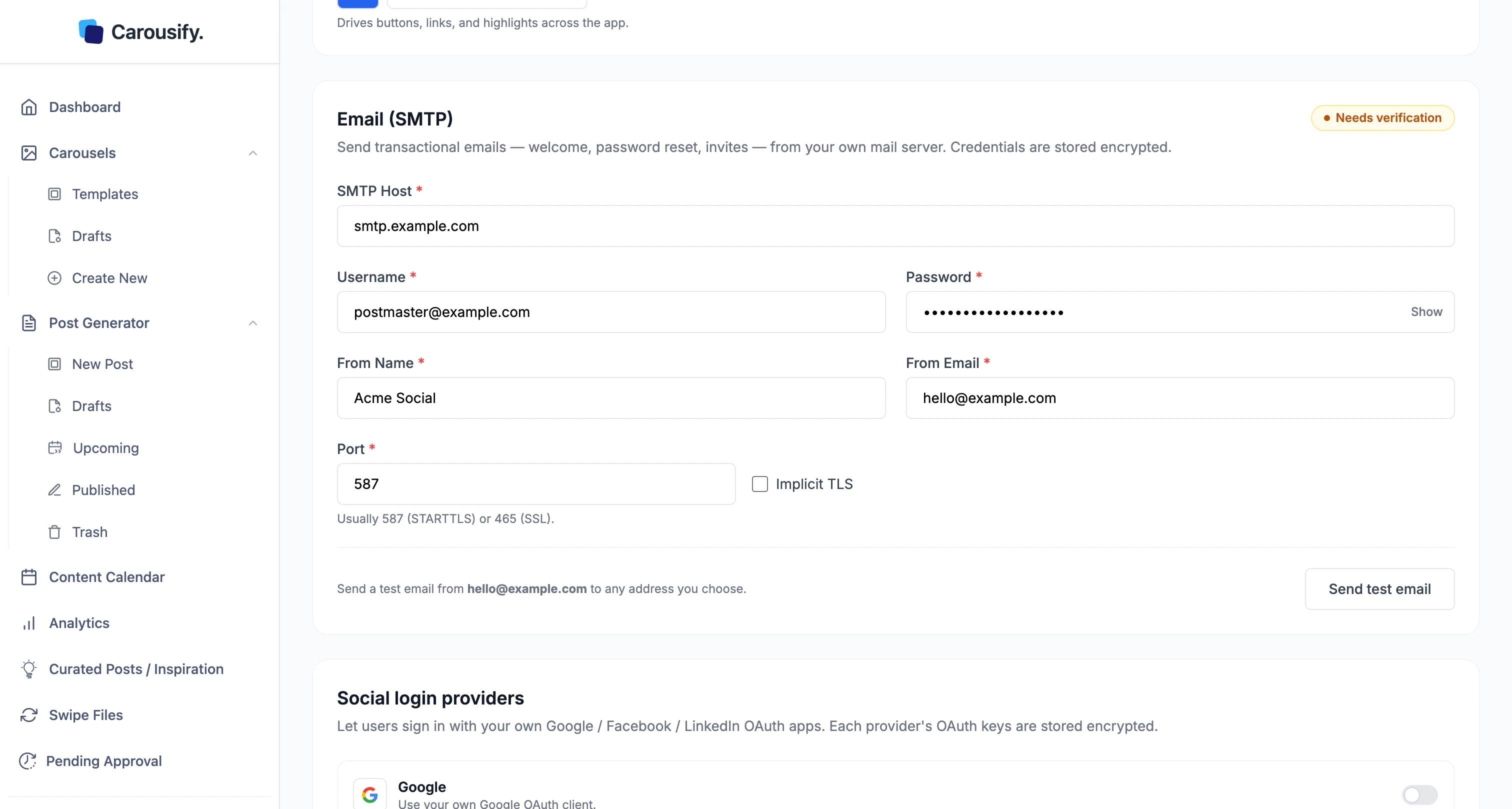 Fill in your mail provider's details:
| Field | Value |
| ------------------------------ | ----------------------------------------------------------- |
| **SMTP Host** | Your provider's server, e.g. `smtp.mailgun.org`. |
| **Username** / **Password** | Your SMTP login. Use **Show** to check the password. |
| **From Name** / **From Email** | The sender recipients see. |
| **Port** | `587` (STARTTLS) or `465` (SSL — turn on **Implicit TLS**). |
## Test before it saves
Once the fields are filled, the status changes to **Needs verification**. Carousify makes you send a working test email before the settings save — so a wrong host or credential is caught now, not by a client.
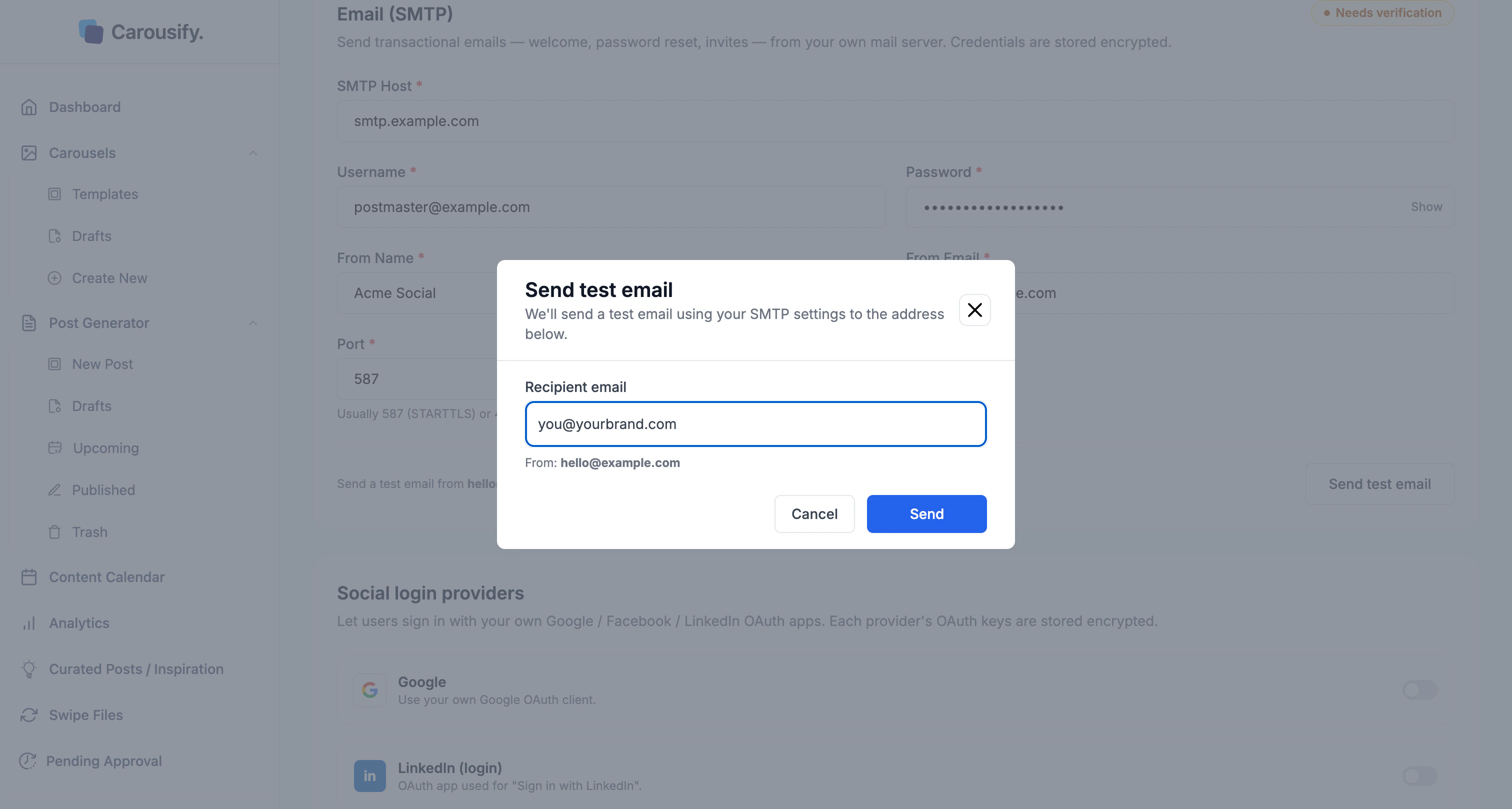
A dialog opens with a recipient (your address) and the **From** address.
Adjust the recipient if you like, click **Send**, and confirm the email arrives.
A successful test verifies the setup. If nothing arrives, fix the host, port, TLS, or credentials and test again.
Fill in your mail provider's details:
| Field | Value |
| ------------------------------ | ----------------------------------------------------------- |
| **SMTP Host** | Your provider's server, e.g. `smtp.mailgun.org`. |
| **Username** / **Password** | Your SMTP login. Use **Show** to check the password. |
| **From Name** / **From Email** | The sender recipients see. |
| **Port** | `587` (STARTTLS) or `465` (SSL — turn on **Implicit TLS**). |
## Test before it saves
Once the fields are filled, the status changes to **Needs verification**. Carousify makes you send a working test email before the settings save — so a wrong host or credential is caught now, not by a client.
A dialog opens with a recipient (your address) and the **From** address.
Adjust the recipient if you like, click **Send**, and confirm the email arrives.
A successful test verifies the setup. If nothing arrives, fix the host, port, TLS, or credentials and test again.
 ## What's next
Logo, favicon, name, and accent color.
Serve the app from a domain you own.
How SMTP fits the whitelabel setup.
Run client workspaces in your branded setup.
## What's next
Logo, favicon, name, and accent color.
Serve the app from a domain you own.
How SMTP fits the whitelabel setup.
Run client workspaces in your branded setup.