> ## Documentation Index
> Fetch the complete documentation index at: https://docs.carousify.com/llms.txt
> Use this file to discover all available pages before exploring further.
# Write a new post
> Compose a LinkedIn post from scratch — with AI on tap for topics, rewrites, and quick fixes.
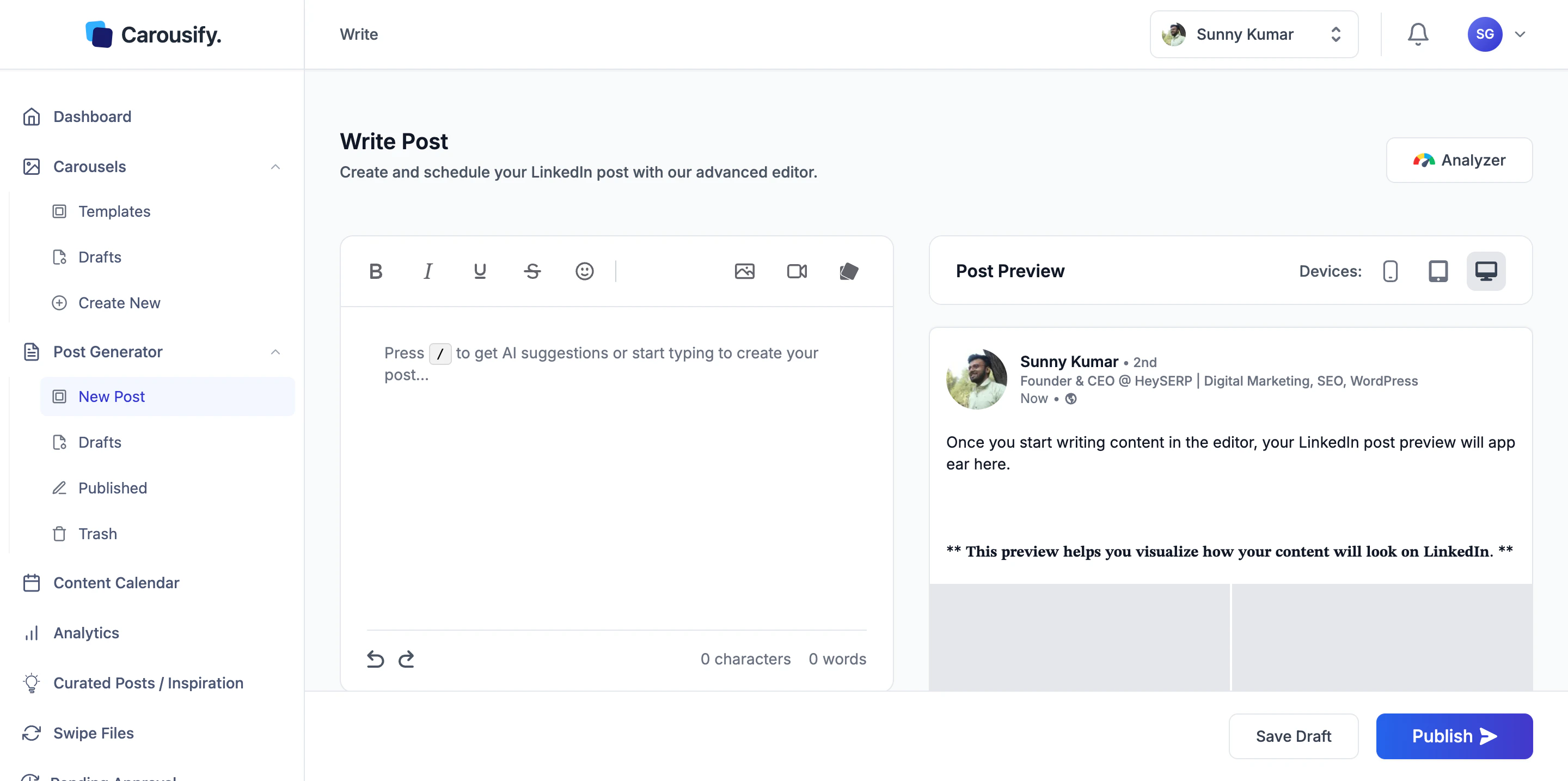
**Write New Post** is the blank-canvas option in the [Post Generator](/post-generator/overview). You get a rich-text editor on the left, a live LinkedIn preview on the right, and the **AI Assistant** sitting under the editor for whenever you want help — generate from a topic, rephrase a line, fix grammar, expand a paragraph, or anything else you can describe in a sentence.
 ## Open the writer
In the left sidebar, go to **Post Generator › New Post** and click **Write New Post** on the templates gallery.
You land on the **Write Post** page with an empty editor, an empty preview, and the **AI Assistant** panel ready below.
## Generate from a topic with `/`
The fastest way to a first draft is the slash command.
The placeholder reads *Press / to get AI suggestions or start typing to create your post...*
A small input box opens with the prompt **What topic should I write about?**
## Open the writer
In the left sidebar, go to **Post Generator › New Post** and click **Write New Post** on the templates gallery.
You land on the **Write Post** page with an empty editor, an empty preview, and the **AI Assistant** panel ready below.
## Generate from a topic with `/`
The fastest way to a first draft is the slash command.
The placeholder reads *Press / to get AI suggestions or start typing to create your post...*
A small input box opens with the prompt **What topic should I write about?**
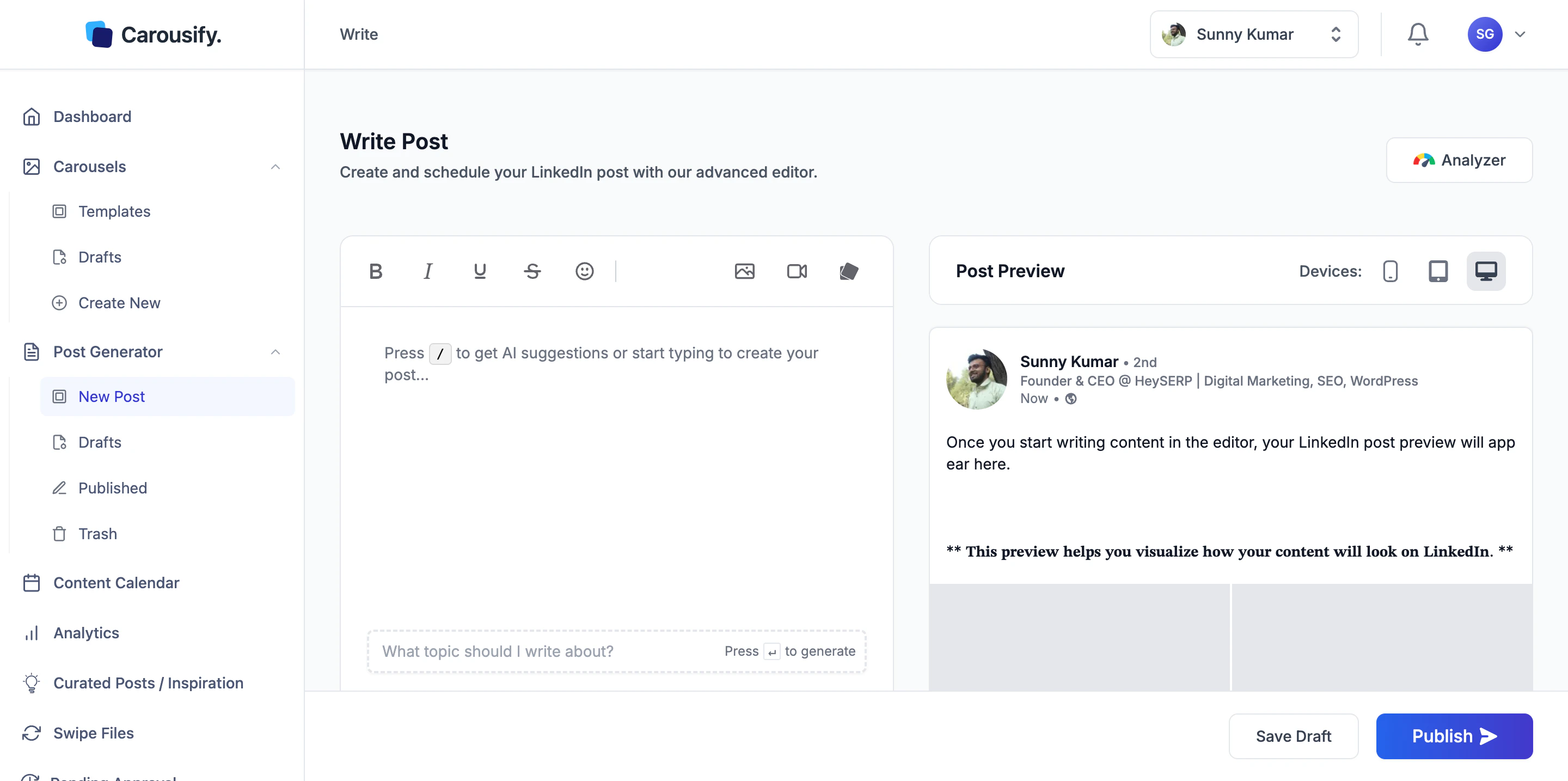 Anything from a one-liner (*Local SEO tips for restaurants*) to a longer brief (*A post about why review velocity matters more than review count for local rankings, with one specific example*).
Carousify generates a full post into the editor. Edit any line directly — AI output is a starting point, not a final draft.
The more specific the prompt, the closer the draft lands to what you want. *"Write about local SEO"* gets you a generic post. *"Why review velocity matters more than review count, with one example from a multi-location restaurant"* gets you something usable.
## Write manually
If you'd rather draft yourself, just start typing. The formatting toolbar above the editor handles the basics:
* **Bold**, **Italic**, **Underline**, **Strikethrough**
* **Insert Emoji**
* **Add Image**, **Add Video**, **Add Carousel** — single-image, video, or attach a carousel deck you've already built. The image picker also has an **AI** tab — generate an image from a prompt instead of uploading one. See [AI Image Generator](/carousel-maker/ai-images).
For LinkedIn-specific formatting tricks (bullet styles, line breaks, special characters) see [Formatting and preview](/post-generator/formatting).
The bottom of the editor shows a live **character and word counter** — LinkedIn allows up to 3,000 characters per post.
## The AI Assistant panel
The **AI Assistant** sits under the editor at all times. It runs whether the editor is empty, half-written, or finished — pick a quick action, write a custom instruction, or select text first to scope AI to just that part.
Anything from a one-liner (*Local SEO tips for restaurants*) to a longer brief (*A post about why review velocity matters more than review count for local rankings, with one specific example*).
Carousify generates a full post into the editor. Edit any line directly — AI output is a starting point, not a final draft.
The more specific the prompt, the closer the draft lands to what you want. *"Write about local SEO"* gets you a generic post. *"Why review velocity matters more than review count, with one example from a multi-location restaurant"* gets you something usable.
## Write manually
If you'd rather draft yourself, just start typing. The formatting toolbar above the editor handles the basics:
* **Bold**, **Italic**, **Underline**, **Strikethrough**
* **Insert Emoji**
* **Add Image**, **Add Video**, **Add Carousel** — single-image, video, or attach a carousel deck you've already built. The image picker also has an **AI** tab — generate an image from a prompt instead of uploading one. See [AI Image Generator](/carousel-maker/ai-images).
For LinkedIn-specific formatting tricks (bullet styles, line breaks, special characters) see [Formatting and preview](/post-generator/formatting).
The bottom of the editor shows a live **character and word counter** — LinkedIn allows up to 3,000 characters per post.
## The AI Assistant panel
The **AI Assistant** sits under the editor at all times. It runs whether the editor is empty, half-written, or finished — pick a quick action, write a custom instruction, or select text first to scope AI to just that part.
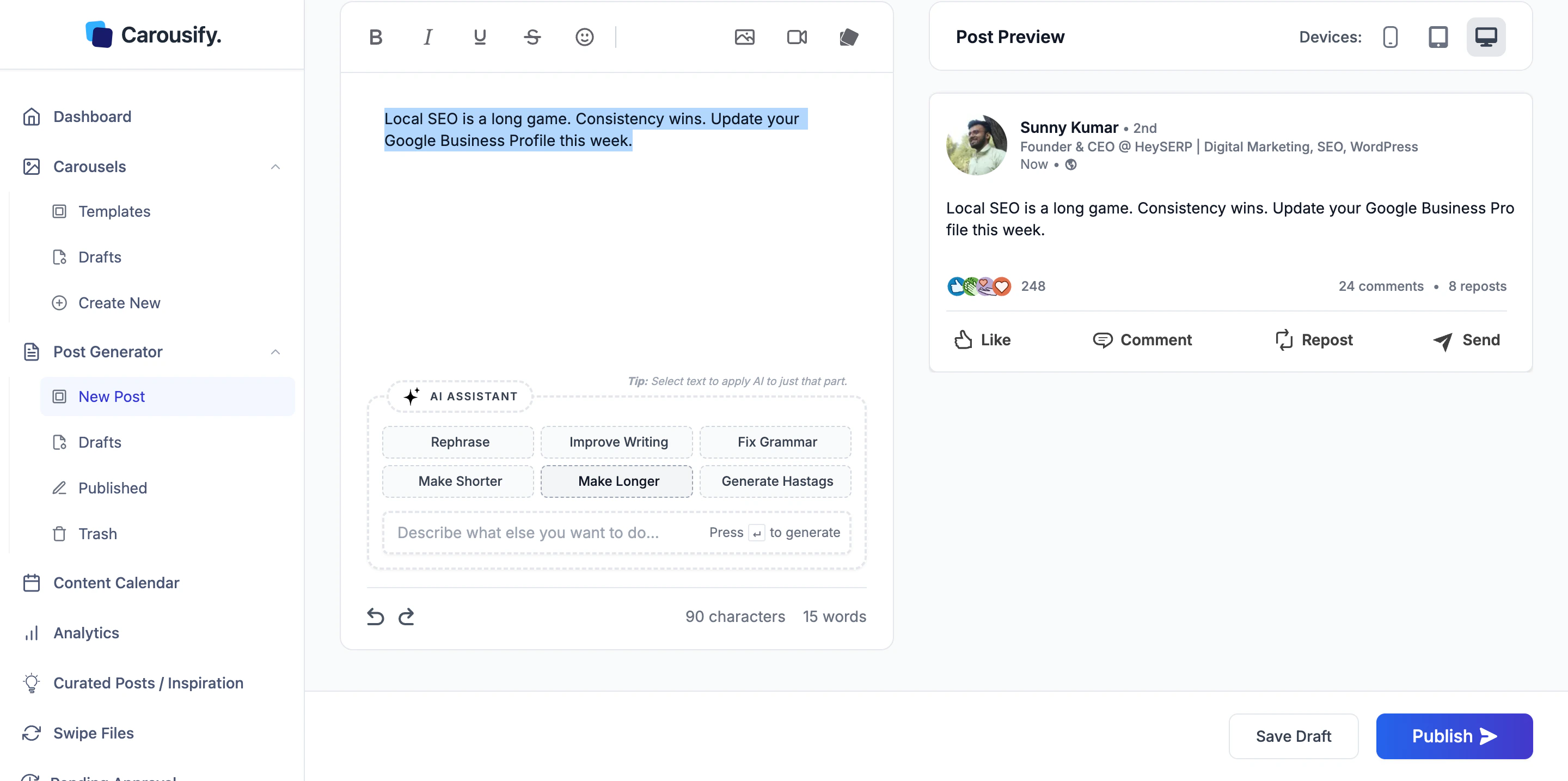 | Action | What it does |
| --------------------- | ---------------------------------------------------------- |
| **Rephrase** | Rewrites the selection (or full post) keeping the meaning. |
| **Improve Writing** | Tightens the prose — clarity, flow, word choice. |
| **Fix Grammar** | Fixes punctuation, tense, and grammar issues only. |
| **Make Shorter** | Cuts length while keeping the point. |
| **Make Longer** | Expands with context, examples, or a stronger hook. |
| **Generate Hashtags** | Suggests hashtags based on the post body and appends them. |
### Free-form prompt
Below the buttons, **Describe what else you want to do...** is a text input for anything outside the six presets. Type the instruction and press ↵:
* *Rewrite as a personal story instead of an opinion piece*
* *Turn this into a question to my audience*
* *Add a one-line hook at the top*
* *Translate to Hindi and keep the tone*
### Scope AI to a selection
Select a sentence or paragraph in the editor before clicking an AI button (or running a free-form prompt), and AI acts only on that selection — the rest of the post stays untouched. The panel shows a hint: *Tip: Select text to apply AI to just that part.*
This is the cleanest way to fix one weak line without AI rewriting the whole post.
## Live LinkedIn preview
The right pane is a **Post Preview** — exactly how the post will render on LinkedIn, including line breaks, bold styles (LinkedIn renders these as Unicode lookalikes, not real bold), and any media you've attached.
The **Devices** toggle at the top of the preview switches between:
* **Mobile** — what most LinkedIn users will see
* **Tablet**
* **Desktop**
Always check the **Mobile** preview before publishing. Most LinkedIn traffic is on phones, and a post that looks great on desktop can break mid-hook on a small screen if line breaks land badly.
## Analyzer
The **Analyzer** button in the top-right runs the current draft through an AI scoring pass and returns an **Overall Score** plus suggestions across nine dimensions.
| Action | What it does |
| --------------------- | ---------------------------------------------------------- |
| **Rephrase** | Rewrites the selection (or full post) keeping the meaning. |
| **Improve Writing** | Tightens the prose — clarity, flow, word choice. |
| **Fix Grammar** | Fixes punctuation, tense, and grammar issues only. |
| **Make Shorter** | Cuts length while keeping the point. |
| **Make Longer** | Expands with context, examples, or a stronger hook. |
| **Generate Hashtags** | Suggests hashtags based on the post body and appends them. |
### Free-form prompt
Below the buttons, **Describe what else you want to do...** is a text input for anything outside the six presets. Type the instruction and press ↵:
* *Rewrite as a personal story instead of an opinion piece*
* *Turn this into a question to my audience*
* *Add a one-line hook at the top*
* *Translate to Hindi and keep the tone*
### Scope AI to a selection
Select a sentence or paragraph in the editor before clicking an AI button (or running a free-form prompt), and AI acts only on that selection — the rest of the post stays untouched. The panel shows a hint: *Tip: Select text to apply AI to just that part.*
This is the cleanest way to fix one weak line without AI rewriting the whole post.
## Live LinkedIn preview
The right pane is a **Post Preview** — exactly how the post will render on LinkedIn, including line breaks, bold styles (LinkedIn renders these as Unicode lookalikes, not real bold), and any media you've attached.
The **Devices** toggle at the top of the preview switches between:
* **Mobile** — what most LinkedIn users will see
* **Tablet**
* **Desktop**
Always check the **Mobile** preview before publishing. Most LinkedIn traffic is on phones, and a post that looks great on desktop can break mid-hook on a small screen if line breaks land badly.
## Analyzer
The **Analyzer** button in the top-right runs the current draft through an AI scoring pass and returns an **Overall Score** plus suggestions across nine dimensions.
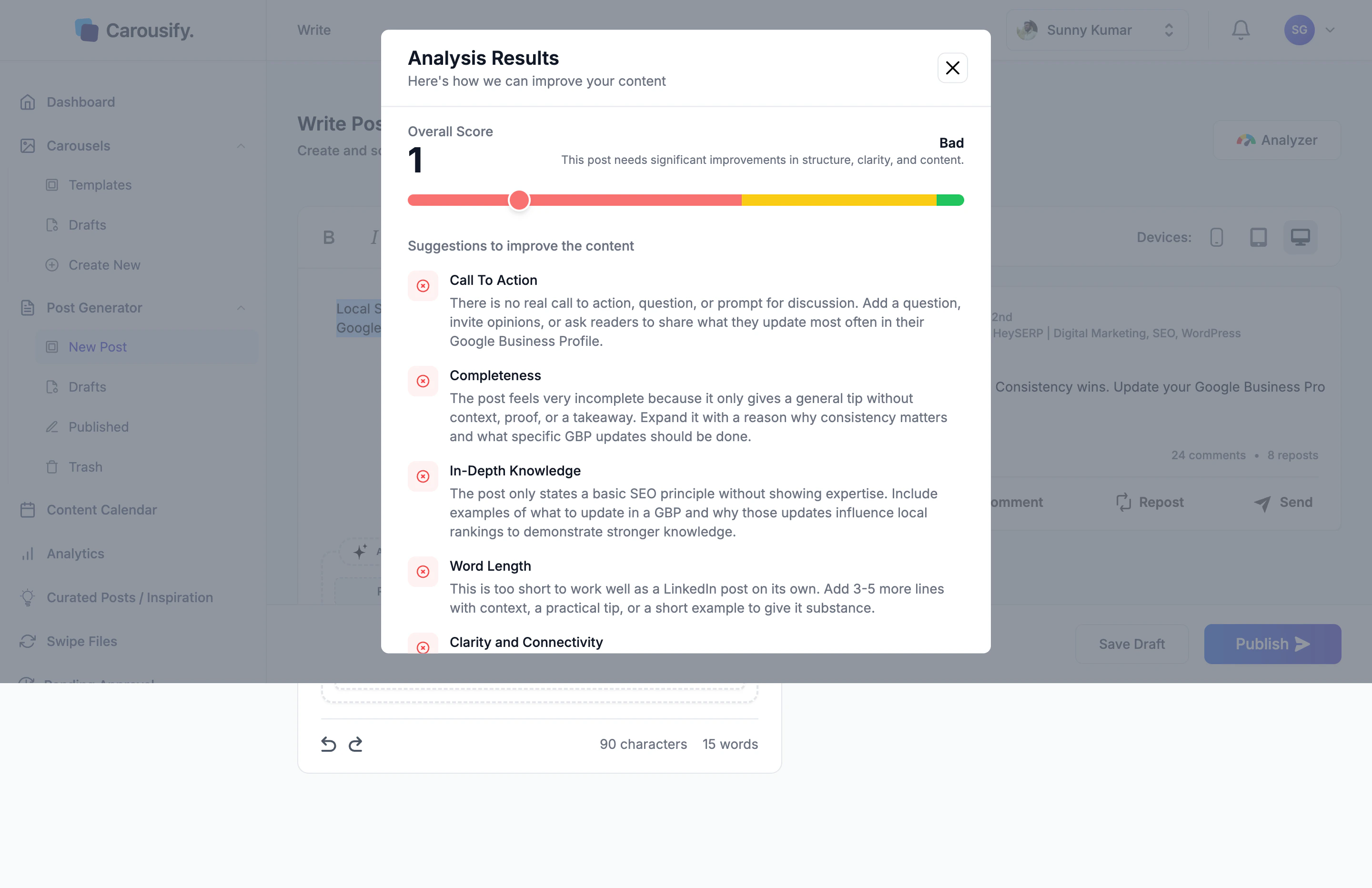 What it checks:
* **Call To Action** — is there a question, prompt, or ask?
* **Completeness** — does the post stand on its own, or feel like a fragment?
* **In-Depth Knowledge** — is there signal beyond a generic statement?
* **Word Length** — is the post long enough to land, short enough to read?
* **Clarity and Connectivity** — does it flow from sentence to sentence?
* **Grammatical Accuracy** — punctuation, tense, sentence structure
* **Authenticity** — does it sound personal, or could it have been written by anyone?
* **Readability** — sentence rhythm and pacing
* **Media Attached** — is there an image, video, or carousel to back it up?
Each dimension gets a one-paragraph suggestion you can act on. Treat the score as a sanity check — not a target to game.
## Save Draft and Publish
Bottom-right of the editor:
* **Save Draft** — keeps the post in **Post Generator › Drafts** for later. You can come back, run AI on it, and publish whenever. Drafts auto-save on every keystroke, so you'll never lose work to a closed tab.
* **Publish** — opens the **Publish Post** dialog where you can post immediately, [schedule](/scheduling/schedule-post) it for a future date and time, or attach an [auto-plug](/scheduling/auto-plug) follow-up comment.
## What's next
Skip the blank canvas — start from audio, an article, a YouTube video, or a PDF.
Bold, italic, lists, emoji, and how the LinkedIn preview renders each.
Queue the finished post at a peak time for your timezone.
What it checks:
* **Call To Action** — is there a question, prompt, or ask?
* **Completeness** — does the post stand on its own, or feel like a fragment?
* **In-Depth Knowledge** — is there signal beyond a generic statement?
* **Word Length** — is the post long enough to land, short enough to read?
* **Clarity and Connectivity** — does it flow from sentence to sentence?
* **Grammatical Accuracy** — punctuation, tense, sentence structure
* **Authenticity** — does it sound personal, or could it have been written by anyone?
* **Readability** — sentence rhythm and pacing
* **Media Attached** — is there an image, video, or carousel to back it up?
Each dimension gets a one-paragraph suggestion you can act on. Treat the score as a sanity check — not a target to game.
## Save Draft and Publish
Bottom-right of the editor:
* **Save Draft** — keeps the post in **Post Generator › Drafts** for later. You can come back, run AI on it, and publish whenever. Drafts auto-save on every keystroke, so you'll never lose work to a closed tab.
* **Publish** — opens the **Publish Post** dialog where you can post immediately, [schedule](/scheduling/schedule-post) it for a future date and time, or attach an [auto-plug](/scheduling/auto-plug) follow-up comment.
## What's next
Skip the blank canvas — start from audio, an article, a YouTube video, or a PDF.
Bold, italic, lists, emoji, and how the LinkedIn preview renders each.
Queue the finished post at a peak time for your timezone.