> ## Documentation Index
> Fetch the complete documentation index at: https://docs.carousify.com/llms.txt
> Use this file to discover all available pages before exploring further.
# Generate from source
> Turn an article, YouTube video, voice note, or PDF into a ready-to-publish LinkedIn post.
Carousify has four AI generators that take an existing piece of content as input and produce a finished LinkedIn post draft. Same flow, same advanced options — only the input box changes.
| Source | Input | Best for |
| ----------------- | -------------------------------------- | ------------------------------------------------------------- |
| **Article URL** | Paste a link to a blog post or article | Repurposing long-form writing into a LinkedIn post |
| **YouTube video** | Paste a YouTube link | Drafting a post around a video — uses the video's description |
| **Audio** | Record live or upload a voice note | Turning a 60-second walk-and-talk into a written post |
| **PDF file** | Upload a PDF (max 20 MB) | Research papers, ebooks, reports, lead magnets |
Whichever source you start from, every generator drafts the post for you and drops it into the same editor — so you can run AI rewrites, fix grammar, or tighten copy before publishing. See [Write a new post](/post-generator/write-post#the-ai-assistant-panel) for the AI Assistant panel.
## Open a generator
From **Post Generator › New Post** on the templates gallery, click the template that matches your input:
* **Generate from Content** — for article URLs
* **Generate from YouTube** — for video links
* **Generate from Audio** — for voice notes
* **Generate from PDF** — for documents
Every generator lands you on the same **Write Post** screen, with three tabs at the top of the input panel: **Input**, **Results**, and **Saved**.
## Provide the input
The input box is whatever the source needs.
### From an article URL
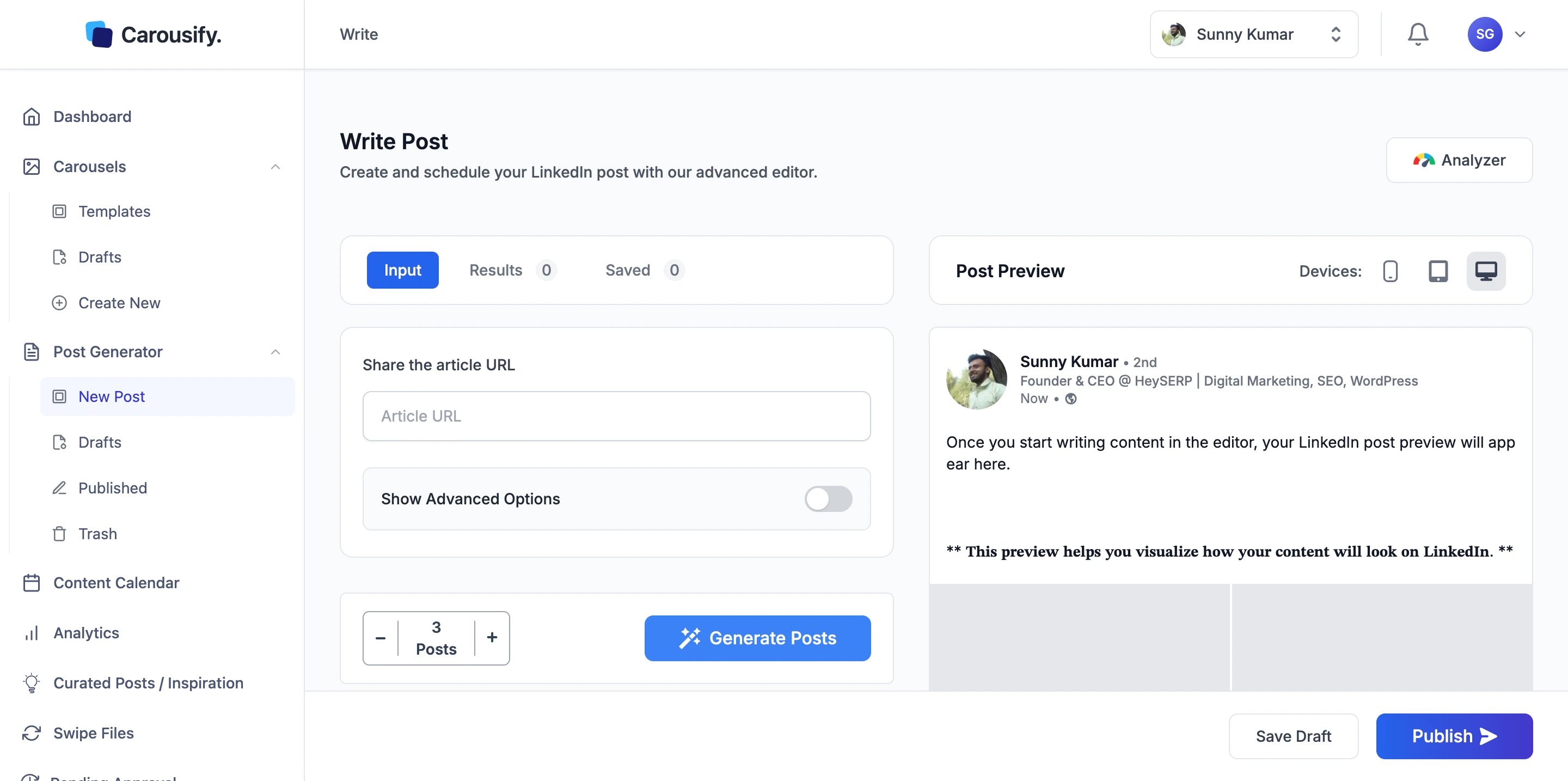 Paste the full URL of the blog post or article. Carousify reads the page and summarizes it into a post.
Paywalled articles will not work — Carousify can only read what a public reader can. Use a public version or fall back to copying the text into [Write New Post](/post-generator/write-post) and rewriting from there.
### From a YouTube video
Paste the full URL of the blog post or article. Carousify reads the page and summarizes it into a post.
Paywalled articles will not work — Carousify can only read what a public reader can. Use a public version or fall back to copying the text into [Write New Post](/post-generator/write-post) and rewriting from there.
### From a YouTube video
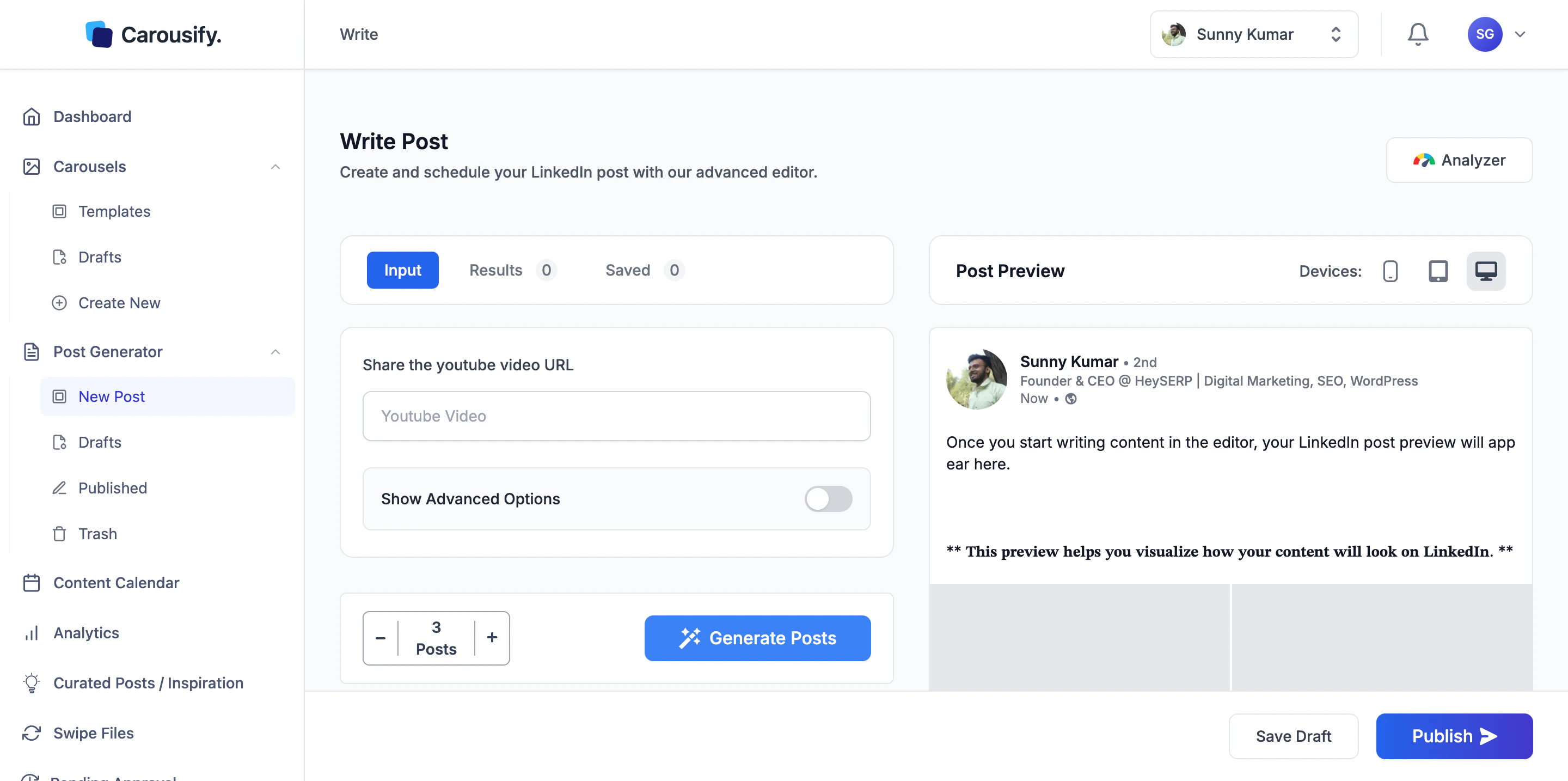 Paste a YouTube link. Carousify reads the **video description** and drafts a post based on it.
### From audio
Paste a YouTube link. Carousify reads the **video description** and drafts a post based on it.
### From audio
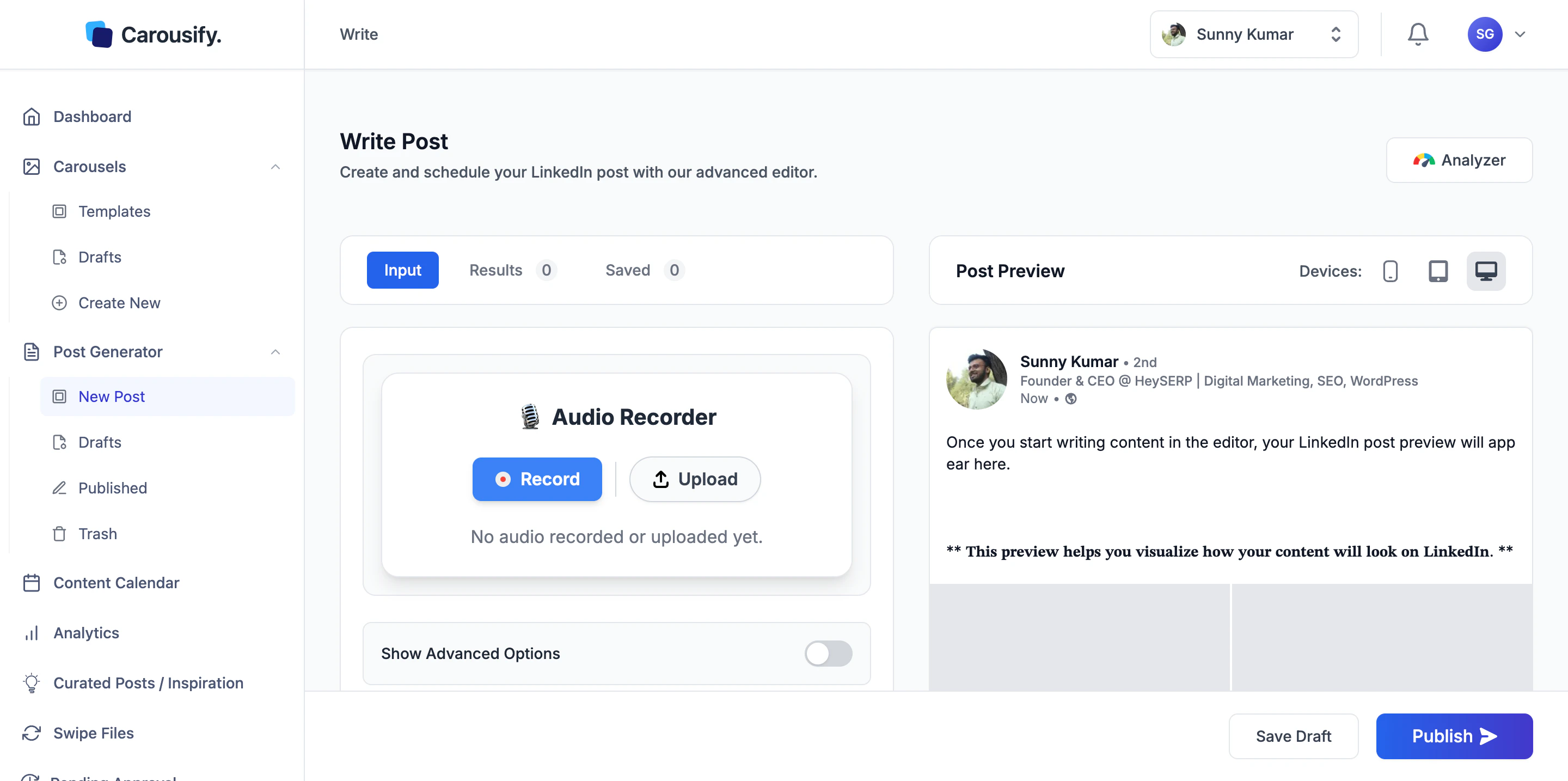 Two ways in:
* **Record** — click and speak. Carousify records straight from your browser.
* **Upload** — drag in an MP3, M4A, WAV, or similar audio file.
The audio is transcribed first, then the transcript is turned into a post.
60 to 90 seconds of clear talking is the sweet spot. Longer than 3 minutes and the post tends to lose focus.
### From a PDF
Two ways in:
* **Record** — click and speak. Carousify records straight from your browser.
* **Upload** — drag in an MP3, M4A, WAV, or similar audio file.
The audio is transcribed first, then the transcript is turned into a post.
60 to 90 seconds of clear talking is the sweet spot. Longer than 3 minutes and the post tends to lose focus.
### From a PDF
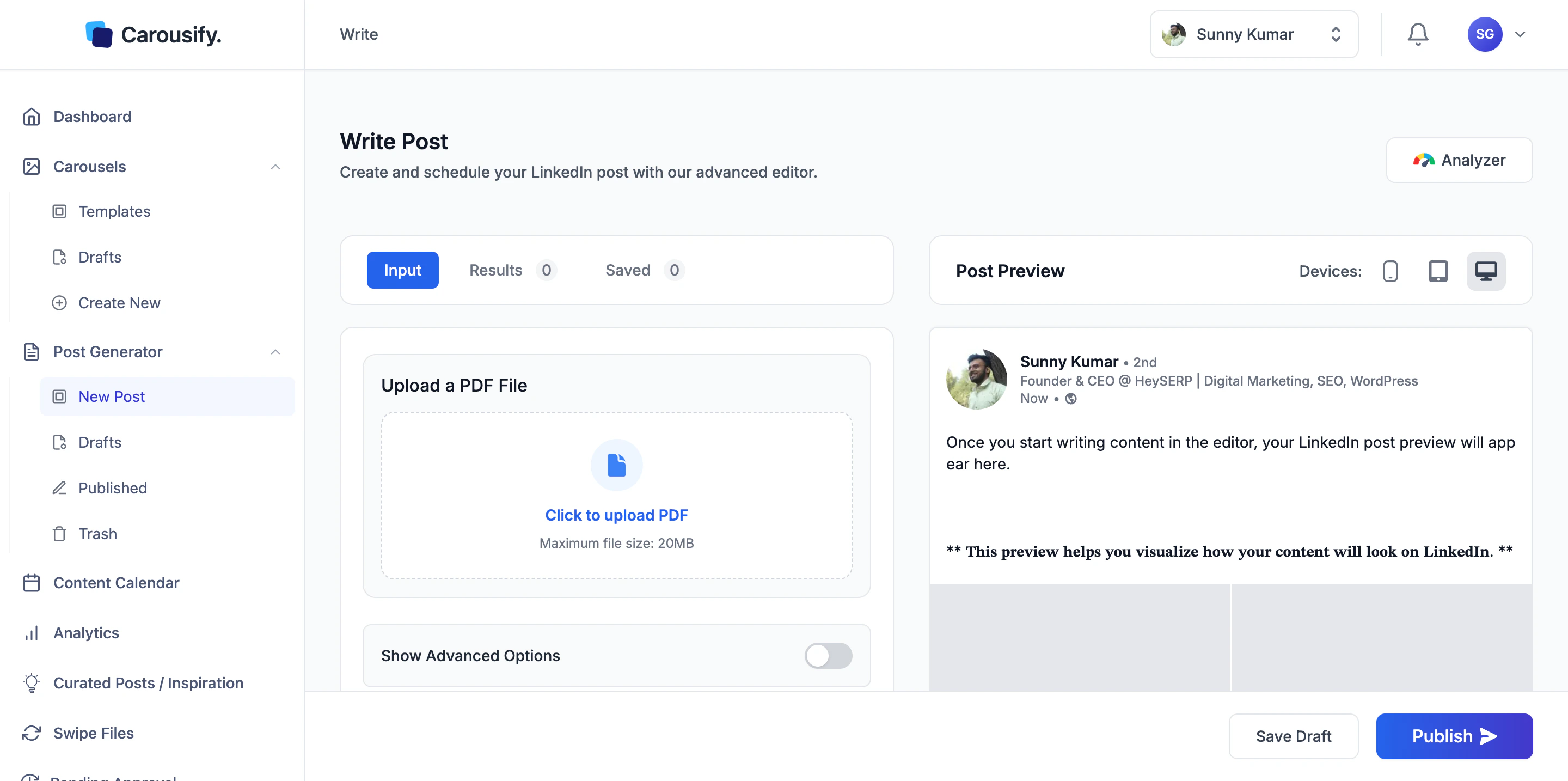 Click the dropzone and pick a PDF — research papers, ebooks, internal reports, lead magnets. **Maximum file size is 20 MB.**
## Show Advanced Options
Every generator has a **Show Advanced Options** toggle below the input. Flip it on to control how the post comes out.
Click the dropzone and pick a PDF — research papers, ebooks, internal reports, lead magnets. **Maximum file size is 20 MB.**
## Show Advanced Options
Every generator has a **Show Advanced Options** toggle below the input. Flip it on to control how the post comes out.
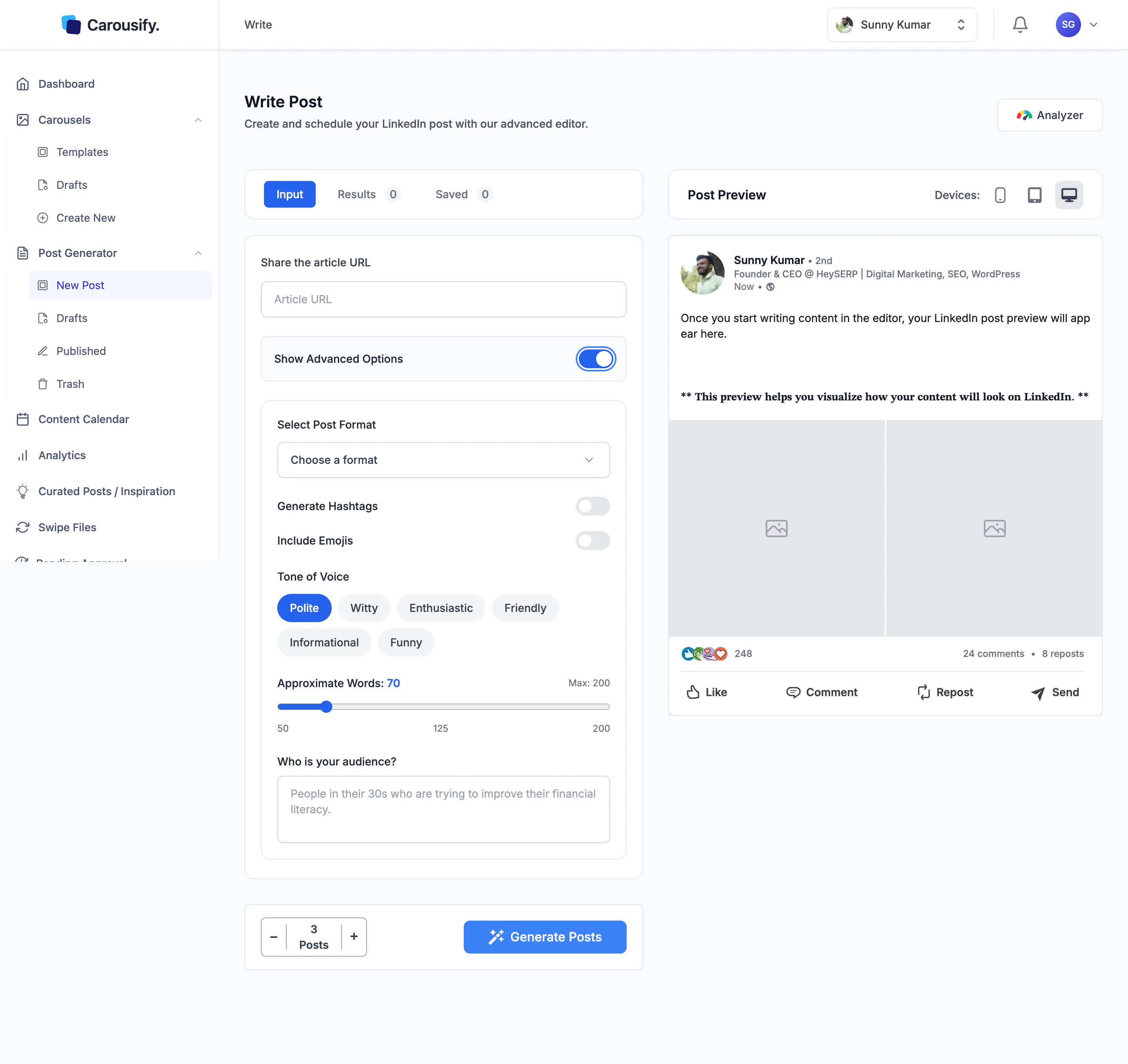 * **Select Post Format** — pick a preset post template
* **Generate Hashtags** — adds relevant hashtags at the end
* **Include Emojis** — sprinkles emojis through the post; off by default
* **Tone of Voice** — Polite, Witty, Enthusiastic, Friendly, Informational, or Funny
* **Approximate Words** — slider from 50 to 200; default is 70
* **Who is your audience?** — short description of who you're writing for. The more specific, the closer the post lands.
## Generate and refine
Below the input, the **Posts** counter sets how many variations Carousify should produce in one go — default is **3**. Tap `+` or `−` to change it, then hit **Generate Posts**.
Once a variation is loaded into the editor, treat it like any other draft:
* Use the **AI Assistant** panel below the editor — **Rephrase**, **Improve Writing**, **Fix Grammar**, **Make Shorter**, **Make Longer**, **Generate Hashtags**, or a free-form prompt
* Select a single line or paragraph and apply AI to just that part
* Run the **Analyzer** for a structured score and per-dimension suggestions
Full walkthrough on [Write a new post](/post-generator/write-post).
## Save Draft or Publish
When the post is ready:
* **Save Draft** lands the post in **Post Generator › Drafts**.
* **Publish** opens the **Publish Post** dialog — post now, [schedule](/scheduling/schedule-post) for later, or attach an [auto-plug](/scheduling/auto-plug) follow-up comment.
## What's next
Blank canvas with the same AI Assistant — useful when you don't have a source to generate from.
Auto-generated post ideas refreshed on the days you choose.
Queue the finished post at a peak time for your timezone.
* **Select Post Format** — pick a preset post template
* **Generate Hashtags** — adds relevant hashtags at the end
* **Include Emojis** — sprinkles emojis through the post; off by default
* **Tone of Voice** — Polite, Witty, Enthusiastic, Friendly, Informational, or Funny
* **Approximate Words** — slider from 50 to 200; default is 70
* **Who is your audience?** — short description of who you're writing for. The more specific, the closer the post lands.
## Generate and refine
Below the input, the **Posts** counter sets how many variations Carousify should produce in one go — default is **3**. Tap `+` or `−` to change it, then hit **Generate Posts**.
Once a variation is loaded into the editor, treat it like any other draft:
* Use the **AI Assistant** panel below the editor — **Rephrase**, **Improve Writing**, **Fix Grammar**, **Make Shorter**, **Make Longer**, **Generate Hashtags**, or a free-form prompt
* Select a single line or paragraph and apply AI to just that part
* Run the **Analyzer** for a structured score and per-dimension suggestions
Full walkthrough on [Write a new post](/post-generator/write-post).
## Save Draft or Publish
When the post is ready:
* **Save Draft** lands the post in **Post Generator › Drafts**.
* **Publish** opens the **Publish Post** dialog — post now, [schedule](/scheduling/schedule-post) for later, or attach an [auto-plug](/scheduling/auto-plug) follow-up comment.
## What's next
Blank canvas with the same AI Assistant — useful when you don't have a source to generate from.
Auto-generated post ideas refreshed on the days you choose.
Queue the finished post at a peak time for your timezone.