> ## Documentation Index
> Fetch the complete documentation index at: https://docs.carousify.com/llms.txt
> Use this file to discover all available pages before exploring further.
# Connect Carousify to VS Code
> Add Carousify to VS Code's chat agent and draft, schedule, or check LinkedIn posts without leaving the editor.
VS Code's chat agent supports MCP servers out of the box. Wire Carousify in and you can draft a LinkedIn post, schedule it, or pull analytics straight from the chat panel — no extension required.
## Before you start
You'll need:
* MCP enabled on the workspace — see [MCP overview](/mcp/overview)
* An MCP key from **Manage Workspace › MCP** (only shown once, right after creating it)
* VS Code 1.99 or later
## Step 1 — Copy your Carousify MCP URL
In Carousify, open **Manage Workspace › MCP** and use the **MCP System Key** (or click **Create API Key** to mint a fresh one). Copy the URL:
```
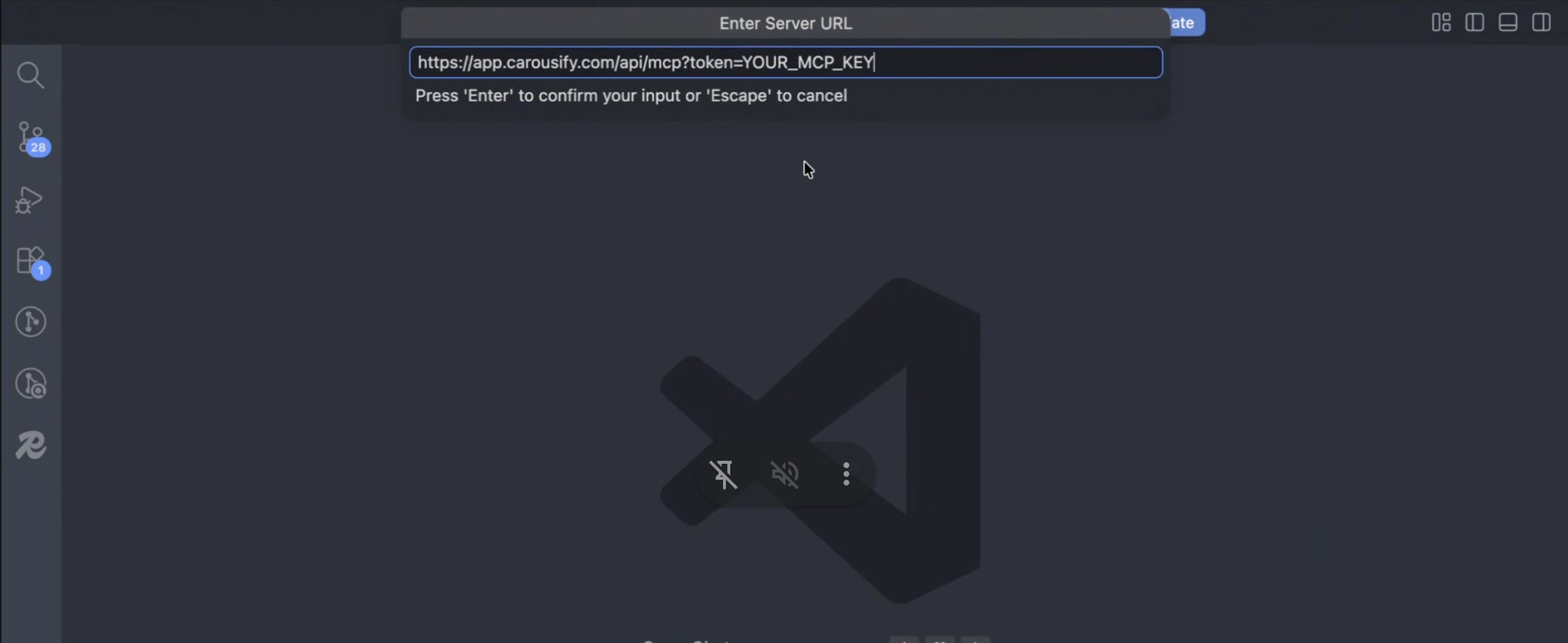
https://app.carousify.com/api/mcp?token=YOUR_MCP_KEY
```
Treat the MCP URL like a password — Carousify only reveals the full key once.
## Step 2 — Add Carousify in VS Code
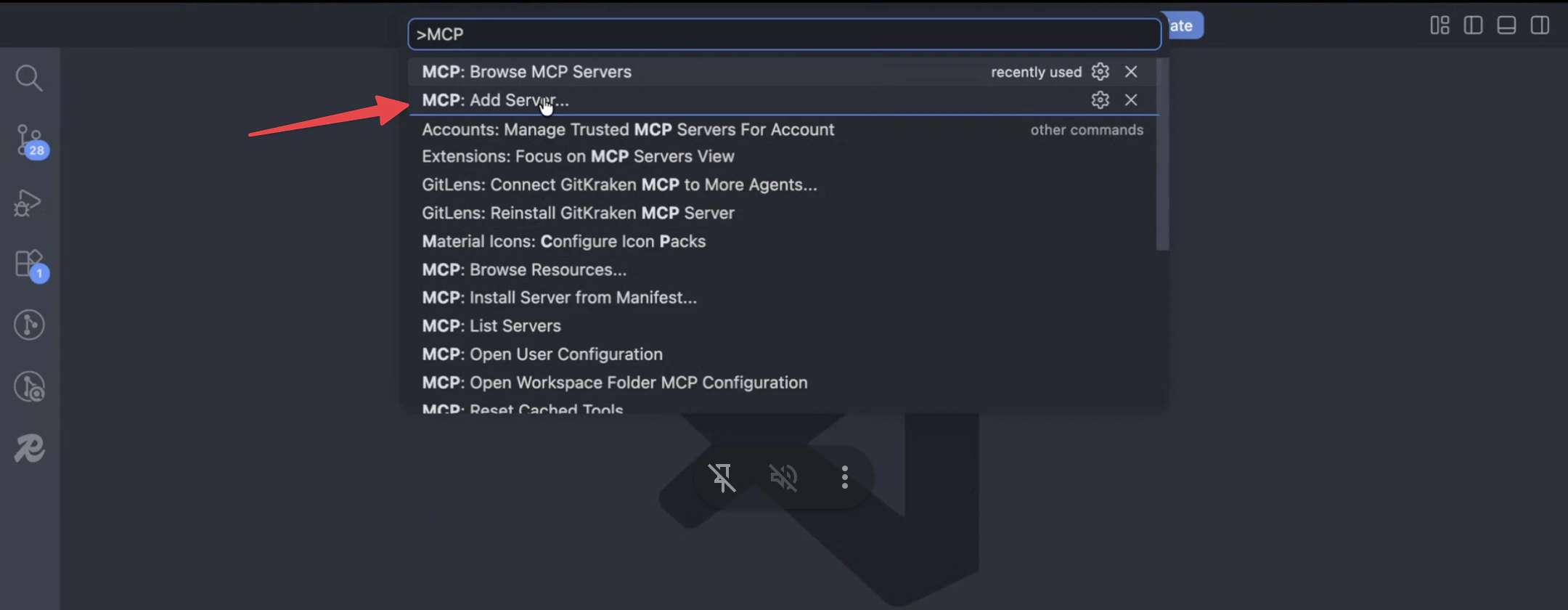
Open the Command Palette (`⌘ Shift P` / `Ctrl Shift P`), type `MCP`, and pick **MCP: Add Server**.
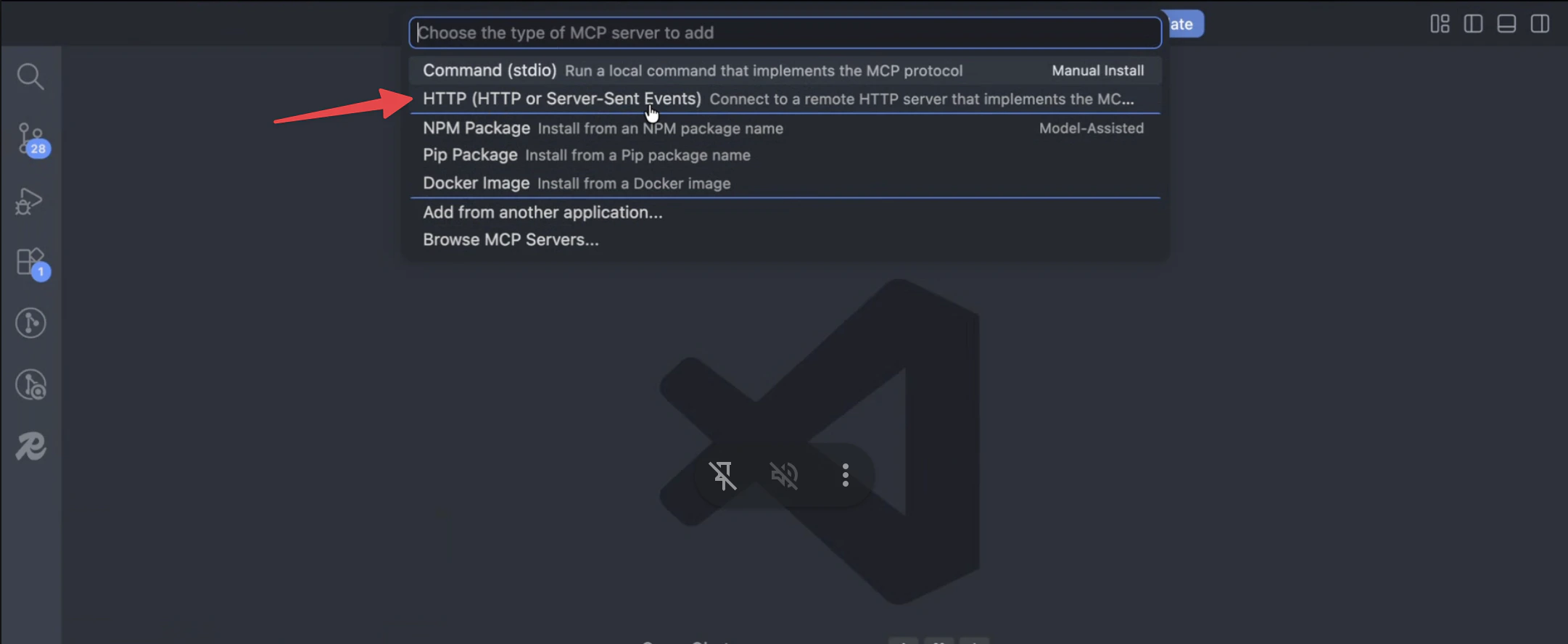
 Pick **HTTP (HTTP or Server-Sent Events)** — Carousify is a remote server, not a local command.
 Paste the Setup Link from Step 1 and press **Enter**. VS Code opens the connection and lists Carousify's tools in the **MCP Servers** view.
 ## Step 3 — Use it in chat
Open the chat panel (`⌘ Ctrl I` / `Ctrl Alt I`) in **Agent** mode and try:
* *"Using Carousify, draft a LinkedIn post recapping today's commits and schedule it for 9 AM tomorrow IST."*
* *"List my scheduled Carousify posts for this week."*
* *"Pull analytics for the post I published yesterday."*
VS Code surfaces an approval step the first time each tool runs.
## Disconnect or rotate
* **Disconnect** — run **MCP: List Servers** in the Command Palette and remove **Carousify**.
* **Rotate the key** — delete the row in Carousify's **MCP Keys** table, mint a new one, and re-run **MCP: Add Server** with the new URL.
## What's next
How MCP keys, tools, and workspace scoping fit together.
Custom connector setup for Claude web, desktop, and Claude Code.
Quick refresher on how scheduling works inside Carousify.
## Step 3 — Use it in chat
Open the chat panel (`⌘ Ctrl I` / `Ctrl Alt I`) in **Agent** mode and try:
* *"Using Carousify, draft a LinkedIn post recapping today's commits and schedule it for 9 AM tomorrow IST."*
* *"List my scheduled Carousify posts for this week."*
* *"Pull analytics for the post I published yesterday."*
VS Code surfaces an approval step the first time each tool runs.
## Disconnect or rotate
* **Disconnect** — run **MCP: List Servers** in the Command Palette and remove **Carousify**.
* **Rotate the key** — delete the row in Carousify's **MCP Keys** table, mint a new one, and re-run **MCP: Add Server** with the new URL.
## What's next
How MCP keys, tools, and workspace scoping fit together.
Custom connector setup for Claude web, desktop, and Claude Code.
Quick refresher on how scheduling works inside Carousify.