> ## Documentation Index
> Fetch the complete documentation index at: https://docs.carousify.com/llms.txt
> Use this file to discover all available pages before exploring further.
# MCP server
> Run Carousify actions from any AI client that supports the Model Context Protocol.
The Carousify MCP server is the developer-facing way to drive Carousify from any AI client that speaks the [Model Context Protocol](https://modelcontextprotocol.io/) — Claude, VS Code, ChatGPT, and other MCP-compatible clients.
Once connected, the AI client can pull post drafts, schedule content, check publish status, and run other Carousify workflows by name — no copy-paste between tools, no Zapier hops, no custom integrations.
MCP is best when you spend a lot of time in an AI client and want it to act on Carousify directly. If you just want event notifications, the [Slack](/integrations/slack), [Zapier](/integrations/zapier), and [Webhook](/webhooks/overview) integrations are simpler.
## What you can do
A few of the workflows teams use the Carousify MCP server for:
| Use case | Example prompt |
| ------------------------------------ | ----------------------------------------------------------------------------------- |
| Draft and schedule posts from a chat | "Write a LinkedIn post about our new feature and schedule it for Tuesday 9 AM IST." |
| Pull recent performance | "Show me my top three posts from the last 14 days." |
| Plan a content week | "Look at what I posted last week and draft three follow-ups." |
| Check publish status | "Did the post I scheduled this morning go live?" |
The exact list of tools your AI client sees depends on the version of the MCP server — the client will discover them automatically once connected.
## Where to find it
In the left sidebar, open **Manage Workspace › MCP**.
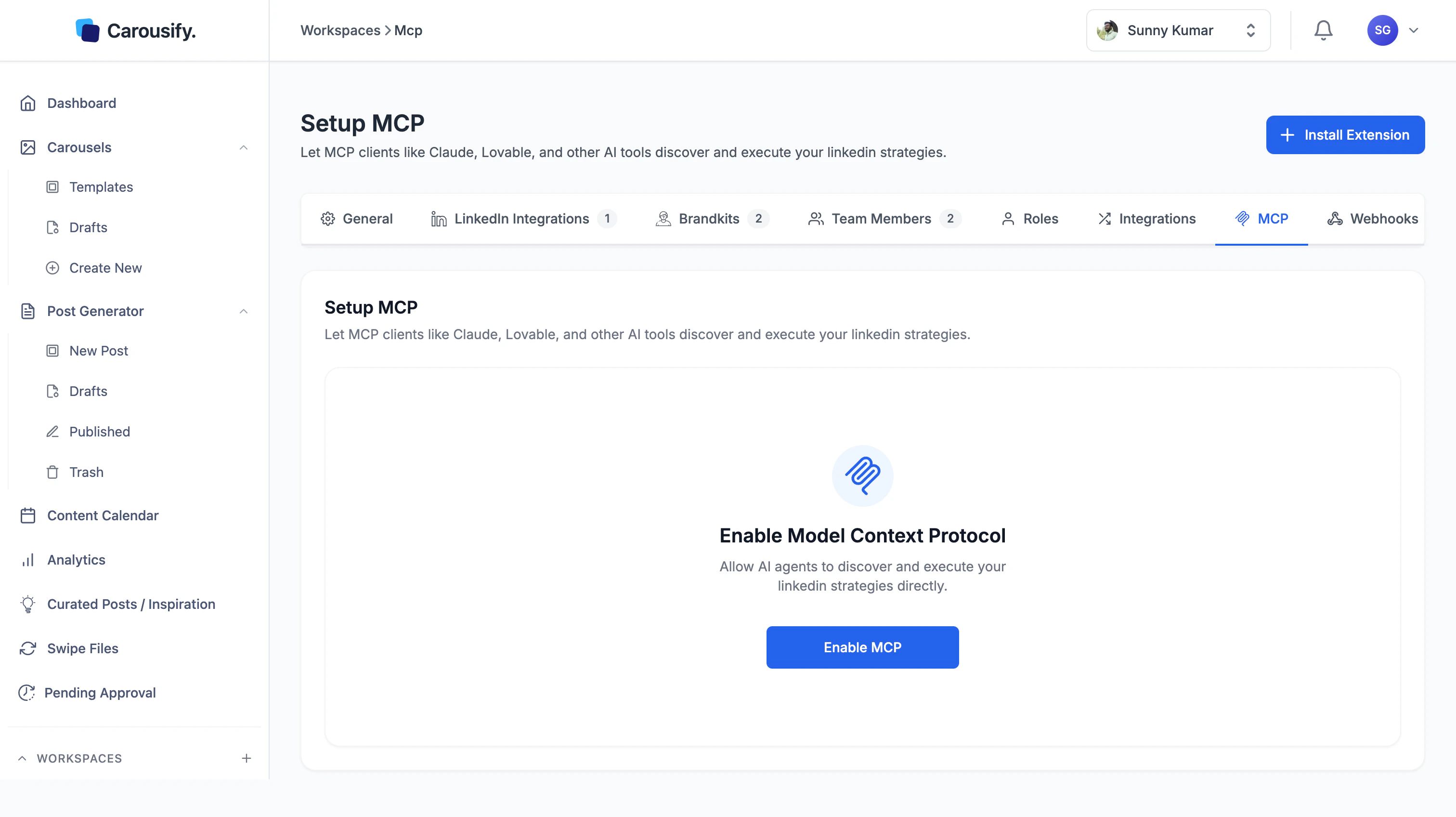 If MCP hasn't been enabled in this workspace yet, you'll see a single **Enable MCP** card. Click it once — Carousify provisions a system MCP key and unlocks the connection panel below.
MCP is workspace-scoped. Enable it inside each workspace where you want AI clients to act on your behalf — keys, tools, and access don't carry across.
## How it works
After clicking **Enable MCP**, Carousify provisions a system key and shows a unique MCP URL for this workspace, along with a tabbed setup guide for the most common AI clients.
If MCP hasn't been enabled in this workspace yet, you'll see a single **Enable MCP** card. Click it once — Carousify provisions a system MCP key and unlocks the connection panel below.
MCP is workspace-scoped. Enable it inside each workspace where you want AI clients to act on your behalf — keys, tools, and access don't carry across.
## How it works
After clicking **Enable MCP**, Carousify provisions a system key and shows a unique MCP URL for this workspace, along with a tabbed setup guide for the most common AI clients.
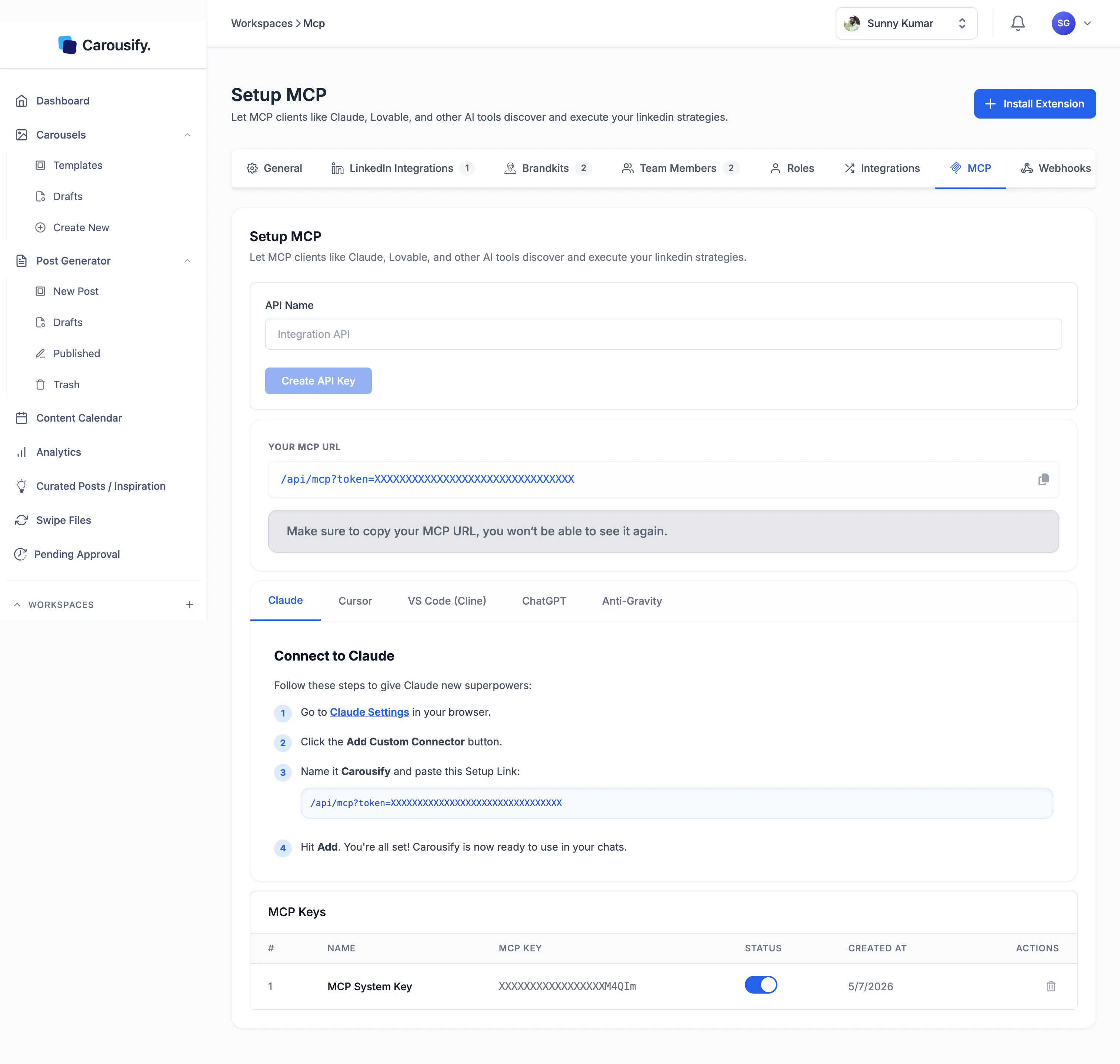 You copy the MCP URL once, paste it into your AI client's MCP settings, and from then on the client can call Carousify tools directly. Step-by-step instructions per client live on the setup page.
Treat the MCP URL like a password. Anyone with it can act on your workspace through Carousify. Carousify only shows the full URL once — copy it the moment it's generated, and rotate the key from the **MCP Keys** table if it ever leaks.
## Supported clients
The connection panel ships with built-in setup guides for **Claude**, **VS Code**, **ChatGPT**, and **Antigravity**. Other MCP-compatible clients (Codex, Windsurf, custom agents) work too — the Carousify server uses an SSE transport, so any client that accepts an SSE-based MCP endpoint can connect by pasting the same URL.
## Managing keys
The **MCP Keys** table at the bottom of the page shows every key issued for this workspace, with status, created date, and a delete action.
* **Toggle the status switch** to disable a key without deleting it. Disabled keys reject new MCP requests immediately — useful when you want to pause access without losing the audit trail.
* **Delete the row** to permanently revoke. Any client still pointed at that URL will start failing.
* **Issue a new key** by typing a label into **API Name** (e.g. `claude-laptop`, `vscode-work`) and clicking **Create API Key**. Each key gets its own URL, so you can hand out one per client or per teammate and revoke them individually.
Carousify only reveals the full key the moment it's created. After that the table only shows the last few characters. If you lose a key, delete the row and create a new one — there's no "show again" option.
## What's next
Step-by-step custom connector setup for Claude web and desktop.
Push events to your own backend instead of pulling them from an AI client.
Same events, no code, 5,000+ destinations.
Get publish alerts in a Slack channel without standing up an endpoint.
You copy the MCP URL once, paste it into your AI client's MCP settings, and from then on the client can call Carousify tools directly. Step-by-step instructions per client live on the setup page.
Treat the MCP URL like a password. Anyone with it can act on your workspace through Carousify. Carousify only shows the full URL once — copy it the moment it's generated, and rotate the key from the **MCP Keys** table if it ever leaks.
## Supported clients
The connection panel ships with built-in setup guides for **Claude**, **VS Code**, **ChatGPT**, and **Antigravity**. Other MCP-compatible clients (Codex, Windsurf, custom agents) work too — the Carousify server uses an SSE transport, so any client that accepts an SSE-based MCP endpoint can connect by pasting the same URL.
## Managing keys
The **MCP Keys** table at the bottom of the page shows every key issued for this workspace, with status, created date, and a delete action.
* **Toggle the status switch** to disable a key without deleting it. Disabled keys reject new MCP requests immediately — useful when you want to pause access without losing the audit trail.
* **Delete the row** to permanently revoke. Any client still pointed at that URL will start failing.
* **Issue a new key** by typing a label into **API Name** (e.g. `claude-laptop`, `vscode-work`) and clicking **Create API Key**. Each key gets its own URL, so you can hand out one per client or per teammate and revoke them individually.
Carousify only reveals the full key the moment it's created. After that the table only shows the last few characters. If you lose a key, delete the row and create a new one — there's no "show again" option.
## What's next
Step-by-step custom connector setup for Claude web and desktop.
Push events to your own backend instead of pulling them from an AI client.
Same events, no code, 5,000+ destinations.
Get publish alerts in a Slack channel without standing up an endpoint.