> ## Documentation Index
> Fetch the complete documentation index at: https://docs.carousify.com/llms.txt
> Use this file to discover all available pages before exploring further.
# Connect Carousify to Antigravity
> Add Carousify to Antigravity and let the agent draft, schedule, or check LinkedIn posts from inside the IDE.
[Antigravity](https://antigravity.google/) is Google's agent-first IDE. It speaks MCP natively, so once Carousify is wired in, the agent can draft posts, schedule them, and pull analytics from inside any task.
## Before you start
You'll need:
* MCP enabled on the workspace — see [MCP overview](/mcp/overview) for the one-click flow
* An MCP key from **Manage Workspace › MCP** (only shown once, right after creating it)
* Antigravity installed and signed in
## Step 1 — Copy your Carousify MCP URL
In Carousify, open **Manage Workspace › MCP**. Use the auto-provisioned **MCP System Key** or click **Create API Key** to mint a fresh one (e.g. `antigravity`).
Your MCP URL has this shape:
```
https://app.carousify.com/api/mcp?token=YOUR_MCP_KEY
```
The **Antigravity** tab on the same page renders the URL with your token already substituted — copy it from there.
Treat the MCP URL like a password. Anyone with it can act on your workspace. Carousify reveals the full key only once — copy it the moment it's generated.
## Step 2 — Add Carousify in Antigravity
In the top-right of Antigravity, click **Open Agent Manager**. The right-hand panel switches to the **MCP Store**.
At the top-right of the MCP Store panel, click **Manage MCP Servers**. Antigravity opens the **Manage MCPs** tab in the editor.
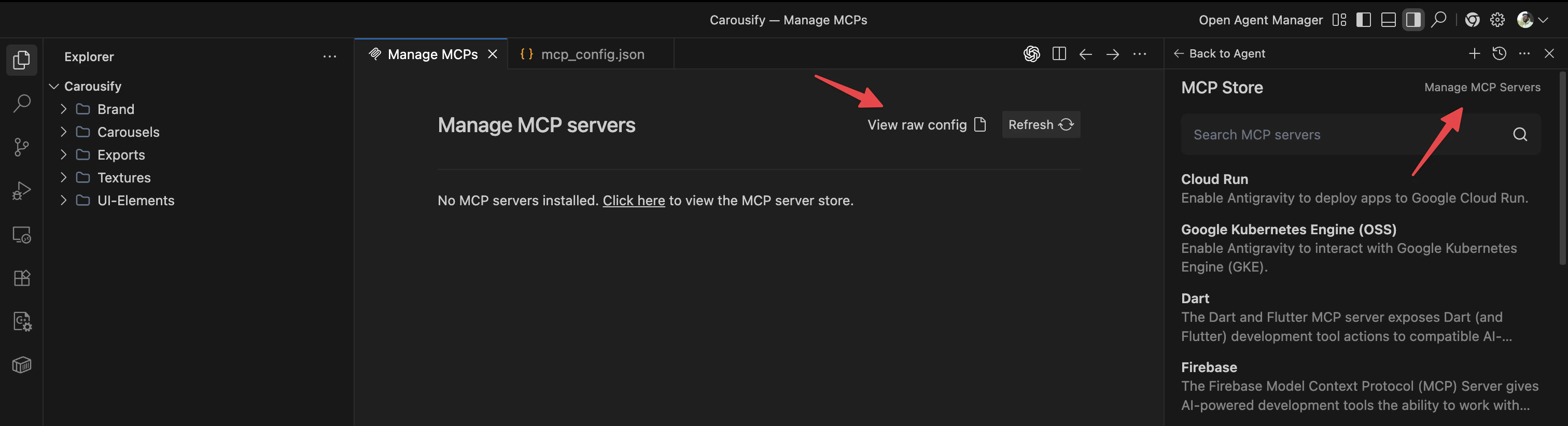 Click **View raw config** on the **Manage MCPs** tab.
Add a `carousify` entry under `mcpServers` with the Setup Link from Step 1 as `serverUrl`:
```json theme={null}
{
"mcpServers": {
"carousify": {
"serverUrl": "https://app.carousify.com/api/mcp?token=YOUR_MCP_KEY"
}
}
}
```
Click **View raw config** on the **Manage MCPs** tab.
Add a `carousify` entry under `mcpServers` with the Setup Link from Step 1 as `serverUrl`:
```json theme={null}
{
"mcpServers": {
"carousify": {
"serverUrl": "https://app.carousify.com/api/mcp?token=YOUR_MCP_KEY"
}
}
}
```
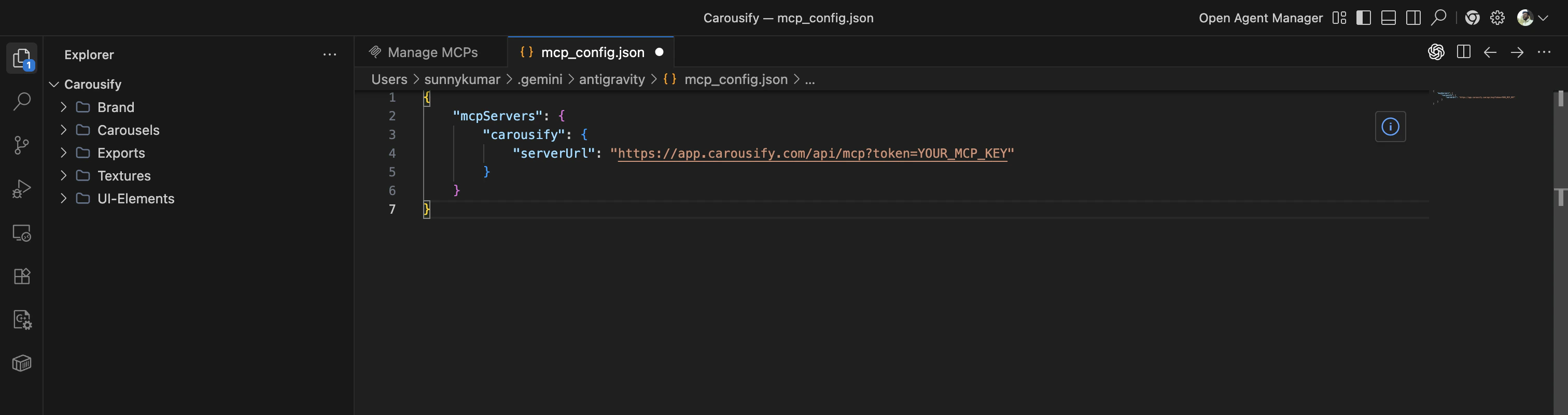 Save the file (`⌘ S` / `Ctrl S`). Antigravity reloads servers, opens the connection, and makes Carousify's tools available to the agent — click **Refresh** on the **Manage MCPs** tab to confirm the server shows up.
## Step 3 — Use it from the agent
Start an agent task and try:
* *"Using Carousify, draft a LinkedIn post about \[topic] and schedule it for tomorrow 9 AM IST."*
* *"List the posts I have scheduled this week."*
* *"Pull analytics for my last published post."*
The agent picks the matching Carousify tool and asks you to confirm the action the first time it runs.
Antigravity's agent loop is happy to chain tool calls. Ask for *"a topic, three drafts, then schedule the best one"* and it'll handle the whole thread without prompts in between.
## Disconnect or rotate
* **Disconnect** — open `~/.gemini/antigravity/mcp_config.json` (via **Manage MCPs › View raw config**) and remove the `carousify` entry, then save.
* **Rotate the key** — in Carousify, delete the row in **MCP Keys**, click **Create API Key** to mint a new one, and paste the new URL into Antigravity.
## Troubleshooting
* **Connection fails** — the token is wrong or revoked. Confirm the key shows **Active** in **Manage Workspace › MCP** and the URL ends with the full token, not the masked `XXXX...` version.
* **Agent can't find Carousify tools** — open the **Manage MCPs** tab and click **Refresh**. Antigravity rescans `mcp_config.json` and reconnects the server.
* **Wrong workspace** — MCP keys are workspace-scoped. If you swapped Carousify workspaces, generate a key inside the new one and update Antigravity.
## What's next
How MCP keys, tools, and workspace scoping fit together.
Custom connector setup for Claude web, desktop, and Claude Code.
Add Carousify to the Codex CLI's `config.toml`.
Quick refresher on how scheduling works inside Carousify.
Save the file (`⌘ S` / `Ctrl S`). Antigravity reloads servers, opens the connection, and makes Carousify's tools available to the agent — click **Refresh** on the **Manage MCPs** tab to confirm the server shows up.
## Step 3 — Use it from the agent
Start an agent task and try:
* *"Using Carousify, draft a LinkedIn post about \[topic] and schedule it for tomorrow 9 AM IST."*
* *"List the posts I have scheduled this week."*
* *"Pull analytics for my last published post."*
The agent picks the matching Carousify tool and asks you to confirm the action the first time it runs.
Antigravity's agent loop is happy to chain tool calls. Ask for *"a topic, three drafts, then schedule the best one"* and it'll handle the whole thread without prompts in between.
## Disconnect or rotate
* **Disconnect** — open `~/.gemini/antigravity/mcp_config.json` (via **Manage MCPs › View raw config**) and remove the `carousify` entry, then save.
* **Rotate the key** — in Carousify, delete the row in **MCP Keys**, click **Create API Key** to mint a new one, and paste the new URL into Antigravity.
## Troubleshooting
* **Connection fails** — the token is wrong or revoked. Confirm the key shows **Active** in **Manage Workspace › MCP** and the URL ends with the full token, not the masked `XXXX...` version.
* **Agent can't find Carousify tools** — open the **Manage MCPs** tab and click **Refresh**. Antigravity rescans `mcp_config.json` and reconnects the server.
* **Wrong workspace** — MCP keys are workspace-scoped. If you swapped Carousify workspaces, generate a key inside the new one and update Antigravity.
## What's next
How MCP keys, tools, and workspace scoping fit together.
Custom connector setup for Claude web, desktop, and Claude Code.
Add Carousify to the Codex CLI's `config.toml`.
Quick refresher on how scheduling works inside Carousify.