> ## Documentation Index
> Fetch the complete documentation index at: https://docs.carousify.com/llms.txt
> Use this file to discover all available pages before exploring further.
# Slack integration
> Get a Slack notification when a post is published, scheduled, or fails — straight into the channel of your choice.
The Slack integration drops a message in a channel of your choice every time a Carousify post is **scheduled**, **published**, or **fails to publish**. No bot install, no app review queue — Slack gives you a webhook URL, you paste it into Carousify, and notifications start landing.
This is the simplest way to keep a team in the loop without anyone having to refresh the Carousify dashboard.
Slack's official **Incoming Webhooks** app is what we use for this. It's a one-way pipe from Carousify into your Slack channel — Carousify can post messages, but it can't read anything from your workspace.
## What gets sent
Carousify will post a Slack message for whichever of these three events you tick:
| Event | When it fires |
| ----------------------- | ------------------------------------------------------------- |
| **Post Scheduled** | A post is queued for a future date and time. |
| **Post Published** | A post goes live on LinkedIn (instant or scheduled). |
| **Post Publish Failed** | LinkedIn rejected the post or auth expired before publishing. |
Each message includes a preview of the post, the LinkedIn account it was posted to (or attempted on), the scheduled/published time, and a link to the post on LinkedIn.
## Before you start
You'll need:
* A Slack workspace where you can install apps (or admin who can do it for you)
* Carousify open in another tab — you'll be moving between the two
## Step 1 — Open the Connect Slack modal in Carousify
In Carousify, go to **Manage Workspace › Integrations** and click **Connect** on the Slack card.
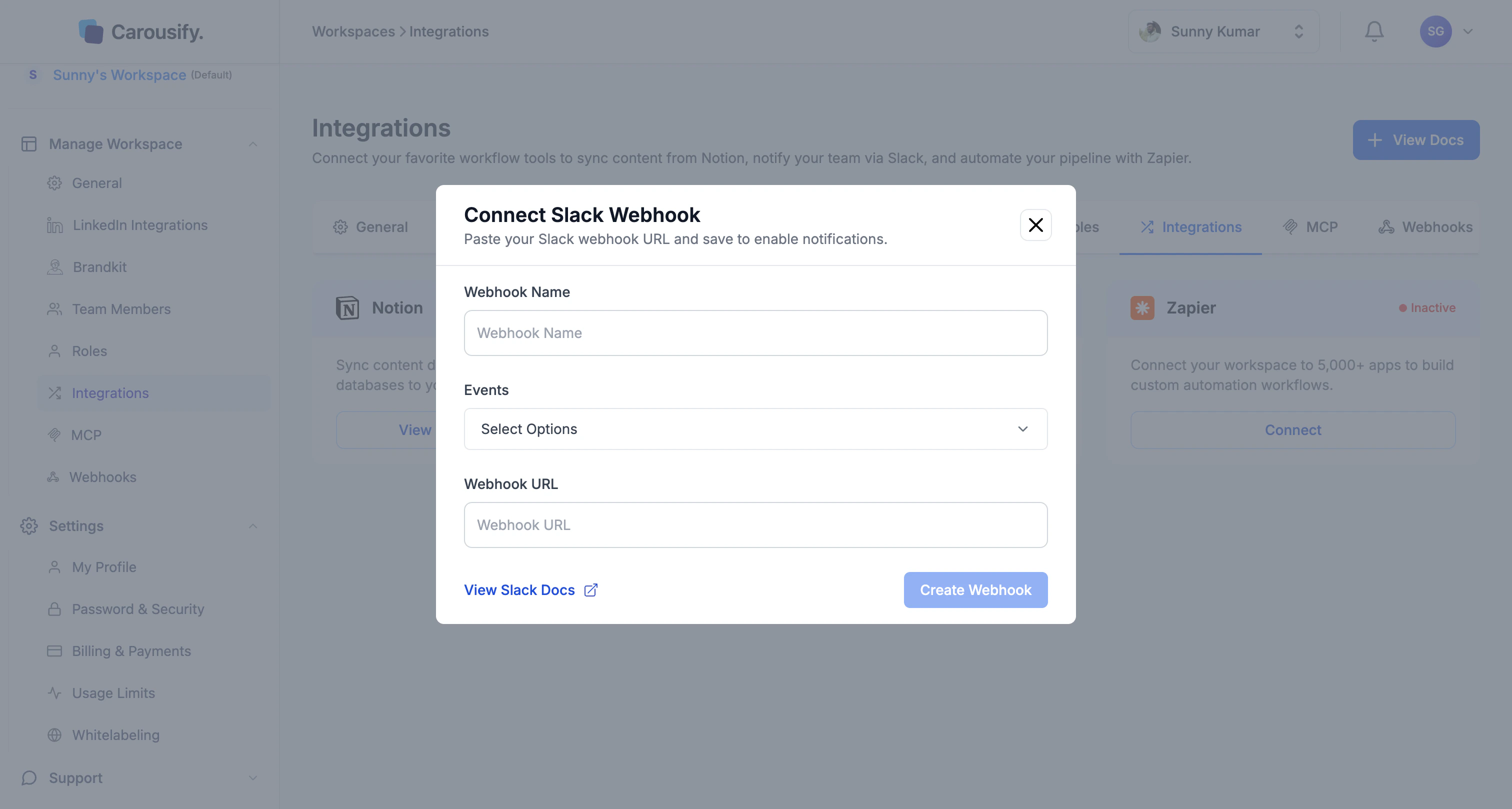 You'll see four inputs:
| Field | What it is |
| ------------------- | --------------------------------------------------------------------------------------------------------- |
| **Webhook Name** | A label for this integration inside Carousify (e.g. *Carousify Notifications*). Doesn't show up in Slack. |
| **Events** | Which of the three events should trigger a Slack message. |
| **Webhook URL** | The URL Slack will give you in Step 3. |
| **View Slack Docs** | Opens this page. |
Leave the modal open — you'll come back to it after generating the webhook URL inside Slack.
## Step 2 — Open Slack's Incoming Webhooks app
Slack's official **Incoming Webhooks** app is what gives you the URL to paste back. Open it directly:
[slack.com/apps/A0F7XDUAZ-incoming-webhooks](https://slack.com/apps/A0F7XDUAZ-incoming-webhooks)
You'll see four inputs:
| Field | What it is |
| ------------------- | --------------------------------------------------------------------------------------------------------- |
| **Webhook Name** | A label for this integration inside Carousify (e.g. *Carousify Notifications*). Doesn't show up in Slack. |
| **Events** | Which of the three events should trigger a Slack message. |
| **Webhook URL** | The URL Slack will give you in Step 3. |
| **View Slack Docs** | Opens this page. |
Leave the modal open — you'll come back to it after generating the webhook URL inside Slack.
## Step 2 — Open Slack's Incoming Webhooks app
Slack's official **Incoming Webhooks** app is what gives you the URL to paste back. Open it directly:
[slack.com/apps/A0F7XDUAZ-incoming-webhooks](https://slack.com/apps/A0F7XDUAZ-incoming-webhooks)
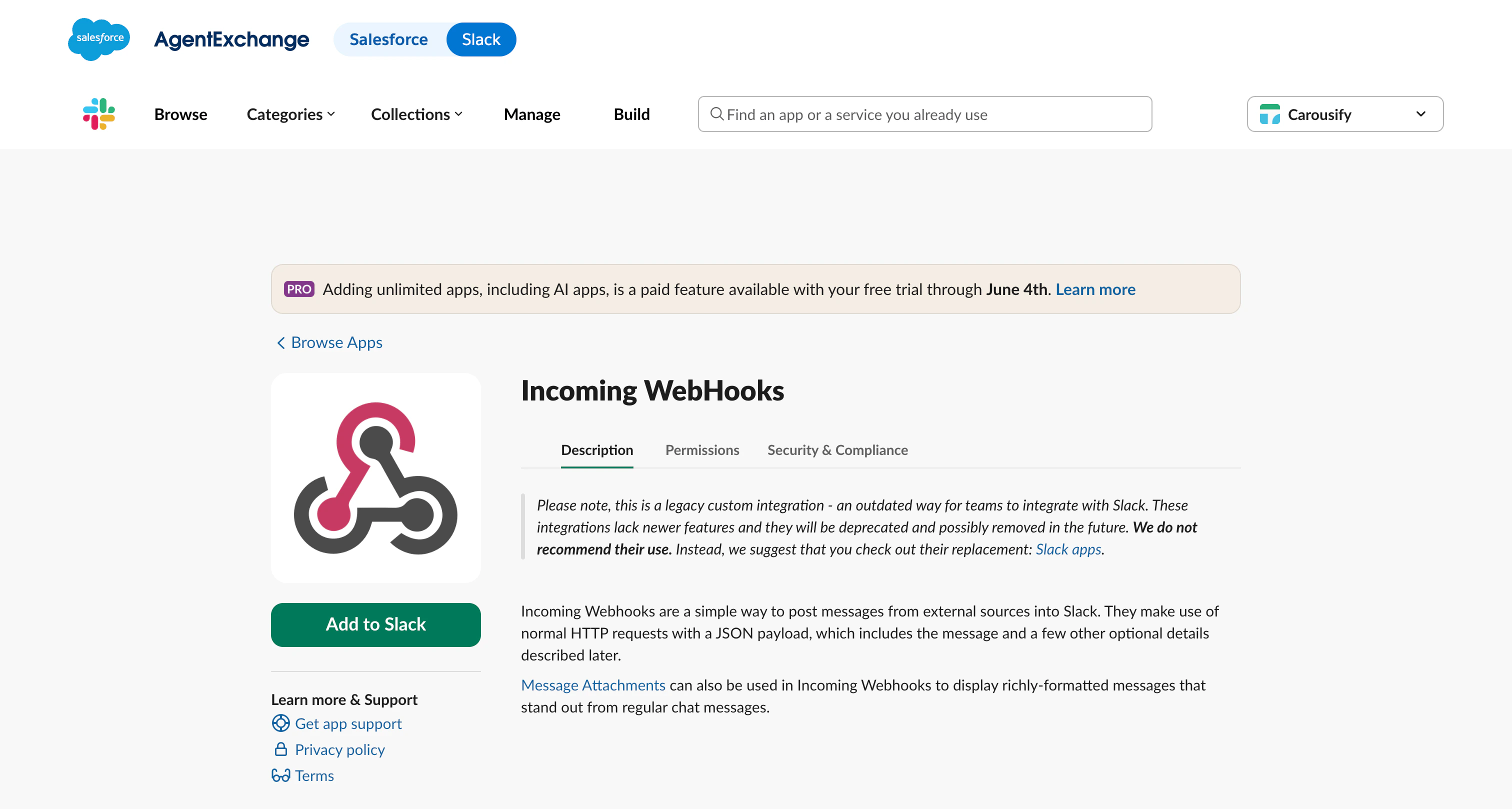 Pick the right Slack workspace from the team selector at the top-right if you have more than one, then click **Add to Slack**.
Slack labels Incoming Webhooks as a "legacy custom integration" with a deprecation notice on the page. It's still fully supported and is the right tool for one-way notifications like ours — but yes, the warning is there.
## Step 3 — Pick a channel
Slack opens a **New configuration** page. Under **Post to Channel**, type or pick the channel you want Carousify alerts to land in (a `#social` channel works well, or a private dedicated one).
Pick the right Slack workspace from the team selector at the top-right if you have more than one, then click **Add to Slack**.
Slack labels Incoming Webhooks as a "legacy custom integration" with a deprecation notice on the page. It's still fully supported and is the right tool for one-way notifications like ours — but yes, the warning is there.
## Step 3 — Pick a channel
Slack opens a **New configuration** page. Under **Post to Channel**, type or pick the channel you want Carousify alerts to land in (a `#social` channel works well, or a private dedicated one).
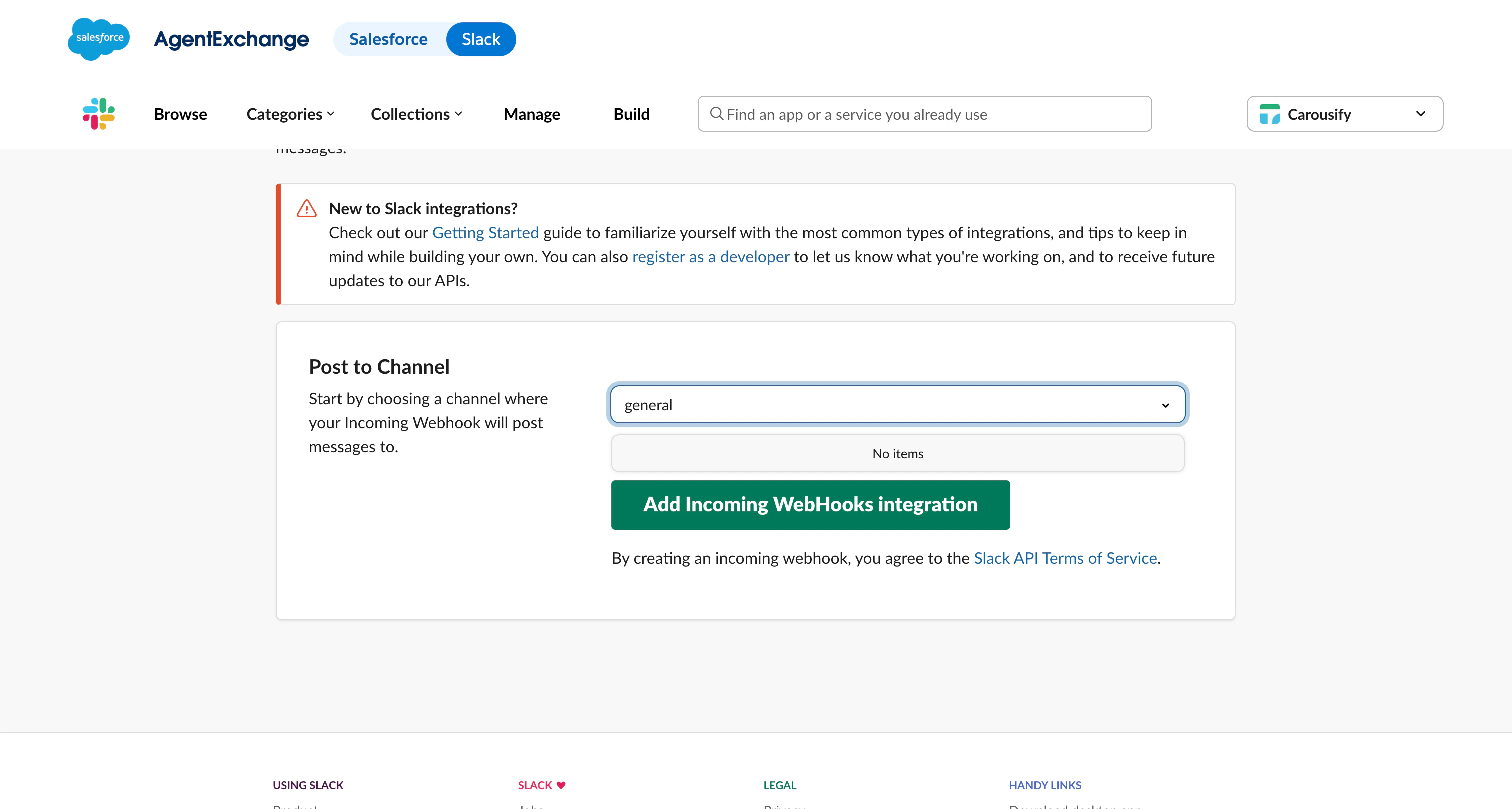 Click **Add Incoming WebHooks integration**.
Use a private channel if you don't want every Slack member to see every Carousify event. Webhook URLs only post to the channel you set up here — you can't accidentally fan it out to others.
## Step 4 — Copy the webhook URL
Slack lands you on the configuration page with the **Webhook URL** at the top. It looks like `https://hooks.slack.com/services/...` followed by a long token unique to your workspace.
Click **Add Incoming WebHooks integration**.
Use a private channel if you don't want every Slack member to see every Carousify event. Webhook URLs only post to the channel you set up here — you can't accidentally fan it out to others.
## Step 4 — Copy the webhook URL
Slack lands you on the configuration page with the **Webhook URL** at the top. It looks like `https://hooks.slack.com/services/...` followed by a long token unique to your workspace.
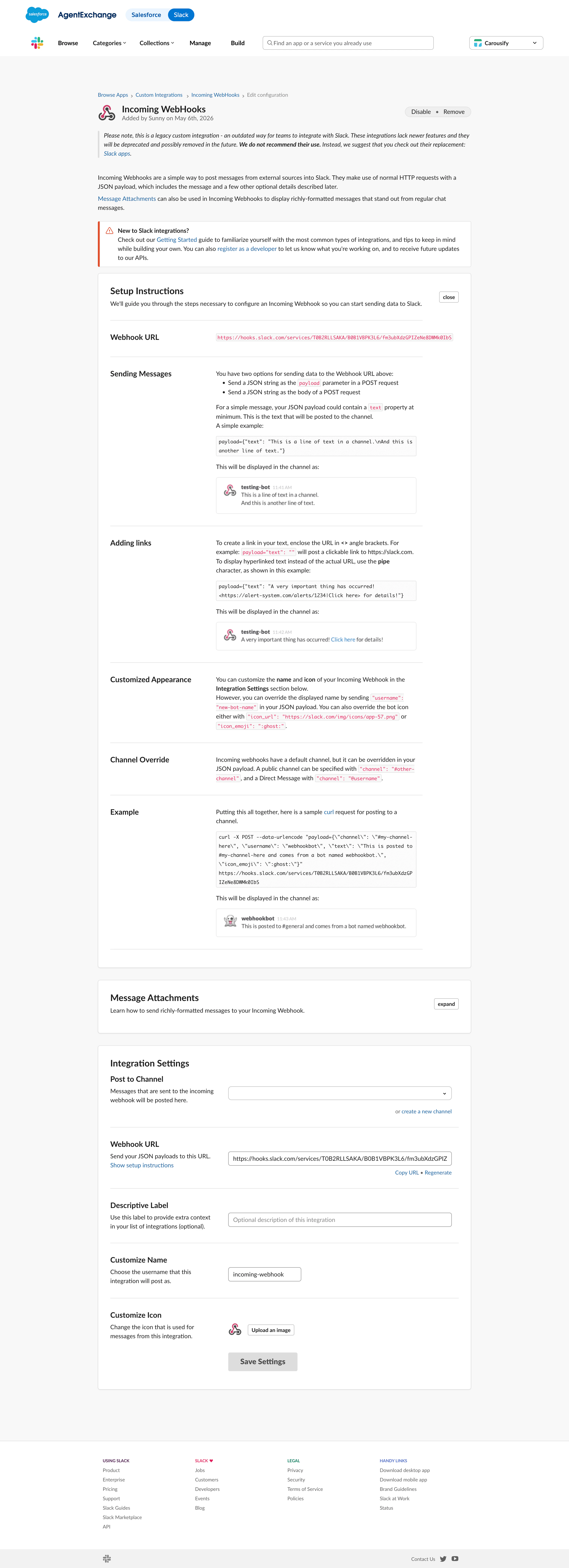 Click **Copy URL** (or copy it manually from the field further down the page under **Integration Settings**).
This URL is a secret — anyone who has it can post messages to that channel as the webhook bot. Don't paste it into a public channel, a screenshot, or a doc that's shared outside your team. If it leaks, click **Regenerate** on this page to rotate it.
You can also customize the bot's name and icon further down the page if you want messages to read as "Carousify" instead of "incoming-webhook".
## Step 5 — Paste it back into Carousify and pick events
Switch back to the Carousify **Connect Slack Webhook** modal:
1. Give it a **Webhook Name** — something you'll recognize later, like `Carousify Notifications` or `#social channel`.
2. Click **Events** and tick the events you want sent — **Post Scheduled**, **Post Published**, **Post Publish Failed**, or any combination.
3. Paste the Slack URL into the **Webhook URL** field.
Click **Copy URL** (or copy it manually from the field further down the page under **Integration Settings**).
This URL is a secret — anyone who has it can post messages to that channel as the webhook bot. Don't paste it into a public channel, a screenshot, or a doc that's shared outside your team. If it leaks, click **Regenerate** on this page to rotate it.
You can also customize the bot's name and icon further down the page if you want messages to read as "Carousify" instead of "incoming-webhook".
## Step 5 — Paste it back into Carousify and pick events
Switch back to the Carousify **Connect Slack Webhook** modal:
1. Give it a **Webhook Name** — something you'll recognize later, like `Carousify Notifications` or `#social channel`.
2. Click **Events** and tick the events you want sent — **Post Scheduled**, **Post Published**, **Post Publish Failed**, or any combination.
3. Paste the Slack URL into the **Webhook URL** field.
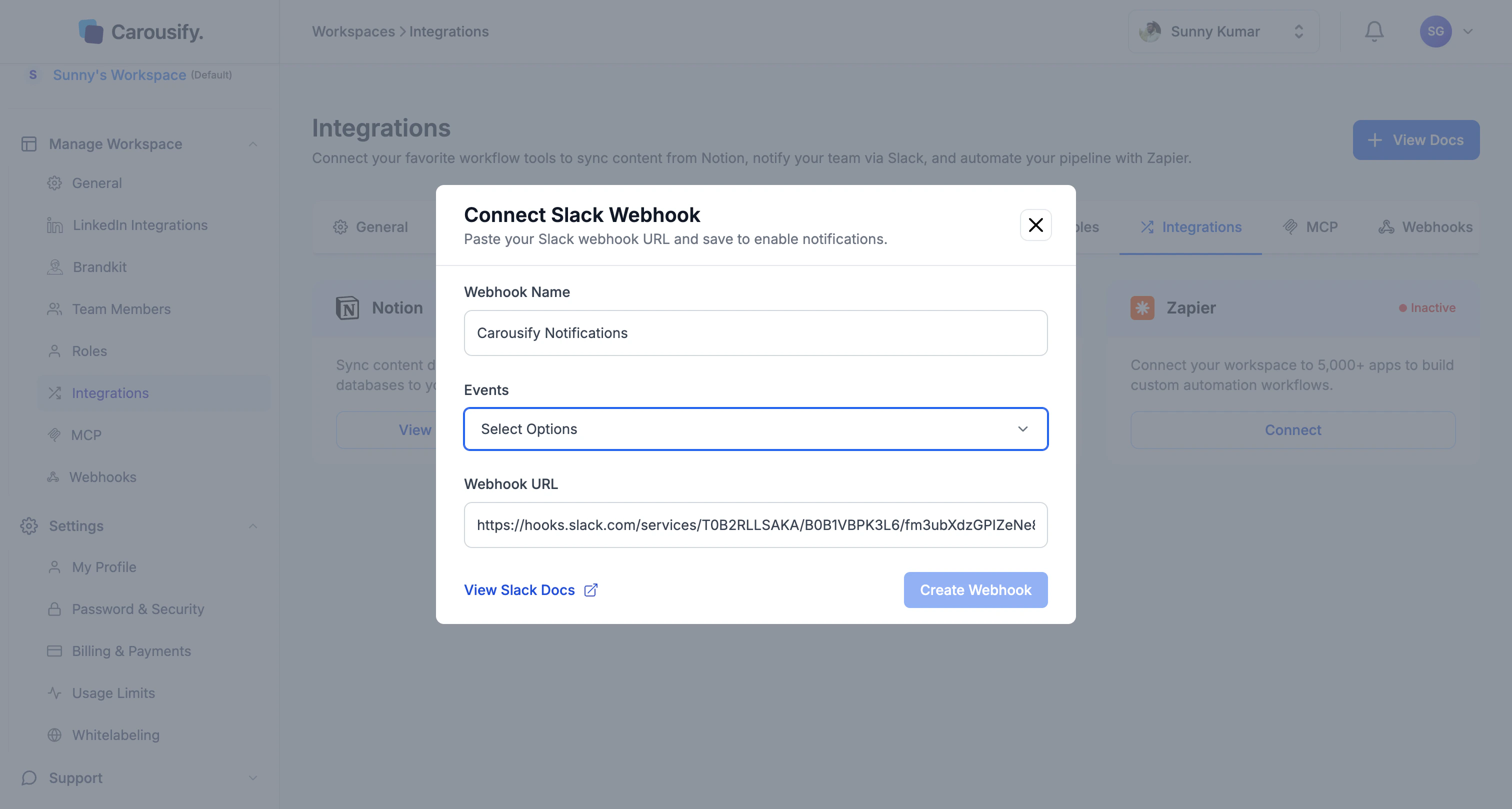 Click **Create Webhook**. Carousify saves it and the Slack card flips from **Inactive** to **Active**.
## Troubleshooting
* **Nothing shows up in Slack.** Double-check the webhook URL was pasted in full (it ends with a long token), the Slack channel still exists, and you ticked at least one event. Send a test from Slack itself by running `curl -X POST -H 'Content-type: application/json' --data '{"text":"test"}' YOUR_WEBHOOK_URL` — if that lands, the problem is on the Carousify side; reconnect the integration.
* **Messages stopped suddenly.** Most likely the webhook was revoked in Slack (someone removed the **Incoming WebHooks** custom integration, or rotated the URL). Generate a new URL in Slack and update it via **View** on the Slack card in Carousify.
* **Notifications going to the wrong channel.** Each Slack webhook URL is locked to one channel. To switch channels, generate a new webhook in Slack against the new channel and replace the URL in Carousify.
## What's next
Same three events, but routed through Zapier into anything else.
Trigger your first **Post Scheduled** message and confirm Slack is wired up.
Layer manager review on top of scheduled posts.
Drive Carousify from Claude or VS Code when notifications aren't enough.
Click **Create Webhook**. Carousify saves it and the Slack card flips from **Inactive** to **Active**.
## Troubleshooting
* **Nothing shows up in Slack.** Double-check the webhook URL was pasted in full (it ends with a long token), the Slack channel still exists, and you ticked at least one event. Send a test from Slack itself by running `curl -X POST -H 'Content-type: application/json' --data '{"text":"test"}' YOUR_WEBHOOK_URL` — if that lands, the problem is on the Carousify side; reconnect the integration.
* **Messages stopped suddenly.** Most likely the webhook was revoked in Slack (someone removed the **Incoming WebHooks** custom integration, or rotated the URL). Generate a new URL in Slack and update it via **View** on the Slack card in Carousify.
* **Notifications going to the wrong channel.** Each Slack webhook URL is locked to one channel. To switch channels, generate a new webhook in Slack against the new channel and replace the URL in Carousify.
## What's next
Same three events, but routed through Zapier into anything else.
Trigger your first **Post Scheduled** message and confirm Slack is wired up.
Layer manager review on top of scheduled posts.
Drive Carousify from Claude or VS Code when notifications aren't enough.