> ## Documentation Index
> Fetch the complete documentation index at: https://docs.carousify.com/llms.txt
> Use this file to discover all available pages before exploring further.
# Templates
> Start from a ready-made deck and edit it like any other carousel.
Templates are full carousels — designed slides, real copy, complete layouts — that you open straight into the Carousel Maker. They are useful when you want a finished-looking deck without designing from scratch, or when you want a starting point for a recurring format you post often.
## Open the gallery
In the left sidebar, go to **Carousels › Templates**.
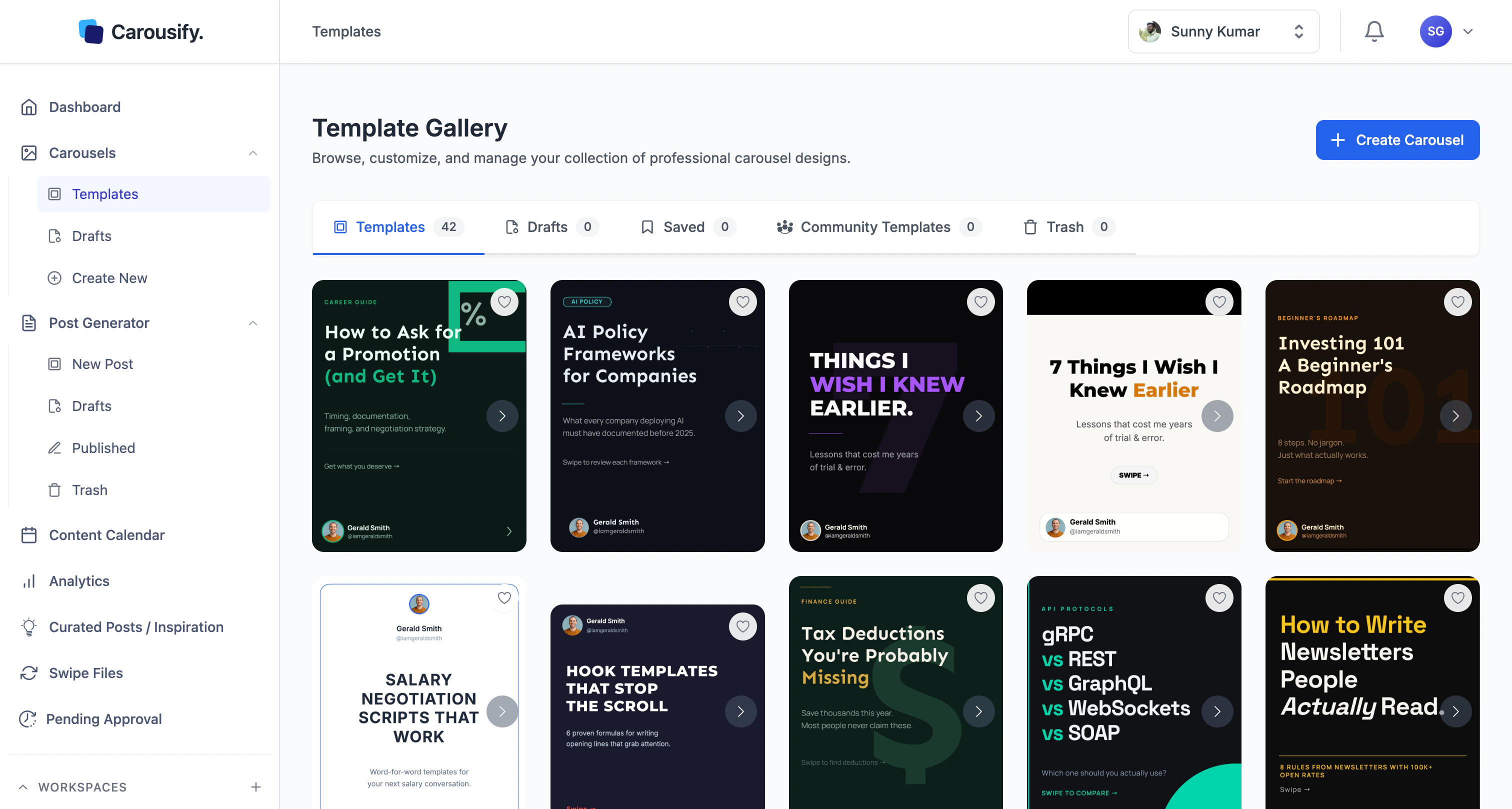 The page is organised into five tabs:
The Carousify-designed library. Your default starting point.
Carousels you have started but not yet published. Same list as **Carousels › Drafts**.
Decks you have kept around for re-use — your own templates.
Decks shared by other Carousify users. Useful when the in-house library does not cover the style you need.
A **Trash** tab also shows up on the right — anything you delete from the other tabs lands there before being permanently removed.
## Use a template
Click any thumbnail. Carousify opens the deck inside the Carousel Maker with every slide editable.
Click any text element — heading, subheading, body, footer — and type your version. Layout, spacing, and effects stay intact.
The page is organised into five tabs:
The Carousify-designed library. Your default starting point.
Carousels you have started but not yet published. Same list as **Carousels › Drafts**.
Decks you have kept around for re-use — your own templates.
Decks shared by other Carousify users. Useful when the in-house library does not cover the style you need.
A **Trash** tab also shows up on the right — anything you delete from the other tabs lands there before being permanently removed.
## Use a template
Click any thumbnail. Carousify opens the deck inside the Carousel Maker with every slide editable.
Click any text element — heading, subheading, body, footer — and type your version. Layout, spacing, and effects stay intact.
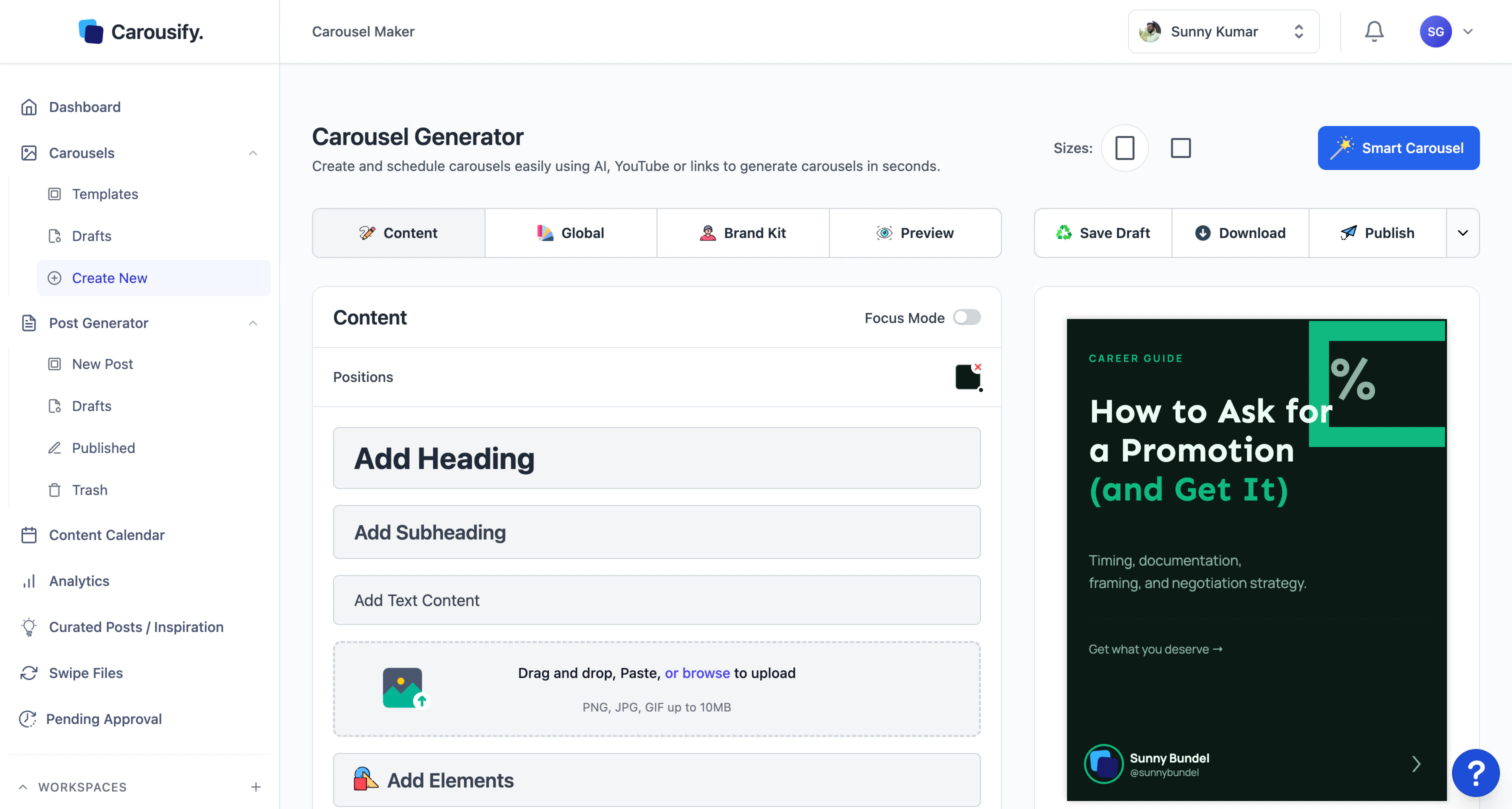 Open the **Brand Kit** tab and pick the kit for this workspace. Colors, fonts, and logos update across every slide at once — no slide-by-slide rework.
Drag-and-drop in the slide tray to reorder. Duplicate or delete slides to match the length you want. **Reset Slide** undoes changes on the current slide if an edit goes wrong.
Drafts auto-save while you work. **Download** exports the deck as a PDF or PNG set, and **Publish** hands it off to the post composer with the carousel attached.
Most LinkedIn carousels do best in the 6–12 slide range. If a template runs longer, trim it before publishing — readers tend to drop off after slide 10.
## Build your own template library
* **Favorite from the gallery** — bookmark any deck from **Templates** or **Community Templates** and it lands in **Saved** for quick re-use.
* **Save your own as templates** — save any carousel you build (from scratch or modified from another template) as a template. It appears at the top of the **Templates** tab, above the Carousify-designed library.
Templates and Brand Kits are workspace-scoped. If you manage multiple clients in separate workspaces, save the templates inside each workspace where you will use them.
## What's next
Build on a blank canvas, or use Smart Carousel to generate the first draft.
Save the colors, fonts, and logos that should match every deck.
Get LinkedIn-ready PDFs and image sets out of the editor.
Hand the finished deck to the post composer and pick a publish time.
Open the **Brand Kit** tab and pick the kit for this workspace. Colors, fonts, and logos update across every slide at once — no slide-by-slide rework.
Drag-and-drop in the slide tray to reorder. Duplicate or delete slides to match the length you want. **Reset Slide** undoes changes on the current slide if an edit goes wrong.
Drafts auto-save while you work. **Download** exports the deck as a PDF or PNG set, and **Publish** hands it off to the post composer with the carousel attached.
Most LinkedIn carousels do best in the 6–12 slide range. If a template runs longer, trim it before publishing — readers tend to drop off after slide 10.
## Build your own template library
* **Favorite from the gallery** — bookmark any deck from **Templates** or **Community Templates** and it lands in **Saved** for quick re-use.
* **Save your own as templates** — save any carousel you build (from scratch or modified from another template) as a template. It appears at the top of the **Templates** tab, above the Carousify-designed library.
Templates and Brand Kits are workspace-scoped. If you manage multiple clients in separate workspaces, save the templates inside each workspace where you will use them.
## What's next
Build on a blank canvas, or use Smart Carousel to generate the first draft.
Save the colors, fonts, and logos that should match every deck.
Get LinkedIn-ready PDFs and image sets out of the editor.
Hand the finished deck to the post composer and pick a publish time.