> ## Documentation Index
> Fetch the complete documentation index at: https://docs.carousify.com/llms.txt
> Use this file to discover all available pages before exploring further.
# Carousel Maker overview
> Design LinkedIn-ready carousels manually, from a template, or with AI — all in one editor.
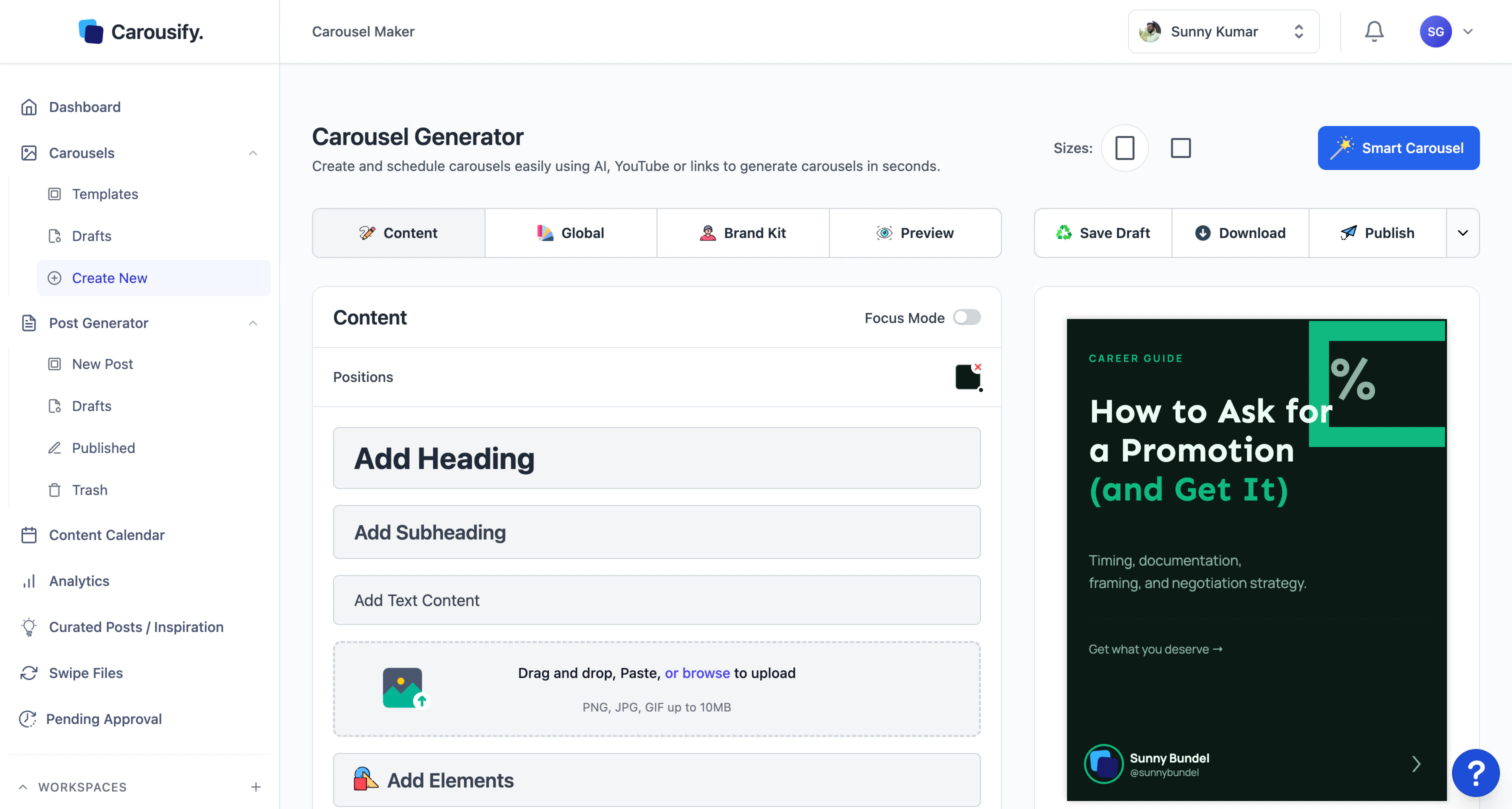
The Carousel Maker is Carousify's visual editor for LinkedIn carousel posts. You can start from a blank canvas, drop in one of the pre-built templates, or let **Smart Carousel** generate a full deck from a topic, link, or YouTube video. Whatever path you start on, you end up in the same editor — slides on the left, live preview on the right, brand kit one click away.
 ## Where to find it
In the left sidebar, open **Carousels › Create New** to start fresh, or **Carousels › Templates** to browse the gallery first. Existing work-in-progress lives under **Carousels › Drafts**.
## Three ways to start
Open a blank deck and add headings, text, images, and shapes slide by slide.
Pick a pre-designed deck and swap in your own copy and colors.
Hand AI a topic, link, or YouTube URL and get a full draft to refine.
## What the editor gives you
* **Sizes** — seven canvas presets, from **Standard** (56:71) and **Portrait** (4:5) through **Square** (1:1), **Landscape** (4:3), **Stories / Reels** (9:16), and **Widescreen** (16:9). Switch at any time and the whole deck reflows. See the [full size table](/carousel-maker/create#sizes).
* **Slide tools** — drag-and-drop to reorder, **Reset Slide** to revert one back to its starting state, and slide-by-slide navigation at the bottom.
* **Elements** — headings, subheadings, body text, images (PNG/JPG/GIF up to 10MB), plus shapes, icons, and decorative elements via **Add Elements**.
* **Tabs** — the editor groups its panels into:
* **Content** — type and design the current slide.
* **Global** — settings that apply across every slide (background, default fonts, footer).
* **Brand Kit** — colors, fonts, and logos saved at the workspace level.
* **Preview** — see how the deck will look on LinkedIn before exporting.
* **Focus Mode** — strips the chrome away when you want to design without distractions.
* **Save Draft / Download / Publish** — top-right at all times. Drafts auto-save as you work, **Download** exports as PDF or PNG set, and **Publish** hands the deck off to the post composer.
## Brand Kit
Every workspace has a Brand Kit — saved colors, fonts, and logos that apply across every carousel you build. Pick the **Brand Kit** tab in the editor to switch between kits or pull the current one's palette into the slide you're working on.
Save the colors, fonts, and logos that should match every deck you build.
## Keyboard shortcuts
The editor is built around shortcuts — press **?** anywhere in the canvas to open the cheat sheet. The ones you'll use most:
| Action | Shortcut |
| ----------------------- | ------------------- |
| Save draft | `⌘ S` |
| Undo / Redo | `⌘ Z` / `⌘ Shift Z` |
| Copy / Paste an element | `⌘ C` / `⌘ V` |
| Group / Ungroup | `⌘ G` / `⌘ Shift G` |
| Lock / Unlock | `⌘ L` |
| Zoom in / out | `⌘ +` / `⌘ -` |
| Fit to viewport | `⌘ 0` |
| Select multiple | `Shift` + click |
## What's next
Walk through a full build — blank canvas, Smart Carousel, and editing each slide.
Browse the gallery and customize a template in minutes.
Save reusable colors, fonts, and logos.
Get LinkedIn-ready PDFs and image sets out of the editor.
## Where to find it
In the left sidebar, open **Carousels › Create New** to start fresh, or **Carousels › Templates** to browse the gallery first. Existing work-in-progress lives under **Carousels › Drafts**.
## Three ways to start
Open a blank deck and add headings, text, images, and shapes slide by slide.
Pick a pre-designed deck and swap in your own copy and colors.
Hand AI a topic, link, or YouTube URL and get a full draft to refine.
## What the editor gives you
* **Sizes** — seven canvas presets, from **Standard** (56:71) and **Portrait** (4:5) through **Square** (1:1), **Landscape** (4:3), **Stories / Reels** (9:16), and **Widescreen** (16:9). Switch at any time and the whole deck reflows. See the [full size table](/carousel-maker/create#sizes).
* **Slide tools** — drag-and-drop to reorder, **Reset Slide** to revert one back to its starting state, and slide-by-slide navigation at the bottom.
* **Elements** — headings, subheadings, body text, images (PNG/JPG/GIF up to 10MB), plus shapes, icons, and decorative elements via **Add Elements**.
* **Tabs** — the editor groups its panels into:
* **Content** — type and design the current slide.
* **Global** — settings that apply across every slide (background, default fonts, footer).
* **Brand Kit** — colors, fonts, and logos saved at the workspace level.
* **Preview** — see how the deck will look on LinkedIn before exporting.
* **Focus Mode** — strips the chrome away when you want to design without distractions.
* **Save Draft / Download / Publish** — top-right at all times. Drafts auto-save as you work, **Download** exports as PDF or PNG set, and **Publish** hands the deck off to the post composer.
## Brand Kit
Every workspace has a Brand Kit — saved colors, fonts, and logos that apply across every carousel you build. Pick the **Brand Kit** tab in the editor to switch between kits or pull the current one's palette into the slide you're working on.
Save the colors, fonts, and logos that should match every deck you build.
## Keyboard shortcuts
The editor is built around shortcuts — press **?** anywhere in the canvas to open the cheat sheet. The ones you'll use most:
| Action | Shortcut |
| ----------------------- | ------------------- |
| Save draft | `⌘ S` |
| Undo / Redo | `⌘ Z` / `⌘ Shift Z` |
| Copy / Paste an element | `⌘ C` / `⌘ V` |
| Group / Ungroup | `⌘ G` / `⌘ Shift G` |
| Lock / Unlock | `⌘ L` |
| Zoom in / out | `⌘ +` / `⌘ -` |
| Fit to viewport | `⌘ 0` |
| Select multiple | `Shift` + click |
## What's next
Walk through a full build — blank canvas, Smart Carousel, and editing each slide.
Browse the gallery and customize a template in minutes.
Save reusable colors, fonts, and logos.
Get LinkedIn-ready PDFs and image sets out of the editor.