> ## Documentation Index
> Fetch the complete documentation index at: https://docs.carousify.com/llms.txt
> Use this file to discover all available pages before exploring further.
# Export and download
> Take a finished deck out of Carousify — as a PDF, an image set, or straight to LinkedIn.
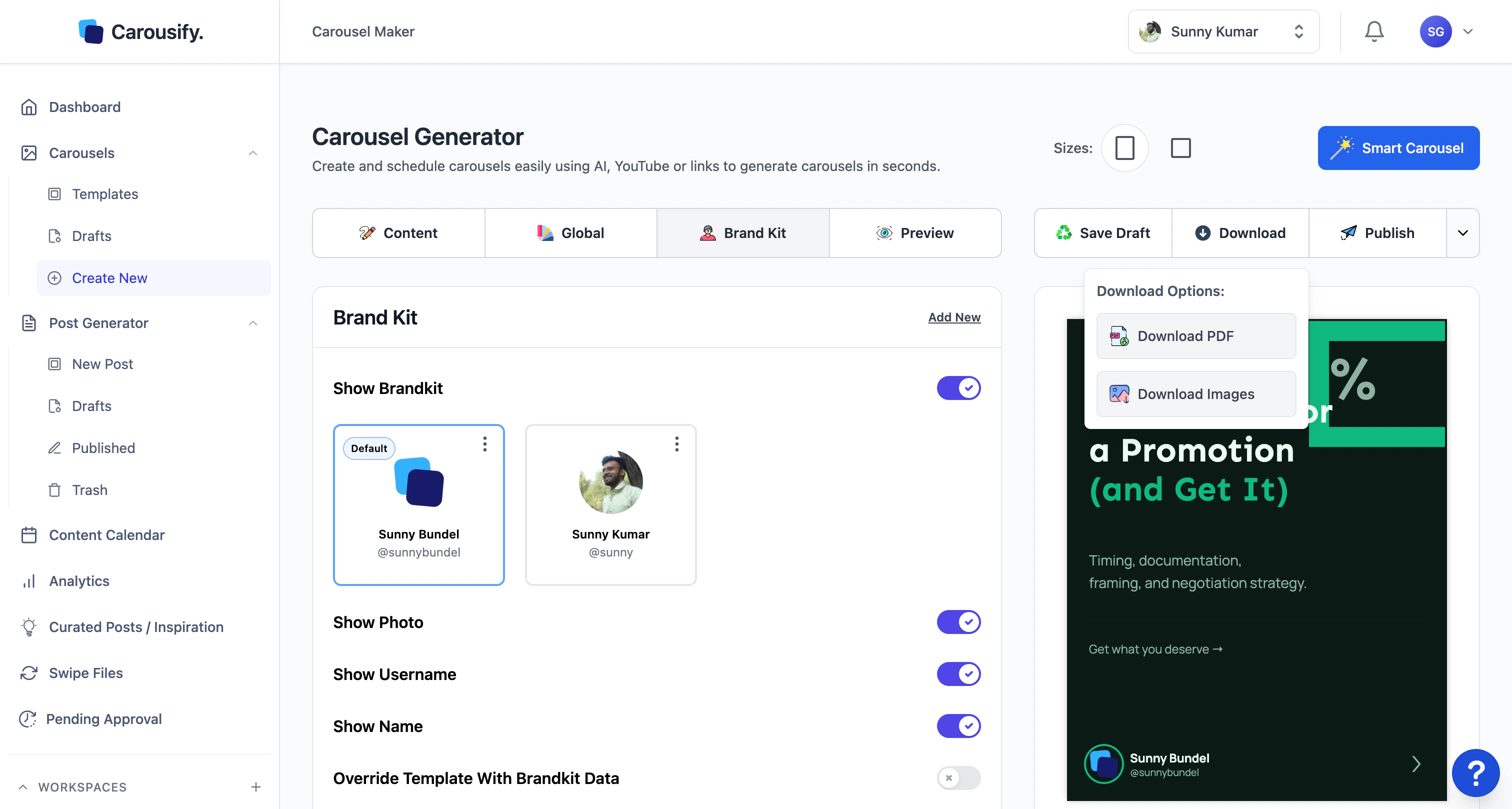
When the deck is ready, the top-right of the editor has everything you need to ship it. There are four paths out of the editor — pick the one that matches where the carousel is going.
 ## Which option to use
| You want to… | Use |
| ------------------------------------------------------- | ------------------------------ |
| Post the carousel on LinkedIn now or schedule it | **Publish** |
| Upload to LinkedIn yourself, or save the file for later | **Download › Download PDF** |
| Post on Instagram, X, a newsletter, or a blog | **Download › Download Images** |
| Re-use this deck as a starting point next time | **⋯ menu › Save as Template** |
## Download PDF
A single PDF with every slide in order — this is the format LinkedIn uses for native carousel posts. Click **Download › Download PDF** and the file drops into your browser's downloads folder.
Posting on LinkedIn yourself? Start a new post, click the **Document** icon, and pick the PDF. LinkedIn renders it as a swipeable carousel automatically.
## Download Images
A zip with one image per slide. Use this for any platform that takes individual images instead of a PDF — Instagram carousels, X threads, newsletters, blog embeds. Slide order is preserved in the filenames.
## Publish to LinkedIn
Click **Publish** and Carousify hands the deck to the **Post Generator** — the same composer you'd use for any LinkedIn post. From there you write the caption, pick the LinkedIn account, and either post now or schedule for later.
Walk through the post composer — caption, account, and scheduling.
## Save as Template
If this deck is one you'll want to start from again, open the **⋯** menu next to **Publish** and pick **Save as Template**.
## Which option to use
| You want to… | Use |
| ------------------------------------------------------- | ------------------------------ |
| Post the carousel on LinkedIn now or schedule it | **Publish** |
| Upload to LinkedIn yourself, or save the file for later | **Download › Download PDF** |
| Post on Instagram, X, a newsletter, or a blog | **Download › Download Images** |
| Re-use this deck as a starting point next time | **⋯ menu › Save as Template** |
## Download PDF
A single PDF with every slide in order — this is the format LinkedIn uses for native carousel posts. Click **Download › Download PDF** and the file drops into your browser's downloads folder.
Posting on LinkedIn yourself? Start a new post, click the **Document** icon, and pick the PDF. LinkedIn renders it as a swipeable carousel automatically.
## Download Images
A zip with one image per slide. Use this for any platform that takes individual images instead of a PDF — Instagram carousels, X threads, newsletters, blog embeds. Slide order is preserved in the filenames.
## Publish to LinkedIn
Click **Publish** and Carousify hands the deck to the **Post Generator** — the same composer you'd use for any LinkedIn post. From there you write the caption, pick the LinkedIn account, and either post now or schedule for later.
Walk through the post composer — caption, account, and scheduling.
## Save as Template
If this deck is one you'll want to start from again, open the **⋯** menu next to **Publish** and pick **Save as Template**.
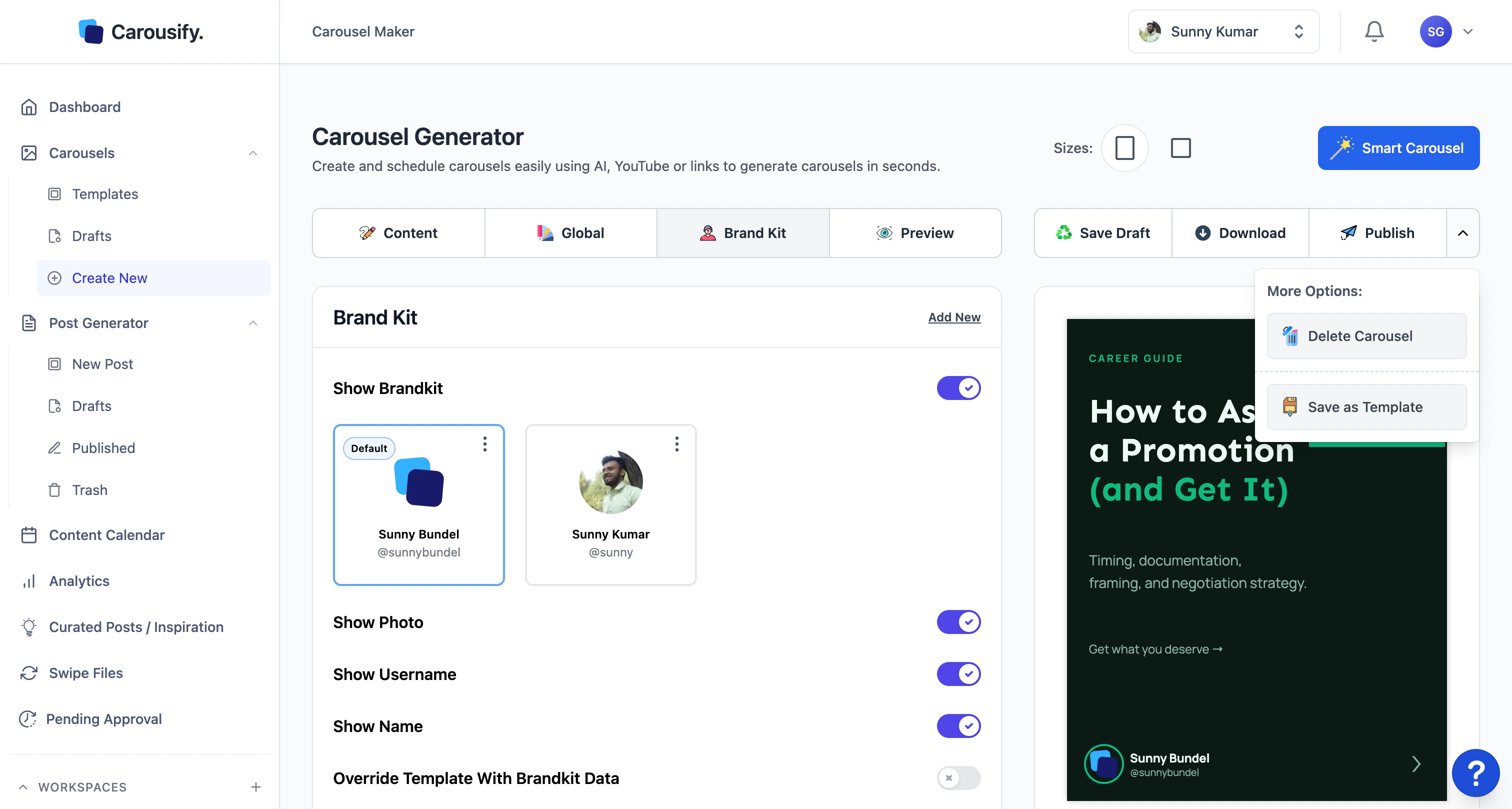 It lands at the top of **Carousels › Templates**, above the Carousify-designed library. Open it like any other template and you're back in the editor.
Templates and drafts are workspace-scoped. Saving a template in one workspace doesn't make it available in another — save it again in each workspace where you'd use it.
## What's next
Pick the LinkedIn account and time when the deck should go live.
Route the post through manager review before it publishes.
Re-use the deck (or your saved templates) for the next post.
Track how the published carousel performs once it's live.
It lands at the top of **Carousels › Templates**, above the Carousify-designed library. Open it like any other template and you're back in the editor.
Templates and drafts are workspace-scoped. Saving a template in one workspace doesn't make it available in another — save it again in each workspace where you'd use it.
## What's next
Pick the LinkedIn account and time when the deck should go live.
Route the post through manager review before it publishes.
Re-use the deck (or your saved templates) for the next post.
Track how the published carousel performs once it's live.