> ## Documentation Index
> Fetch the complete documentation index at: https://docs.carousify.com/llms.txt
> Use this file to discover all available pages before exploring further.
# AI Image Generator
> Generate an image from a text prompt and drop it straight into a carousel slide or a post.
The **AI Image Generator** turns a text prompt into an image you can use right inside Carousify — no separate tool, no upload step. Describe what you want, generate it, and add it to the slide or post you're working on.
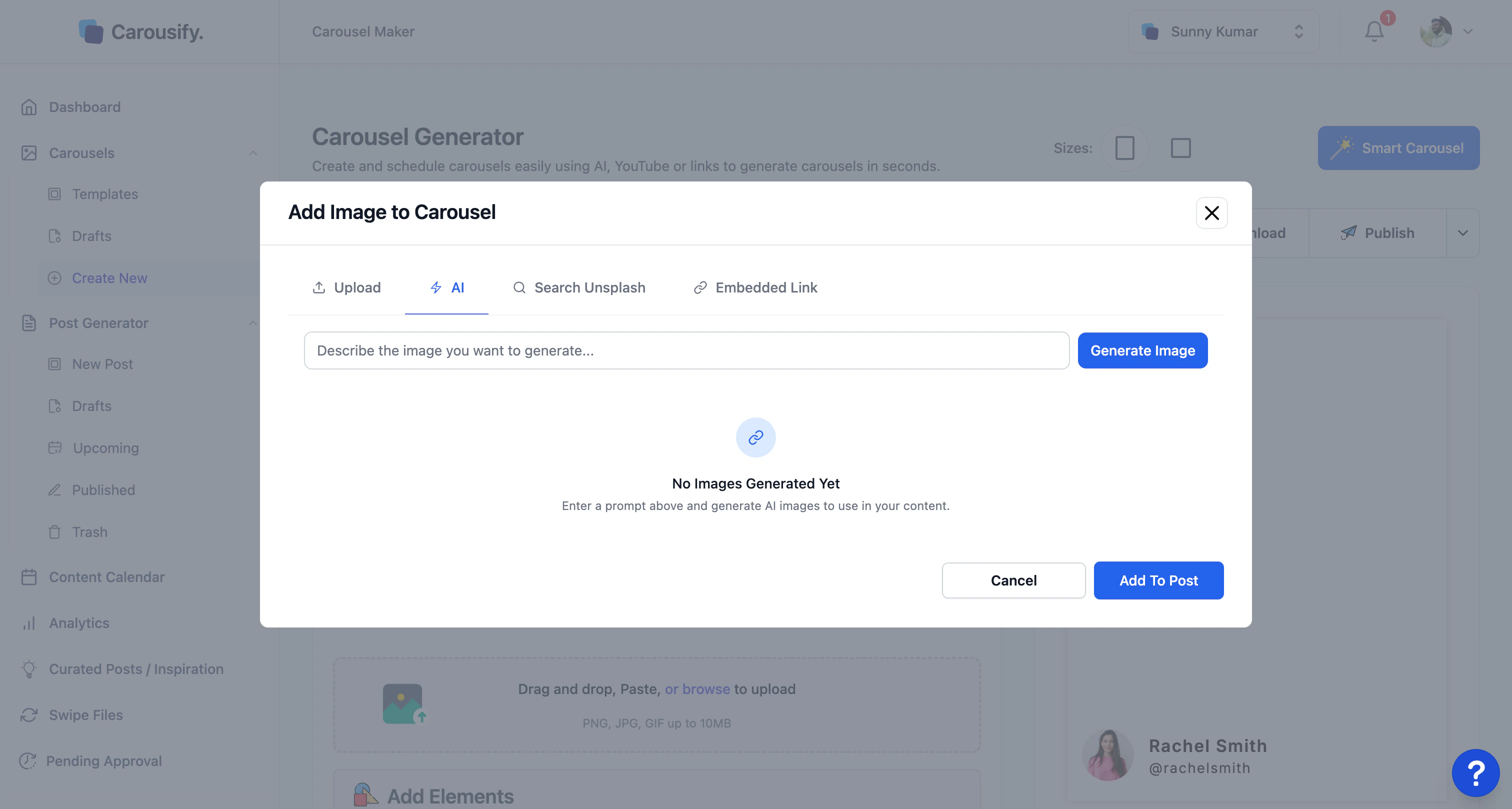
It's the **AI** tab in the image picker — the same picker that has **Upload**, **Search Unsplash**, and **Embedded Link**. So generating an image is just one more way to add one, alongside the options you already use.
## Where to find it
The generator is the **AI** tab inside the image picker. You can open that picker from two places:
| Surface | How to open it |
| ------------------ | ----------------------------------------------------------------------------------------------------------------------------------------------------------------------------- |
| **Carousel Maker** | In the editor's **Content** tab, click the image upload zone (*Drag and drop, Paste, or browse to upload*). The **Add Image to Carousel** modal opens — click the **AI** tab. |
| **Post Generator** | In the [Write Post](/post-generator/write-post) editor toolbar, click **Add Image**. The same picker opens — click the **AI** tab. |
 ## Generate an image
From the Carousel Maker image zone or the Post Generator **Add Image** button, switch to the **AI** tab in the picker.
Type what you want in the **Describe the image you want to generate...** box. Be specific about subject, style, and colour — *minimalist flat illustration of a person climbing a staircase of books, soft blue and white* lands closer than *a success image*.
Click **Generate Image**. The result appears in the panel below the prompt. Not right? Adjust the prompt and generate again — each run adds to the list so you can compare.
Select the image you want and click **Add To Post**. It drops onto the current slide (Carousel Maker) or into the post body (Post Generator), where you can resize and position it like any other image.
Like other AI features, image generation can count toward your plan's usage. See [Plans](/billing/plans) for what your plan includes.
## What's next
Build the deck, then drop a generated image onto any slide.
Add a generated image to a single-image LinkedIn post.
Keep colours and fonts consistent around the images you add.
Get the finished deck out as a PDF or image set.
## Generate an image
From the Carousel Maker image zone or the Post Generator **Add Image** button, switch to the **AI** tab in the picker.
Type what you want in the **Describe the image you want to generate...** box. Be specific about subject, style, and colour — *minimalist flat illustration of a person climbing a staircase of books, soft blue and white* lands closer than *a success image*.
Click **Generate Image**. The result appears in the panel below the prompt. Not right? Adjust the prompt and generate again — each run adds to the list so you can compare.
Select the image you want and click **Add To Post**. It drops onto the current slide (Carousel Maker) or into the post body (Post Generator), where you can resize and position it like any other image.
Like other AI features, image generation can count toward your plan's usage. See [Plans](/billing/plans) for what your plan includes.
## What's next
Build the deck, then drop a generated image onto any slide.
Add a generated image to a single-image LinkedIn post.
Keep colours and fonts consistent around the images you add.
Get the finished deck out as a PDF or image set.