> ## Documentation Index
> Fetch the complete documentation index at: https://docs.carousify.com/llms.txt
> Use this file to discover all available pages before exploring further.
# Link tracking
> Automatically shorten and track the links in your LinkedIn posts to see which posts and links drive clicks.
When you publish a LinkedIn post that contains a link, Carousify shortens and tracks it automatically — there's no manual step. Post as usual, and every link becomes a tracked short link, so you can see which posts and links actually pull clicks and attention instead of guessing.
Link tracking is available on **Business** and **Enterprise** plans. See [Plans and pricing](/billing/plans).
Link tracking is configured per workspace — turn it on in each workspace where you want it.
## How it works
* You publish a LinkedIn post with one or more links.
* Carousify replaces each link with a tracked short link automatically.
* Every click is recorded with location, device, and browser.
* You review performance on the Link Tracking dashboard.
## Turn it on
Open **Manage Workspace › General** and find the **Link Tracking** section.
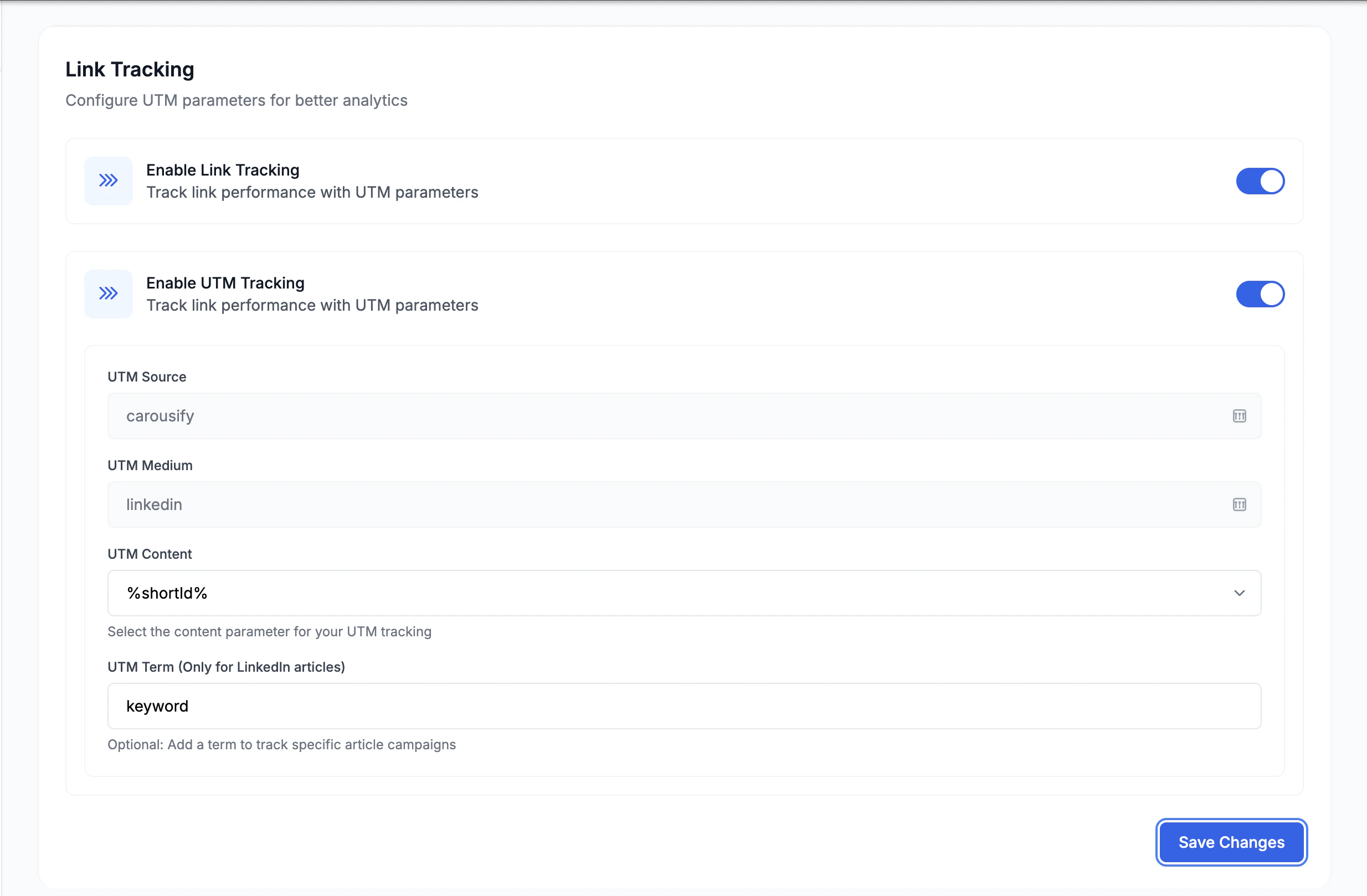 The master toggle. Turns on tracked short links for every link you post from this workspace.
Appends UTM parameters to each link so clicks also show up in your own analytics (Google Analytics, etc.):
| Field | Default | What it is |
| --------------- | ----------- | ------------------------------------------------------ |
| **UTM Source** | `carousify` | The traffic source label. |
| **UTM Medium** | `linkedin` | The channel label. |
| **UTM Content** | `%shortId%` | A unique ID per link, so each link is distinguishable. |
| **UTM Term** | `keyword` | Optional. Only applies to LinkedIn articles. |
Tracking applies to posts you publish from now on.
## Read the analytics
Open **Link Tracking** in the left sidebar.
The master toggle. Turns on tracked short links for every link you post from this workspace.
Appends UTM parameters to each link so clicks also show up in your own analytics (Google Analytics, etc.):
| Field | Default | What it is |
| --------------- | ----------- | ------------------------------------------------------ |
| **UTM Source** | `carousify` | The traffic source label. |
| **UTM Medium** | `linkedin` | The channel label. |
| **UTM Content** | `%shortId%` | A unique ID per link, so each link is distinguishable. |
| **UTM Term** | `keyword` | Optional. Only applies to LinkedIn articles. |
Tracking applies to posts you publish from now on.
## Read the analytics
Open **Link Tracking** in the left sidebar.
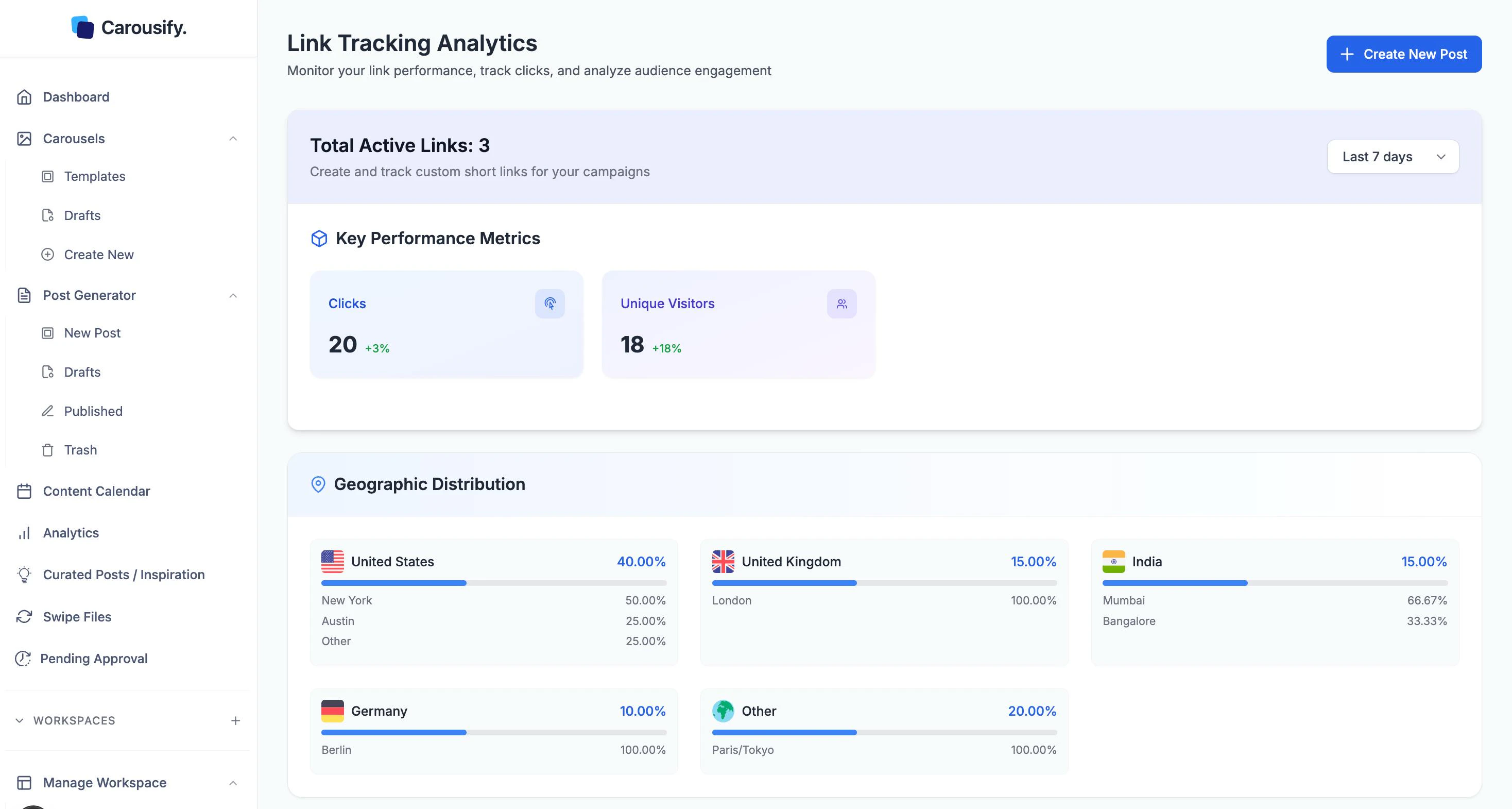 Pick a range at the top right (e.g. **Last 7 days**) — every number recalculates against it.
* **Total Active Links** — how many tracked links are currently live.
* **Key Performance Metrics** — **Clicks** and **Unique Visitors**, each with the change versus the previous period.
* **Geographic Distribution** — clicks by country, broken down to city.
* **Browser & Device Analysis** — share of clicks by browser, and by device (mobile / desktop / tablet).
* **Link History** — every tracked link with its destination, total clicks, unique clicks, created date, and actions to copy, view, or edit it.
## What's next
Connection growth and per-post performance for each account.
Queue posts with links and watch the clicks come in.
Draft a post with a link to track.
Turn link tracking on per client workspace.
Pick a range at the top right (e.g. **Last 7 days**) — every number recalculates against it.
* **Total Active Links** — how many tracked links are currently live.
* **Key Performance Metrics** — **Clicks** and **Unique Visitors**, each with the change versus the previous period.
* **Geographic Distribution** — clicks by country, broken down to city.
* **Browser & Device Analysis** — share of clicks by browser, and by device (mobile / desktop / tablet).
* **Link History** — every tracked link with its destination, total clicks, unique clicks, created date, and actions to copy, view, or edit it.
## What's next
Connection growth and per-post performance for each account.
Queue posts with links and watch the clicks come in.
Draft a post with a link to track.
Turn link tracking on per client workspace.